

Whether your machine is very recent or not, a PC can start to show signs of weakness after only a few months of use. Depending on what you do with it, but also the environment in which you operate, many factors can influence the health of your machine.
As soon as the first slowdowns are felt, it is advisable to take the lead, check several points and take certain measures to prevent the situation from getting worse. To do this, you do not need to have advanced knowledge. You will find in the following lines the recommendations to follow to try to give a second youth to your PC under Windows 11.
1. Restart your PC
If your PC is increasingly slow, before attempting any manipulation, start by restarting it. Daily use, without switching off, can indeed be the main reason for a sudden slowdown. To avoid having to perform the operation manually on a regular basis, you can always use the Windows task scheduler to schedule an automatic restart of your PC.
2. Clean your machine
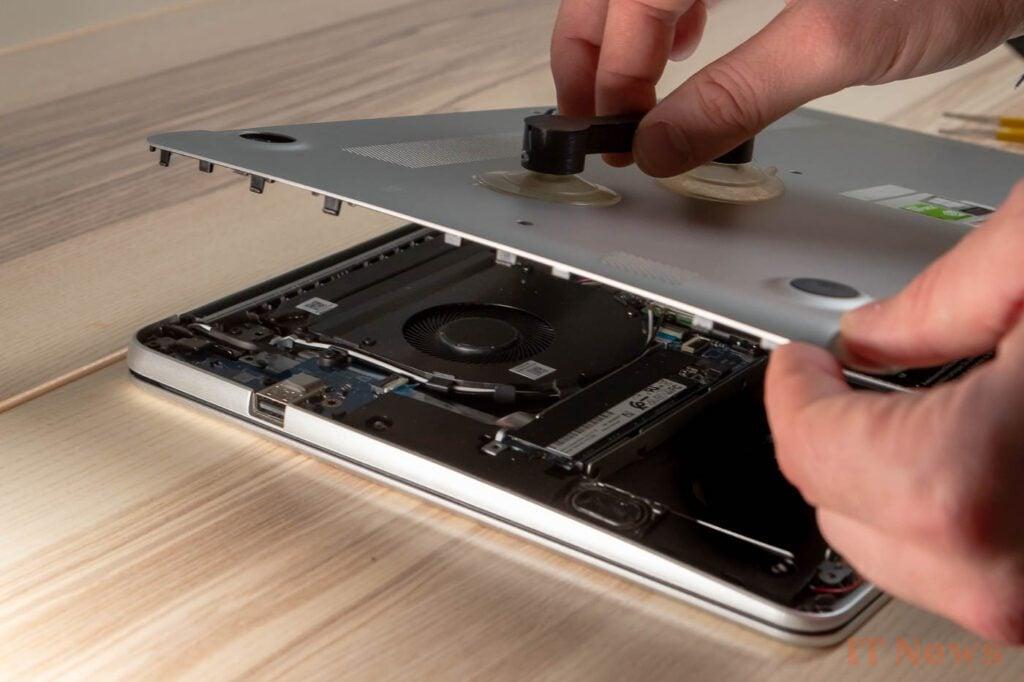
The towers of our PCs all have one thing in common: they don't like dust. Over the months, and depending on your installation, your machine can store more or less dust, which will automatically have a negative impact on the performance of your PC. Too much dust will prevent the components of your machine from cooling properly, causing the fan used for heat dissipation to run at full speed.
So remember to regularly open your computer to access its insides in order to gently clean the dust that has settled there. You can use a computer dusting can, an air compressor, or do it gently with a brush. Be sure to free the fan of any dust. Note that this dusting maintenance can also be applied to portable machines. However, you will need to be equipped with the right tools to unscrew the shell, and be extra careful once the cover is removed so as not to damage any internal components.
3. Change the Power Mode
On a laptop, performance may vary depending on the power mode you set. When your PC is running on battery power, Windows will generally prioritize battery life over performance. When connected to the mains, however, your machine has three power modes: Best energy efficiency, Normal use and High performance.
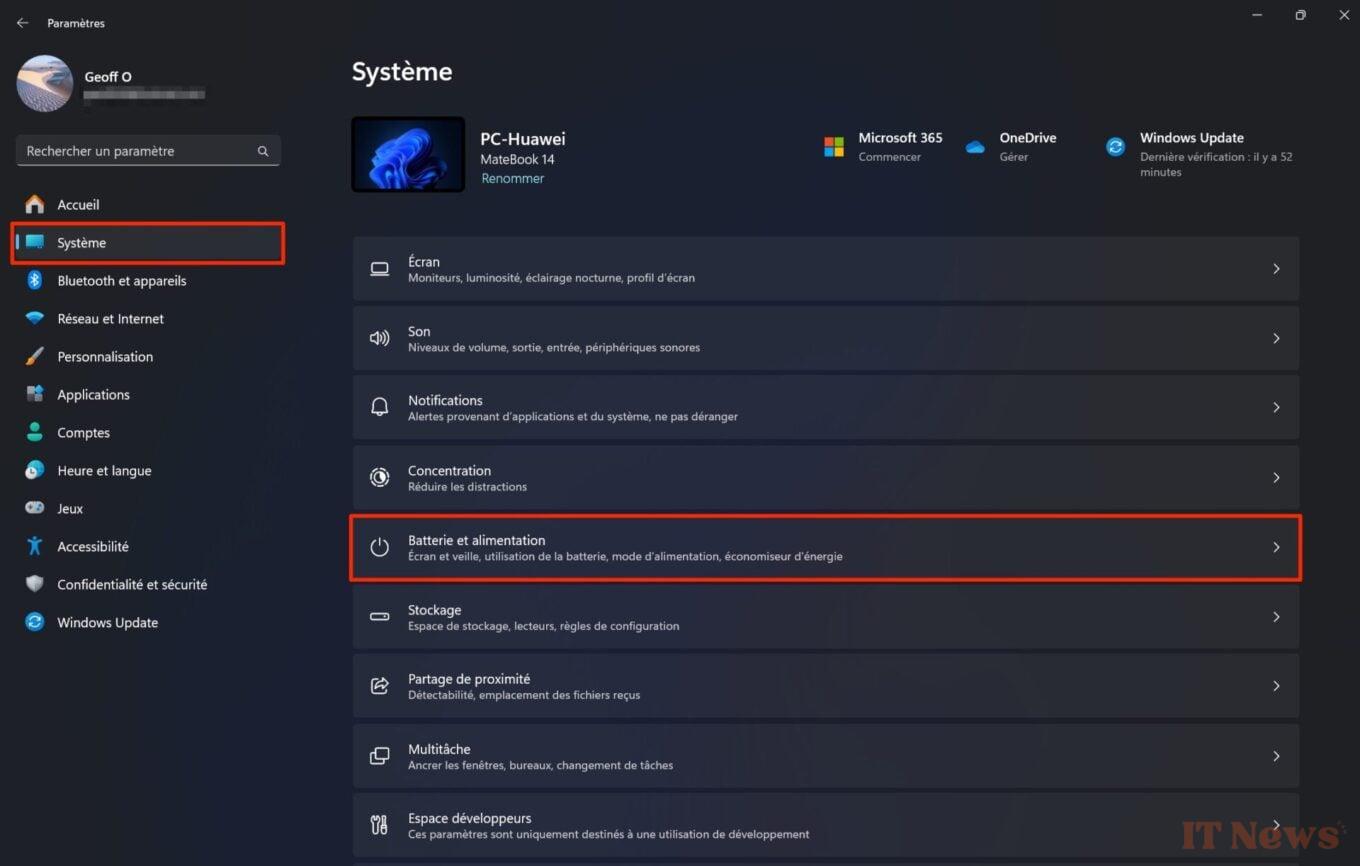
If you need to perform tasks that require optimal performance, you should adjust the power mode selected by default on your PC. To do this, go to Windows Settings using the keyboard shortcut Windows + i. Select System in the left column, then enter the Battery and Power menu.
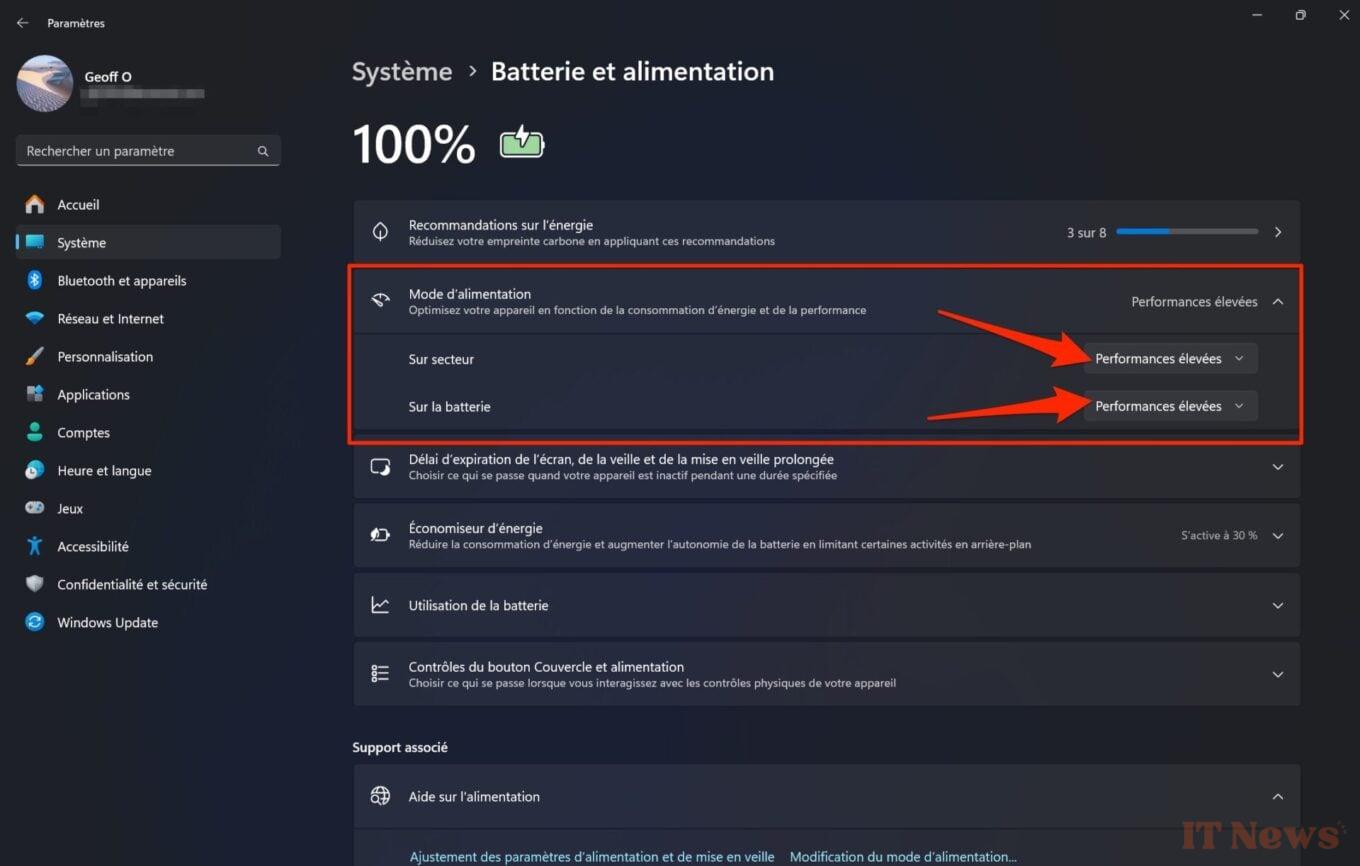
Expand the Power Mode line, and click on the associated drop-down menus to select the Performance option high.
4. Eradicate malware
A slow machine can also be a sign of malware. While Windows Defender, the native antivirus of Windows 11, automatically detects and blocks the majority of threats, sometimes malware slips through the cracks.
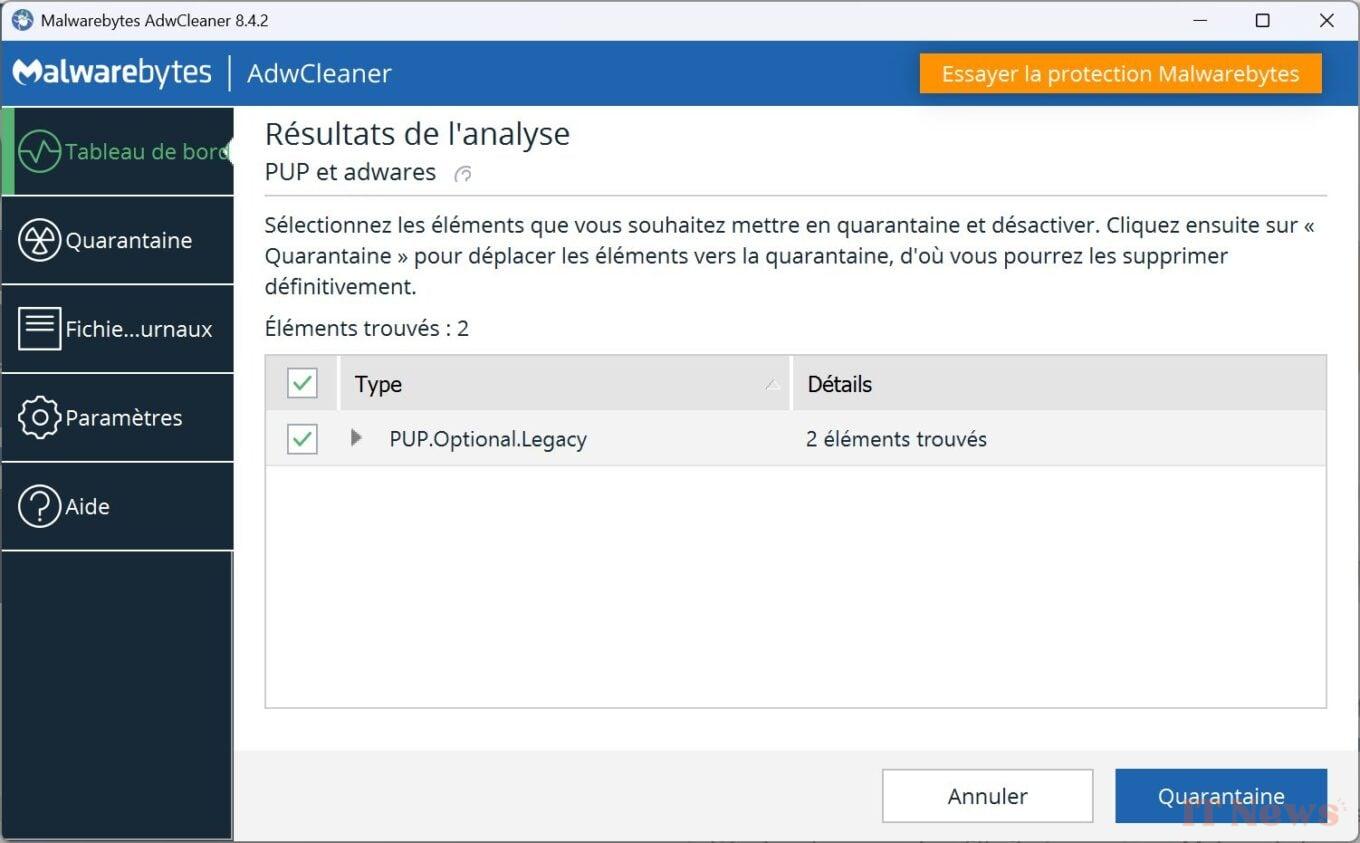
In addition, you can run an antivirus scan using the free version of Malwarebytes Anti-Malware software. Don’t hesitate to also run a scan with ADWCleaner, from the same publisher, which will identify and block suspicious elements present on your PC.
5. Disable startup applications
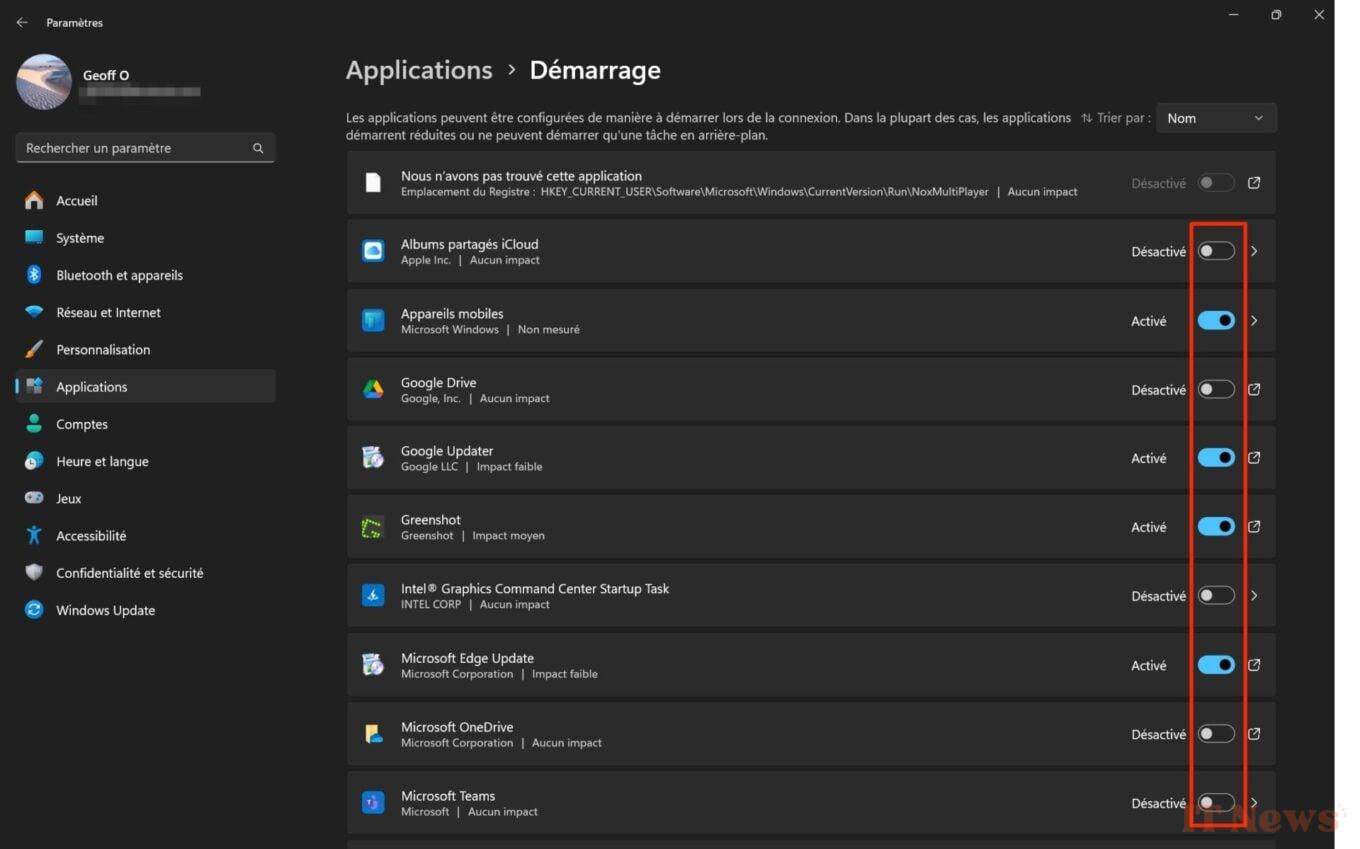
Is your PC slower to start than when you took it out of the box on day one? Over the months, and as you install applications, it is very likely that some of them have taken the liberty of running automatically in the background when your PC starts up. To avoid cannibalizing your computer’s resources, it’s best to limit the applications that are allowed to run when Windows starts.
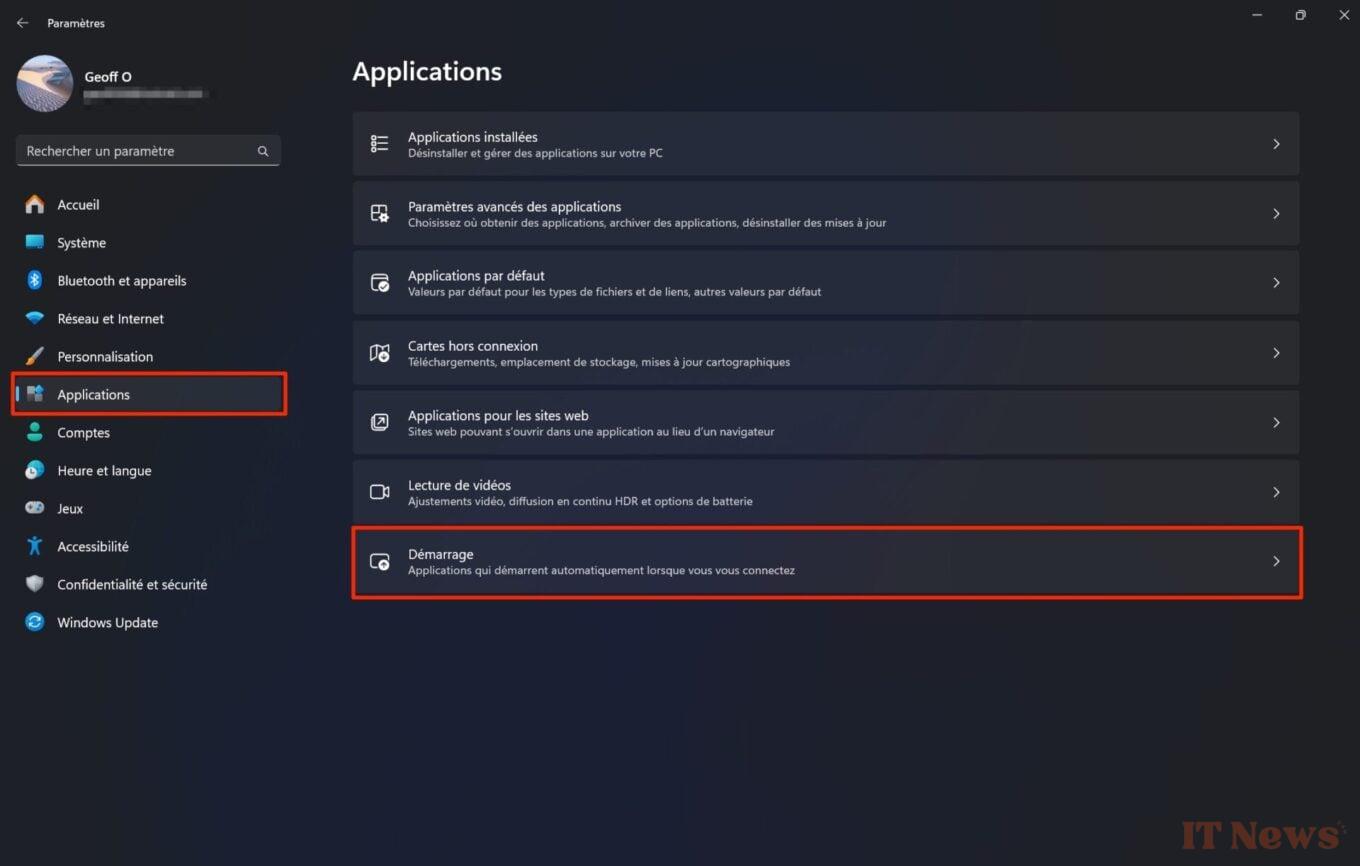
To do this, open Windows 11’s Settings using the Windows + i keyboard shortcut, select Applications in the sidebar, and enter the Startup menu at the bottom of the window.
Then disable all applications that you do not need when Windows starts.
6. Uninstall Unused Apps
There's a good chance that your machine has apps that you never use. To prevent them from updating, taking up unnecessary storage, or running in the background when you don’t need them, it’s best to get rid of them.
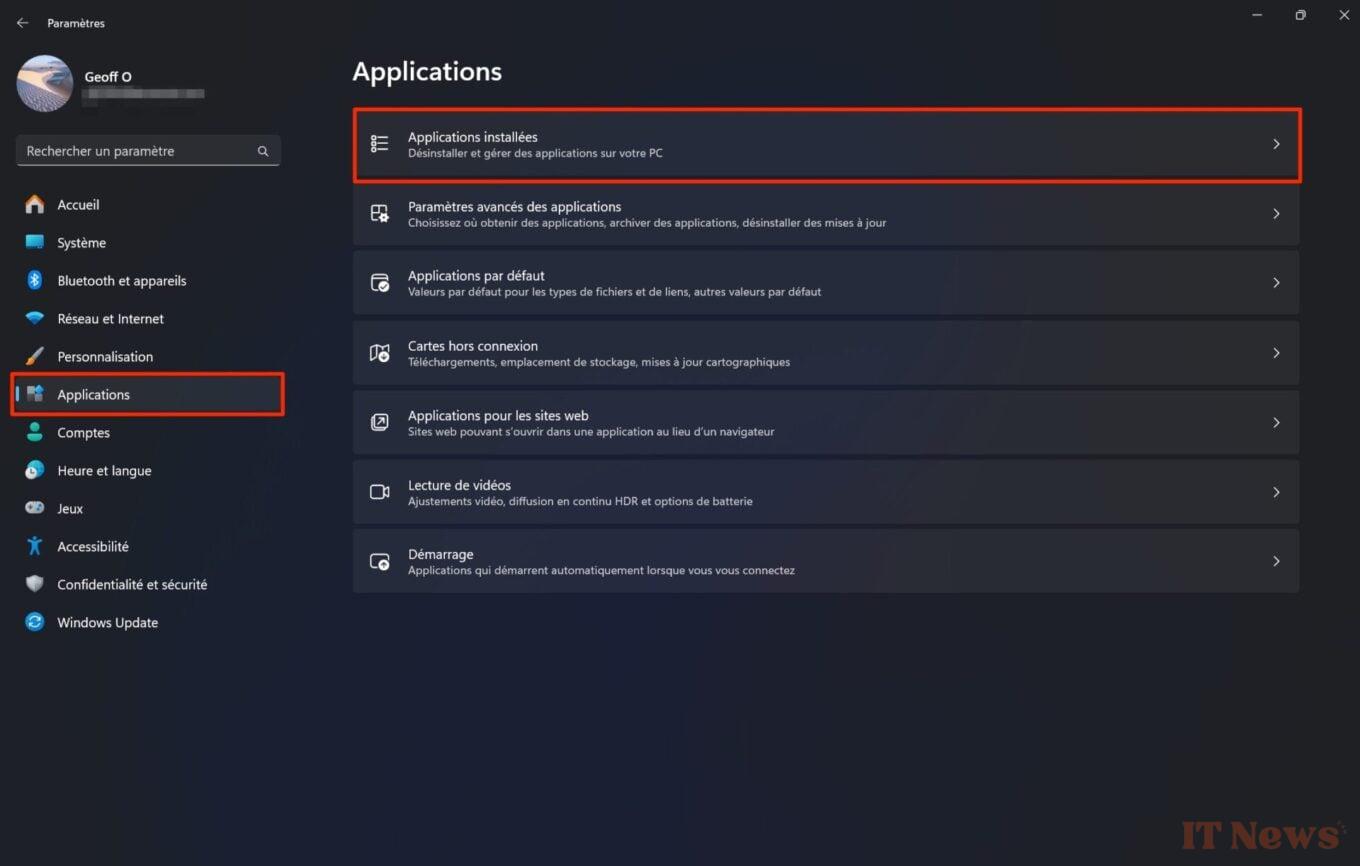
To do this, open the Settings of Windows 11, select Applications in the left column, then enter the Installed applications menu.
Then identify the programs you don't need, click on the options button, represented by three small dots, and click on Uninstall to remove the application.
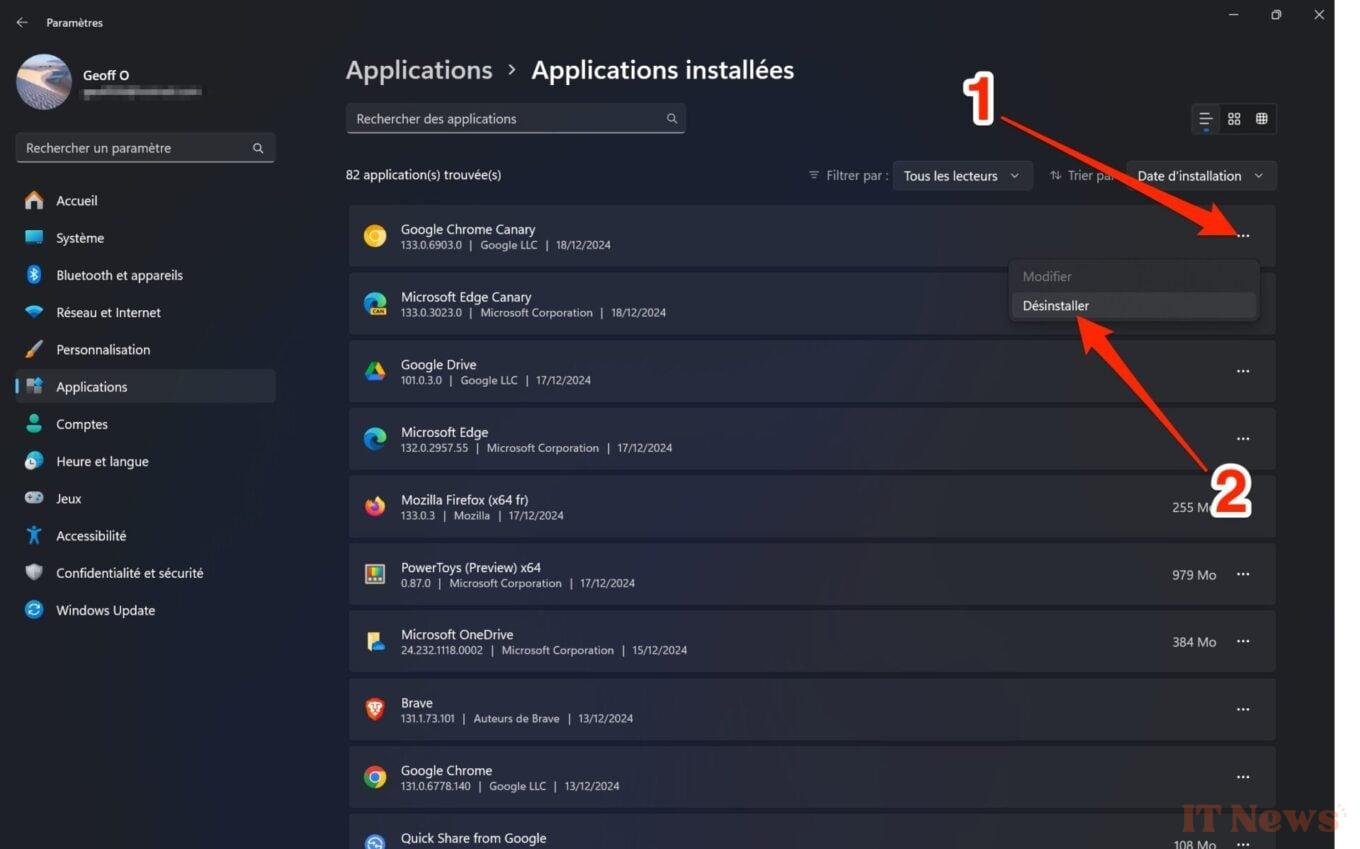
Repeat the maneuver for all the applications that you do not use, or no longer use.
7. Activate the Storage Sense
A hard drive that is a little too cluttered can also be the cause of slowdowns on your PC. Fortunately, Microsoft natively offers several disk cleaning tools in Windows 11.
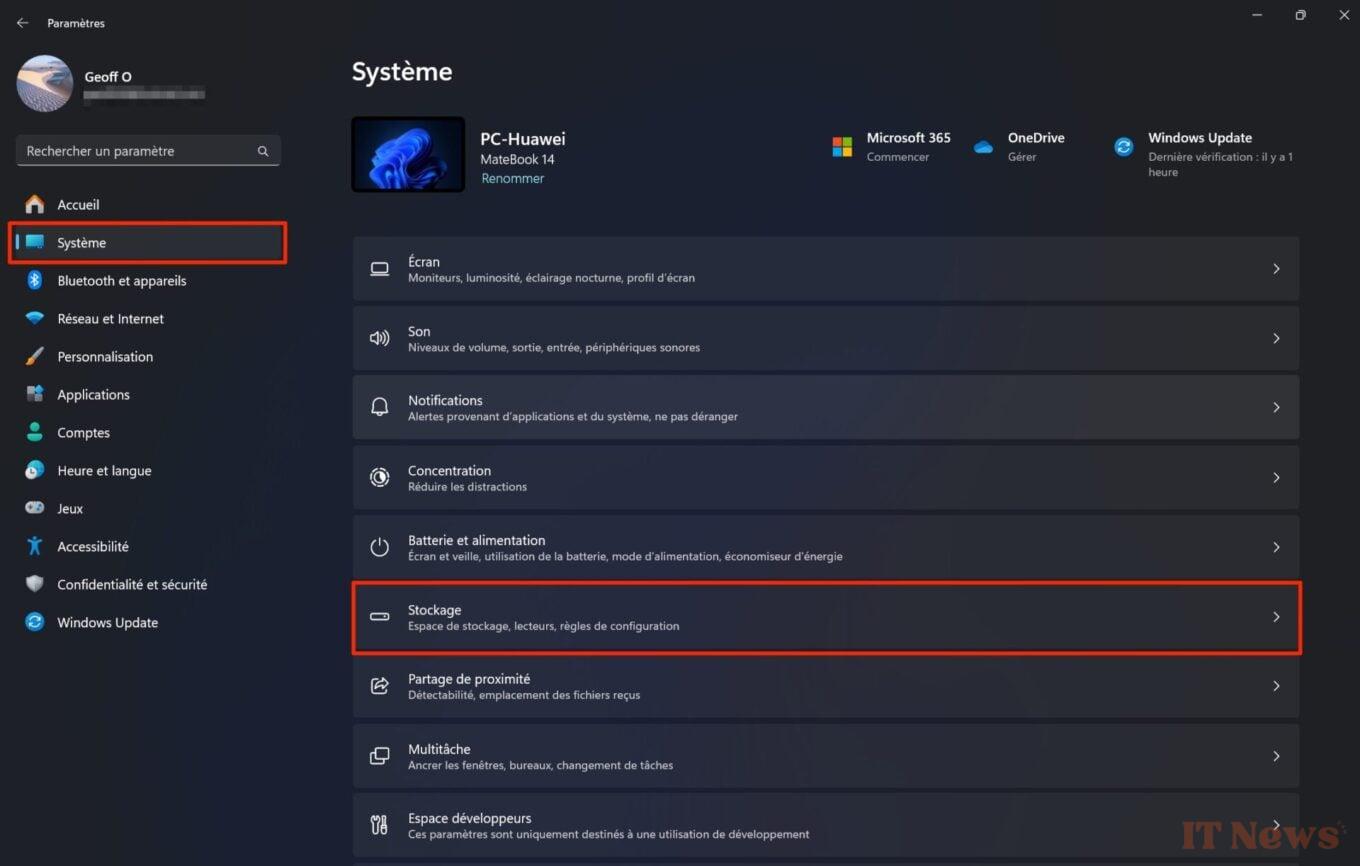
To find the first one, go to Settings (using the keyboard shortcut Windows + i), then in System, access the menu dedicated to Storage.
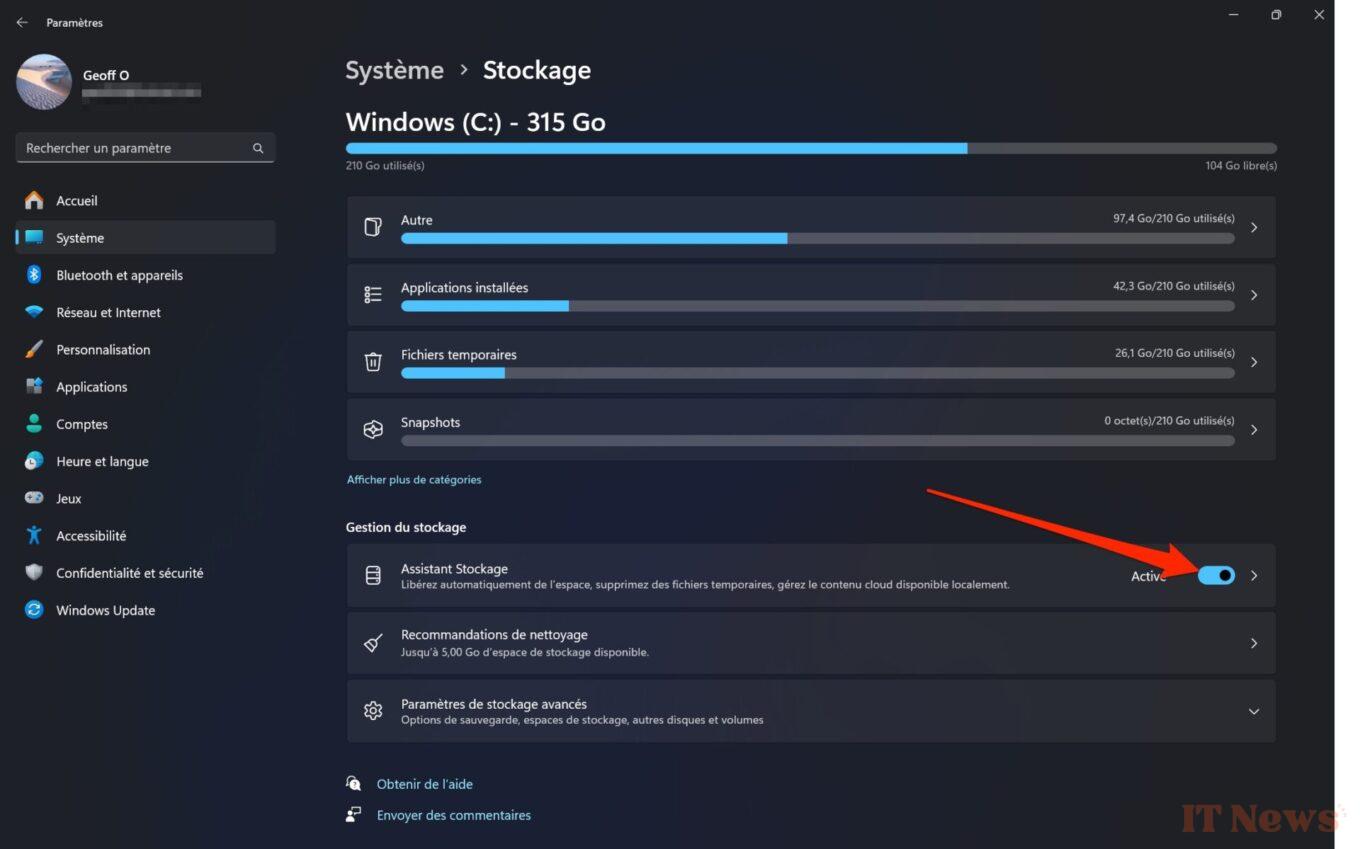
At the bottom of the window, in the section dedicated to Storage Management, make sure that the Storage Sense option is activated. With it, Windows 11 will automatically free up space, notably by deleting temporary files and allowing you to better manage the content stored on the Cloud and available locally on your PC.
Then click directly on the Storage Assistant menu. The page that appears allows you to Configure Windows cleaning schedules. Select in turn the duration after which Run the Cleaning Assistant, Delete files from the Recycle Bin or Delete files from the Downloads folder.
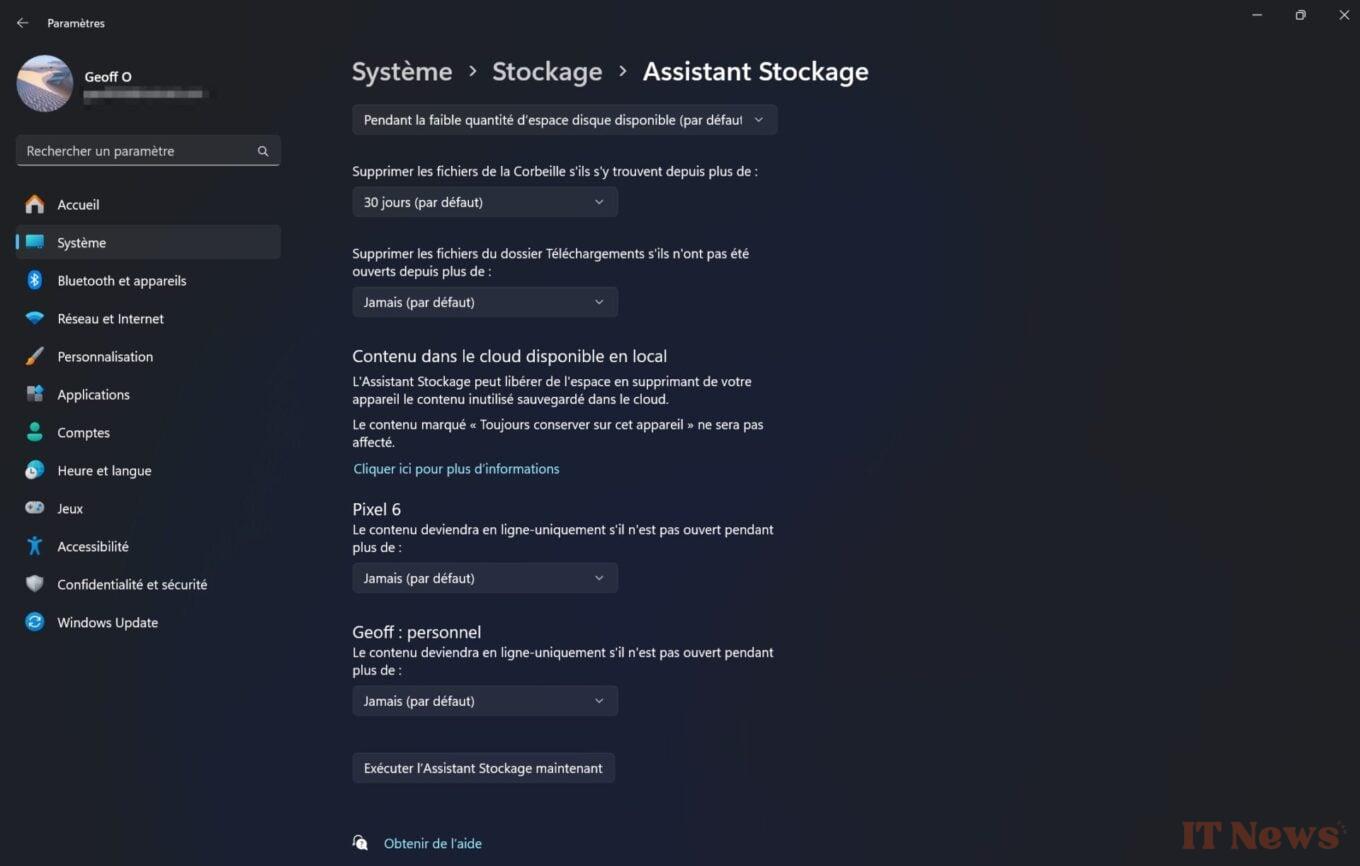
You can, if you wish, choose to Run the Storage Assistant now by clicking on the button suitable present at the very bottom of the window.
8. Apply the cleaning recommendations
To complete the work automatically performed by the Windows Storage Assistant, you can follow the Cleaning recommendations suggested by Windows 11.
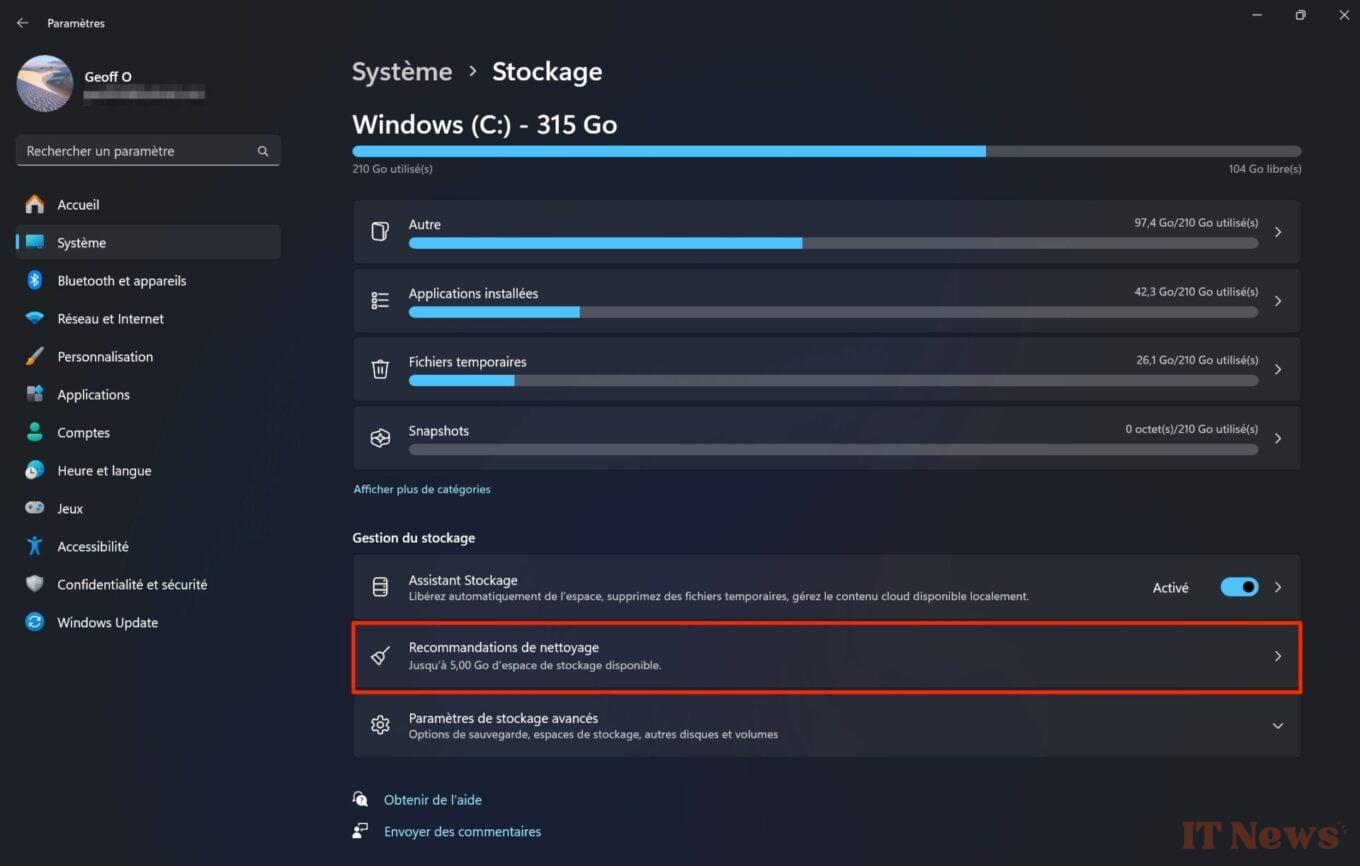
To do this, click on the dedicated menu and deploy all the proposed submenus: Temporary files, Large or unused files, Files synchronized with the cloud, and Unused applications.
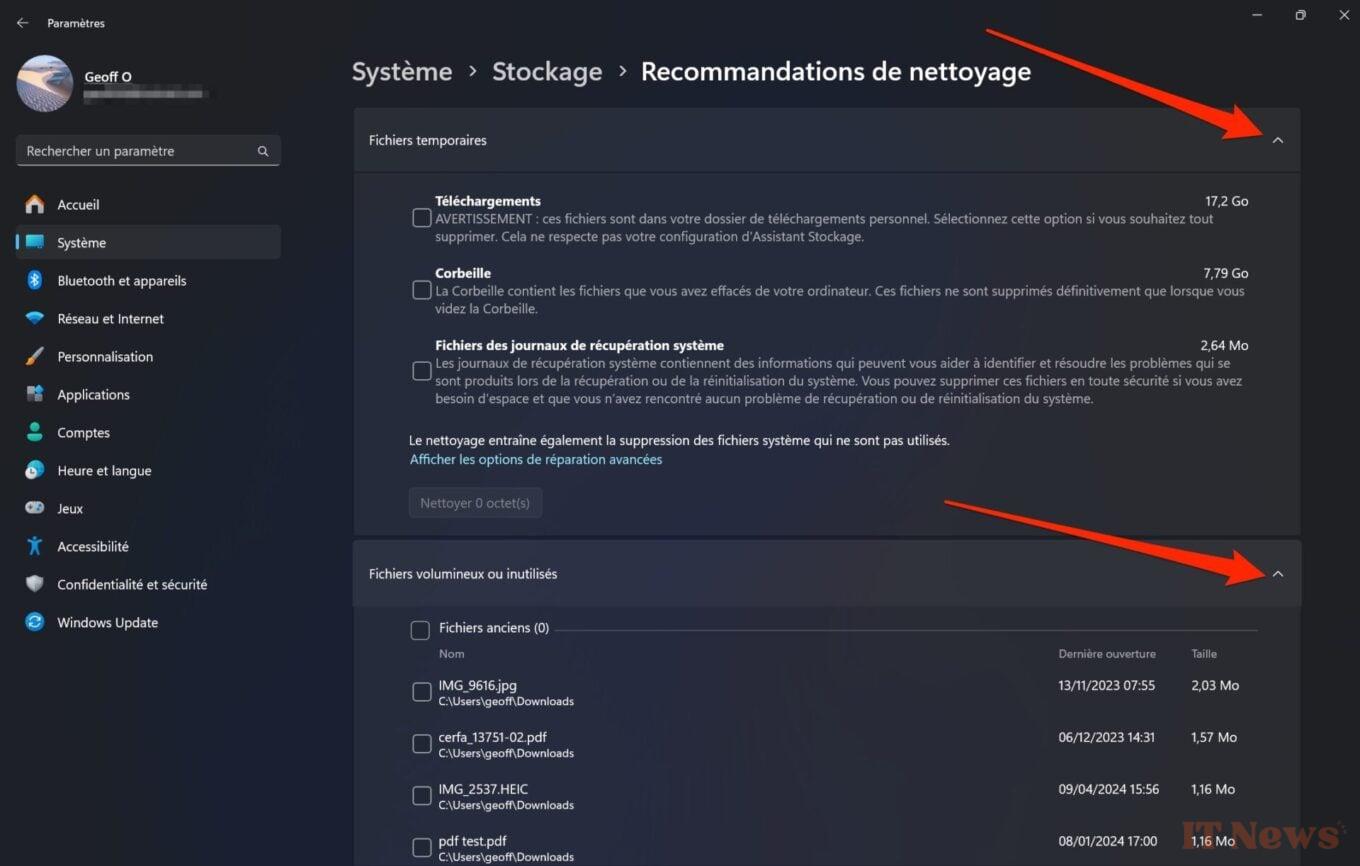
Then select each of the items that you no longer think you need and click Clean.
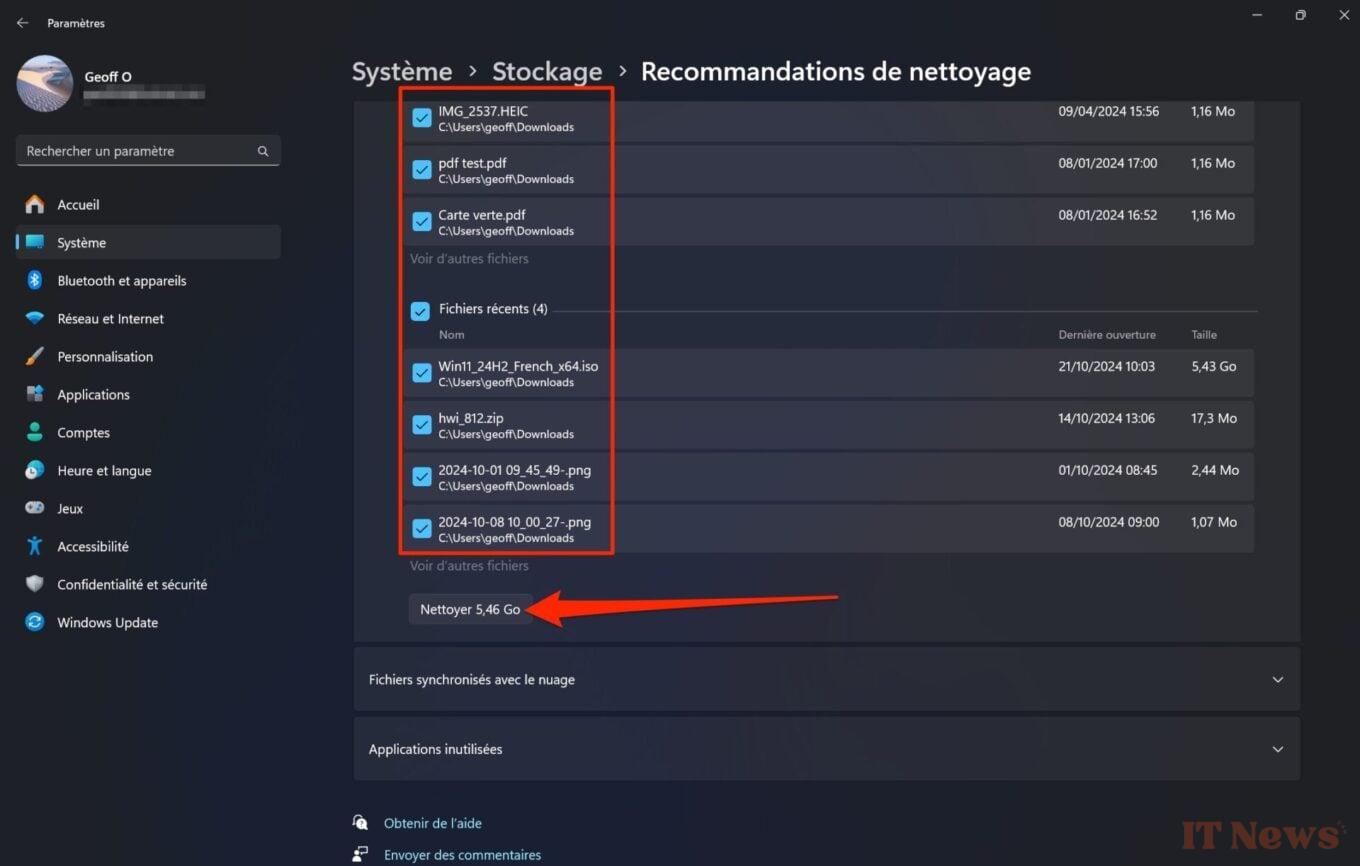
Repeat the operation for each of the suggested items. In most cases, this will allow you to recover several gigabytes of space on your storage.
9. Limit visual effects
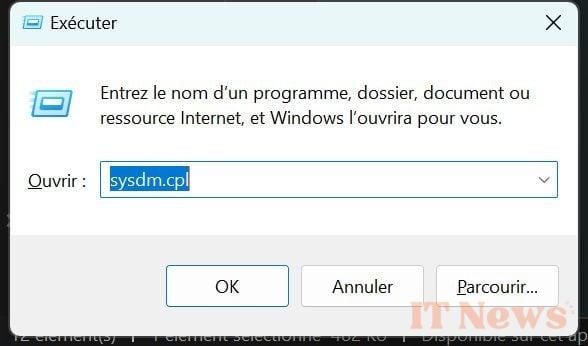
If your machine is modestly configured, it may be better to limit the use of potentially resource-intensive visual effects. To do this, use the keyboard shortcut Windows + R, then in the Run window that appears, type sysdm.cpl and confirm by clicking OK.
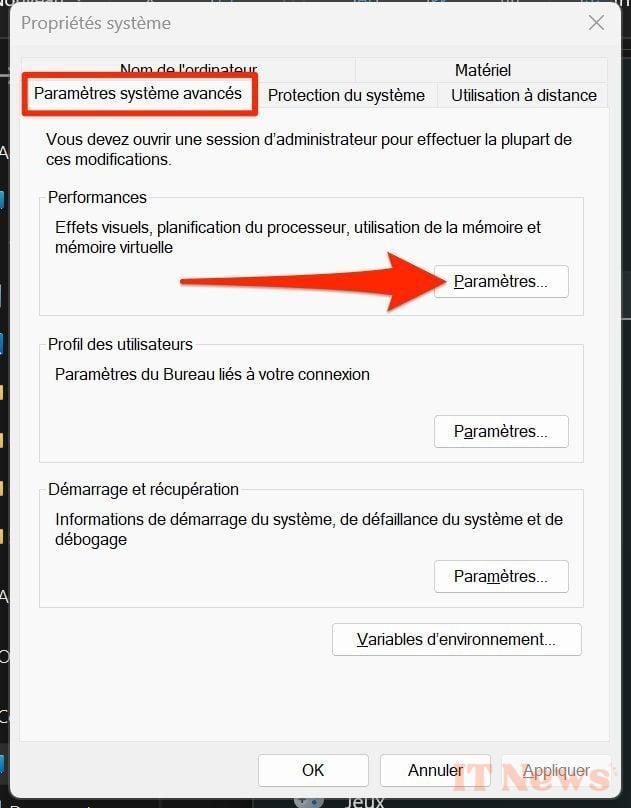
In the System Properties window that appears, go to the Advanced system settings tab, then click the Settings button.
Then choose the Adjust to get the best results option. performance and confirm by clicking on OK.
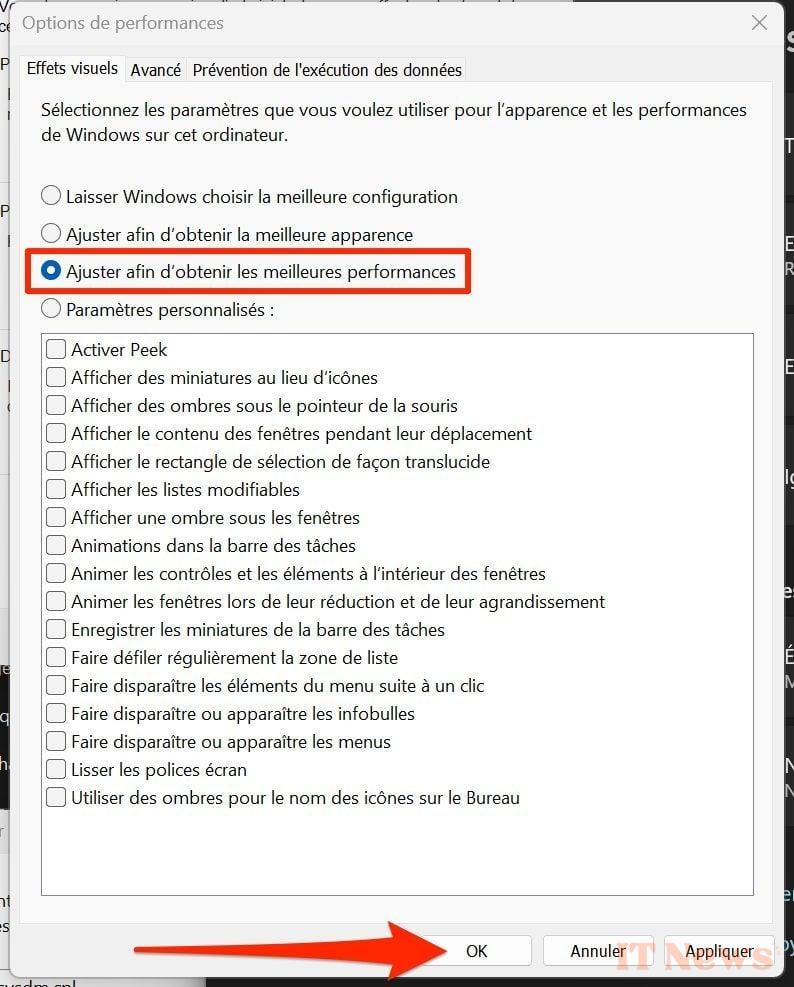
Windows 11 will then disable all superfluous interface elements that can have a negative impact on the performance of your machine. Be careful, however, some Windows 11 interface elements may be less attractive to the eye…
10. Install an SSD
If your tower or laptop still runs on a mechanical hard drive, it's probably time to upgrade a bit. There's nothing like upgrading your system to an SSD to enjoy fast boot times and better responsiveness.
After choosing the SSD that matches your machine's configuration and your expectations, all you have to do is clone your existing system onto it. Finally, you can simply install your SSD in place of your PC's current drive to get your machine back in top shape. You can also consider doing a clean install of the latest Windows 11 update.
11. Reset your machine
If the above-mentioned operations are not enough to give your machine a sufficient boost, you will probably have to consider a slightly more radical solution: resetting your machine. The operation, which is within everyone's reach, is described in detail in the link below.
Windows 11: how to reset your PC?
Before carrying out this operation, do not forget to save all of your data and important documents. Several solutions are available to you for this: by using a cloud storage service, or by copying all of your files directly onto an external hard drive or USB key.


0 Comments