
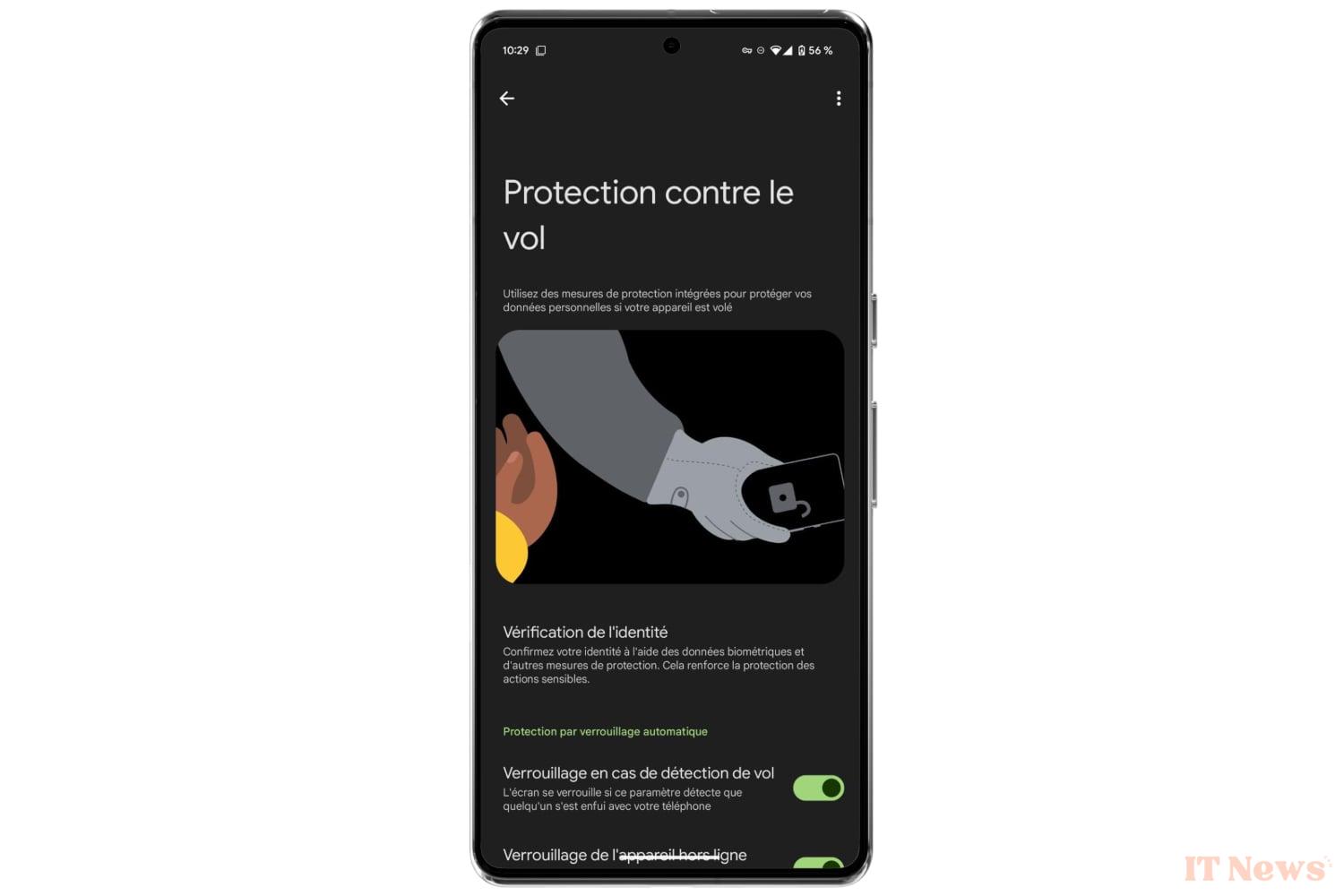
A week ago, Google announced the arrival of a new security feature for Android: Identity Verification, also called Identity Check, in English. With this additional layer of security, which complements the Anti-Theft protection of Android 15, Google intends to protect your smartphone from modifications that could compromise its security and the security of your data.
Concretely, this system makes it possible to force the user to authenticate themselves when they try to modify settings or access sensitive data on the device. A radical solution to make a stolen device unusable. Its implementation, ultra-simple, will only take you a few minutes.
1. Go to Settings
Open the Settings of your Pixel and go to the Security and confidentiality menu. Under the Security heading, then select Device unlock and enter the section dedicated to Theft protection. And select the Identity verification option.
2. Set up identity verification
The Identity Verification module setup wizard should then open. Tap Next, at the bottom right, and check that each element displayed (Sign in to your Google account, Screen lock, Biometrics, Verified locations, Verified phone number) is validated. If this is not the case, enter each section in turn and follow the instructions displayed.
In our case, we only had to add our verified locations and validate our phone number. Then tap Finish to save your settings.
Identity verification is now enabled on your Pixel smartphone. From now on, every time you try to access the most sensitive data or settings on your smartphone, you will be asked for biometric authentication (fingerprint, facial recognition, etc.). This will be the case, for example, if you try to access your saved access keys and passwords, if you try to change your PIN code or disable the Find My Device function.
In addition, this additional layer of security should make it more difficult for a third party to take control of your Google accounts on your smartphone. A thief who has taken possession of your precious will not, a priori, be able to try to reset your device or disconnect your Google accounts from it.


0 Comments