
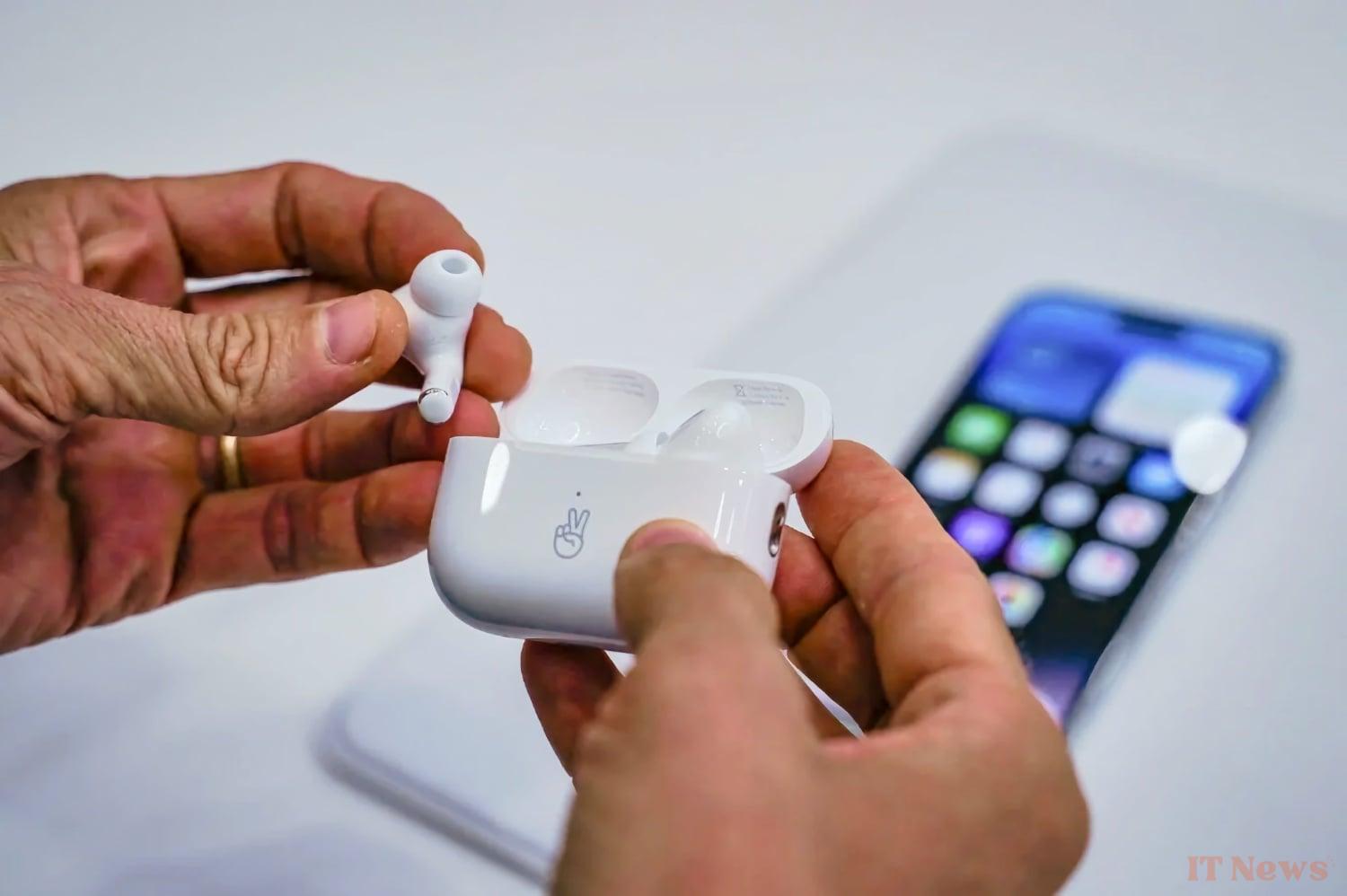
All things come to those who wait. In the case of AirPods firmware updates, the wait has been very long! Until now, only empirical methods seemed to give results, but this remained rather esoteric. The operation is supposed to be carried out automatically, but the impossibility of launching it "by hand" (as on iPhone and Mac) and the deployment in waves could generate some frustration.
AirPods that take their time to update
Apple still does not provide a button to "force" the download and installation of an AirPods firmware update. However, the manufacturer finally provides a guide to apply the new versions of the software. It would be more convenient if there was a button or interface to control the procedure, but it’s better than nothing.
Here are the translated instructions (Apple hasn’t localized them in French yet):
- Make sure your AirPods are within Bluetooth range of your iPhone, iPad, or Mac that’s connected to a Wi-Fi network;
- Place your AirPods in their charging case and close the lid;
- Plug the charging cable into your case, then connect the other end of the cable to a USB charger or USB port;
- Keep the charging case lid closed and wait at least 30 minutes for the firmware to update;
- Open the charging case lid to reconnect your AirPods to your iPhone, iPad, or Mac;
- Check the firmware version again.
For To find out the firmware version number, go to the iPhone settings, tap the small “i” icon (for “information”) in the Bluetooth settings, opposite the connected AirPods. Then, by tapping “About”, you can view the information. The current firmware version is 7B21.
If this does not work (it can happen), Apple recommends resetting the AirPods and trying again. The process is time-consuming and there is no guarantee that the firmware will install! It is often better to be patient and cross your fingers that the software updates automatically — it always ends up happening.


0 Comments