

ChatGPT, Llama, Mistral, DeepSeek… the large language models (LLM) continue to flourish and proclaim themselves better than the competition. While most provide users with an online interface to access them, the use of these AI models most often requires online registration.
But the use of these online AI models raises several questions, particularly regarding the protection of your data. On the one hand, the requests you submit to them pass through servers that are most often located abroad. On the other hand, these platforms can, in some cases, be poorly secured, with all the risks that this can entail, for example with the data you have shared with them. This is what recently happened with DeepSeek, one of whose unsecured databases was compromised by hackers. As a result, some users’ query history has been leaked, along with the potential personal data they shared.
To avoid this kind of inconvenience, it is entirely possible to run these AI models without having to go through a web browser and an Internet connection. You can use them offline, by running them locally on your PC. And you don’t necessarily need to have advanced knowledge to do so. We promise, no command line will be required here. Furthermore, you don’t need a very powerful machine to run them. The downloaded language models weigh a few gigabytes and will run smoothly on most modern configurations, even modest ones.
As an example, we performed these manipulations on a Huawei Matebook 14 laptop equipped with a Core i5-1135G7 processor @ 2.40 GHz, with 16 GB of RAM and no dedicated graphics card. Obviously, the more powerful your machine, the faster the responses will be generated.
Here is everything you need to know to run DeepSeek, ChatGPT or any other large language model locally on your PC or Mac.
1. Download LM Studio
Open your favorite web browser and start by downloading and installing LM Studio. This free, open source utility is available on Windows, macOS and Linux.
It has a perfectly polished graphical interface, and allows you to download a multitude of large language models to your computer, and use them locally without being connected to the Internet. You can also ask the chosen AI model to interact with your documents stored locally on your machine
2. Configure LM Studio
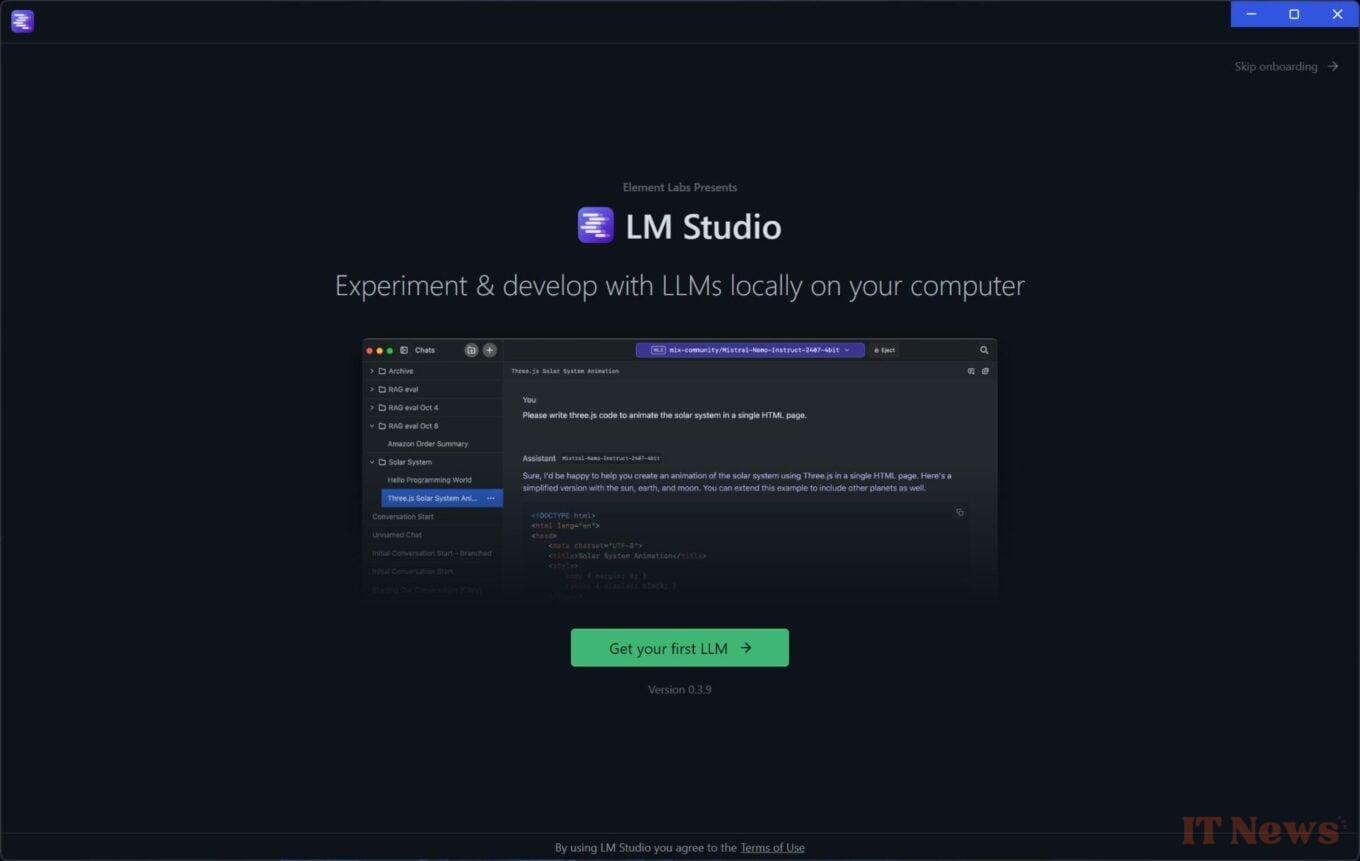
Once installed, open LM Studio on your machine. As soon as it opens, the program will offer to download your first LLM. So click on the Get your First LLM button.
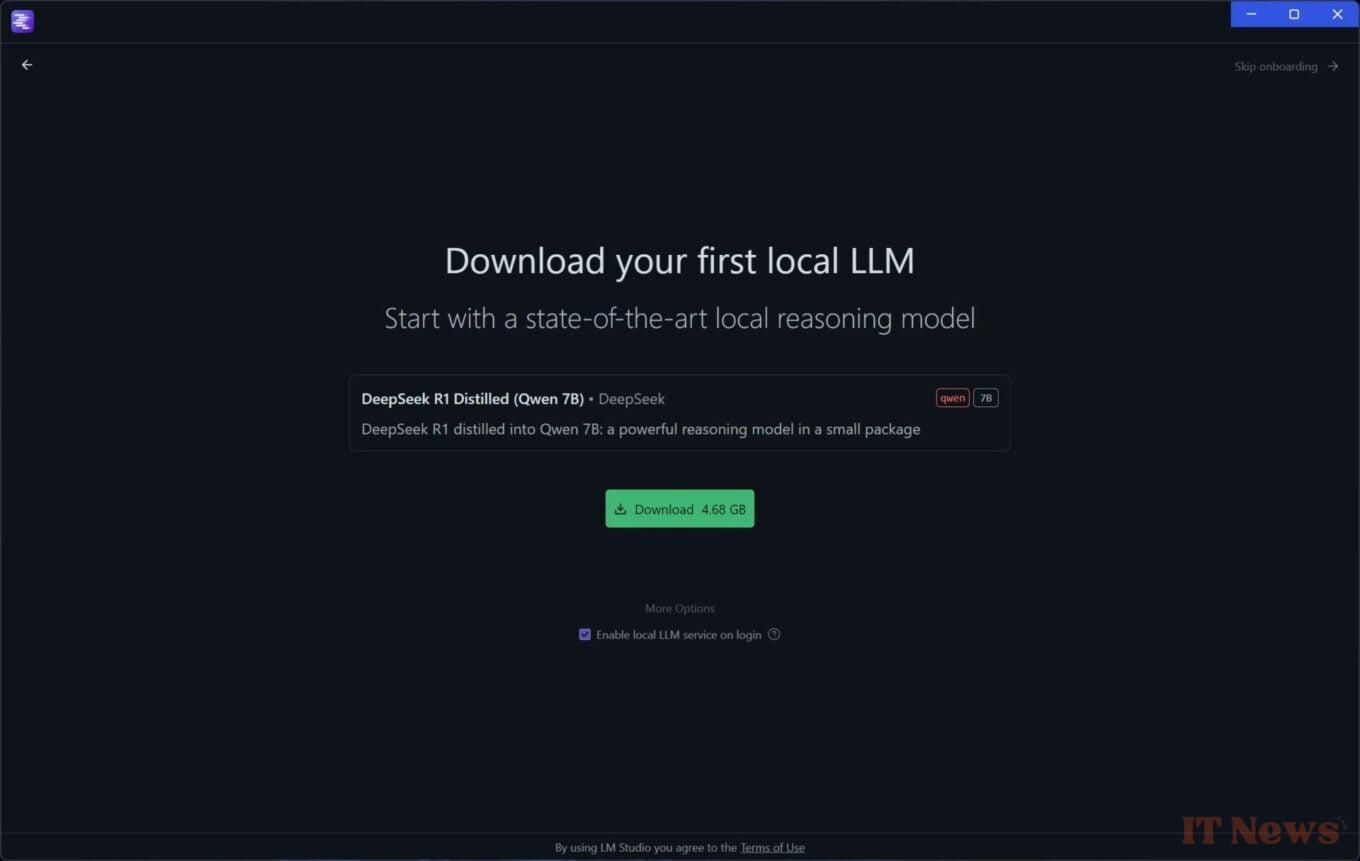
By default (on Windows), LM Studio will offer you the latest LLM in vogue: DeepSeek. Click the Download button to start downloading the language model.
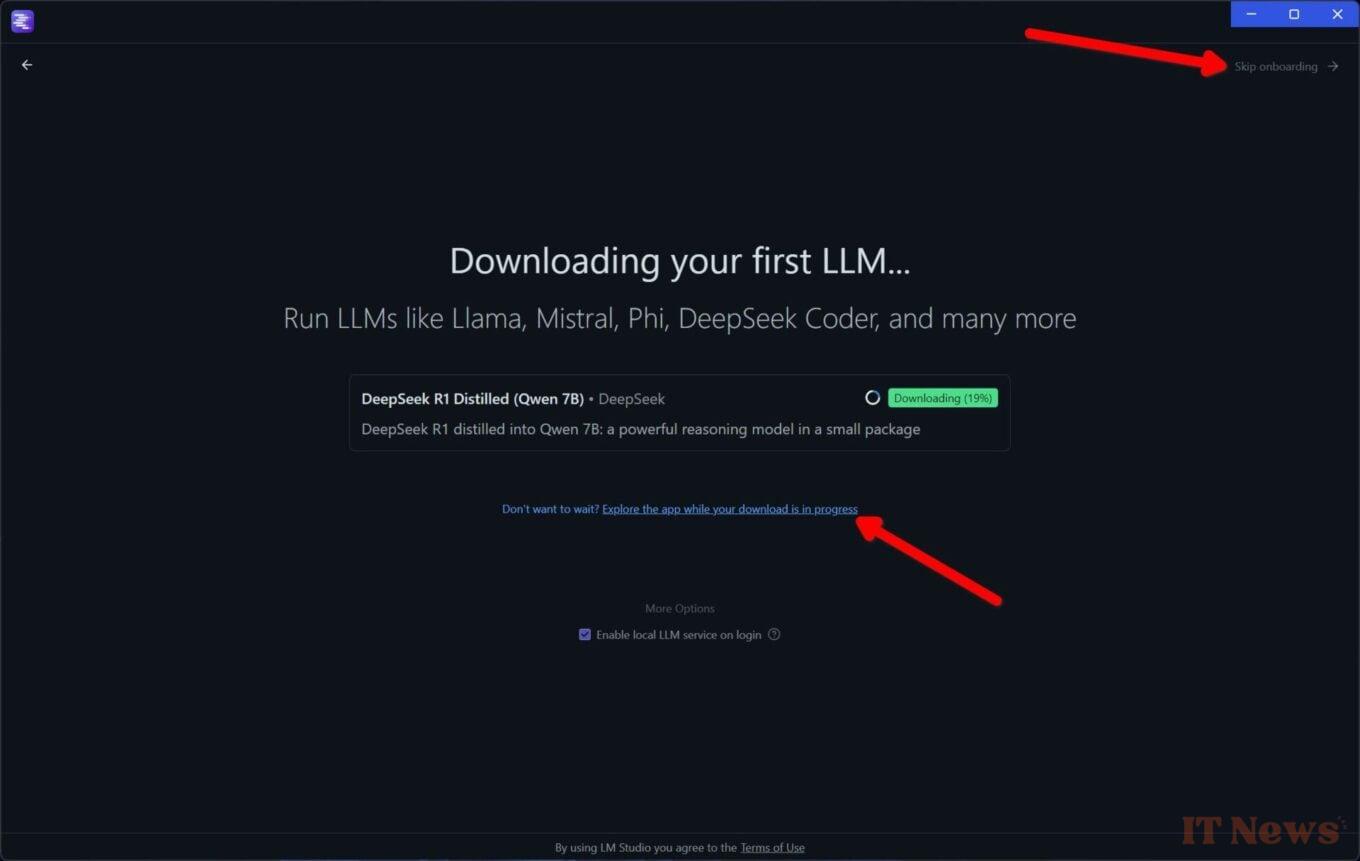
While the LLM is downloading, you can start exploring the application interface. Click on Skip onboarding at the top right of the window, or on Explore the app while your download is in progress.
3. Discover the interface
You should now arrive at the main window of LM Studio, the one that allows you to chat with your AI models with an input field at the bottom of the screen. At the top of the window, a Select a model to load drop-down menu is present. This is where you will need to click to select and load the language model with which you will exchange.
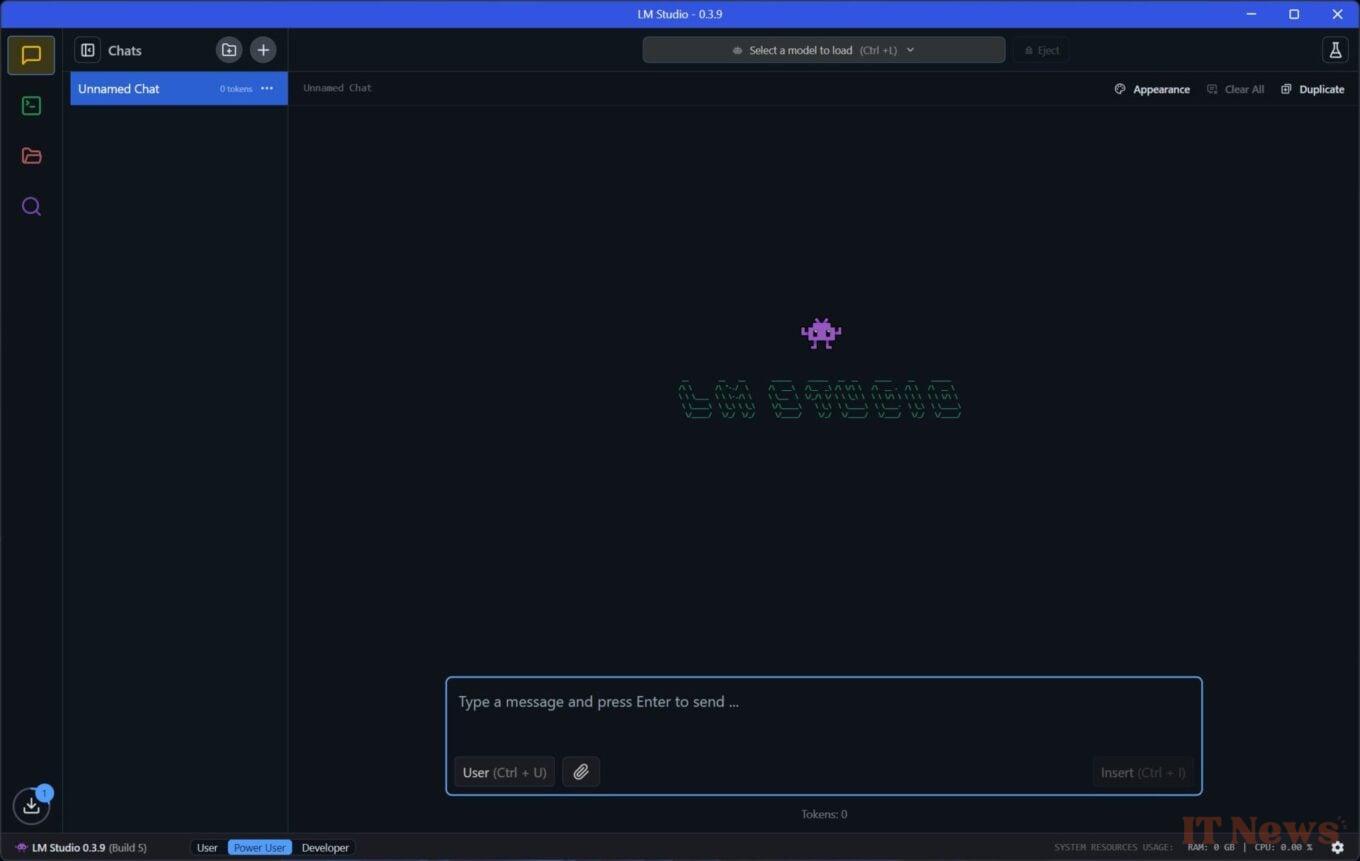
On the left, the first column is intended to record the history of your exchanges with the AI model currently in use.
Finally, on the far left of the window, you will find five buttons, four at the top, and one at the bottom. The first four will allow you to Chat, access Developer mode (to code using AI), manage the different language models downloaded locally, and finally search for and download new language models.
The last button, the one displayed at the bottom left of the window, is none other than the application download manager.
4. Configure your LLM
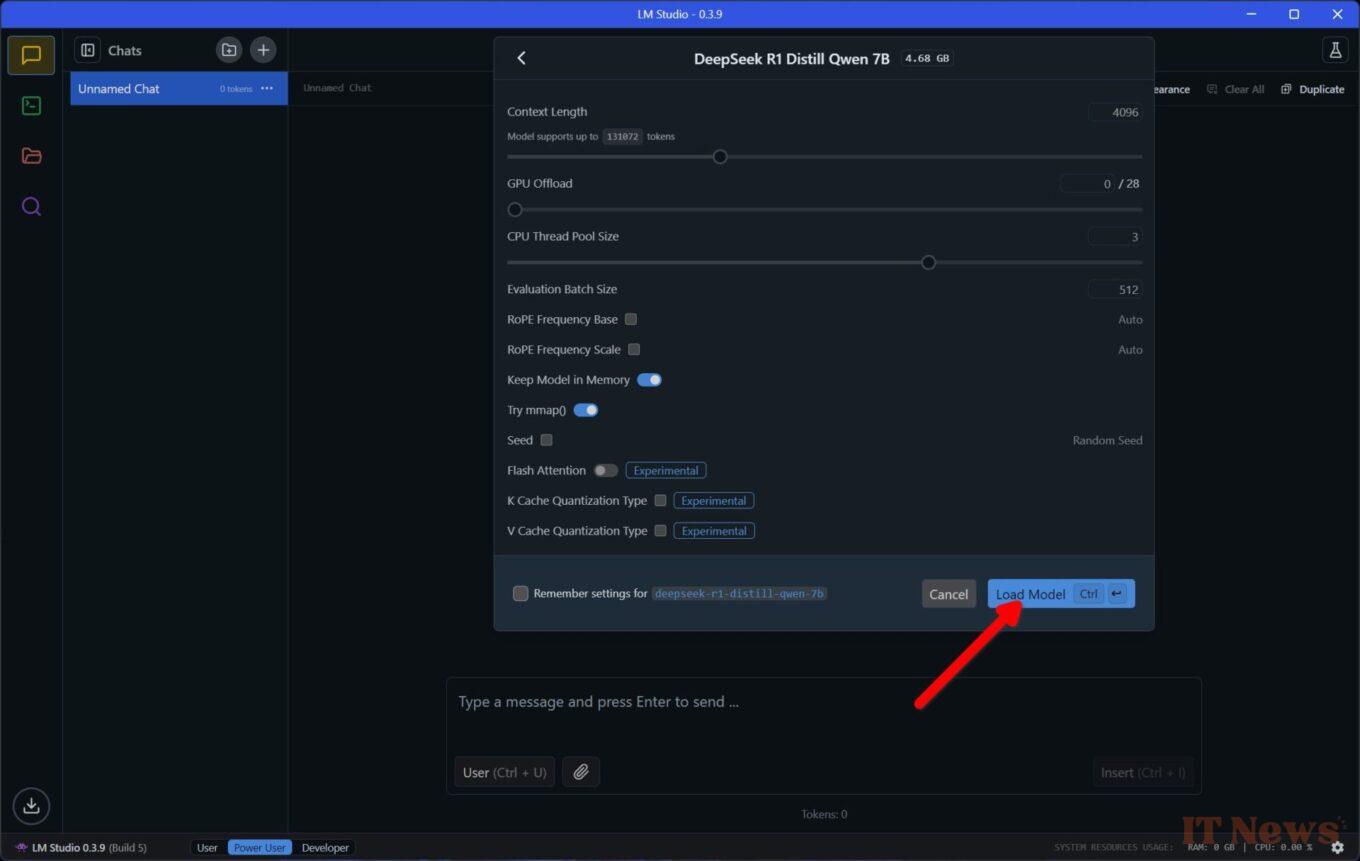
Now that your first LLM is downloaded, you need to configure it so that you can use it on your PC. Click on the Select a model to load drop-down menu displayed at the top of the window and select the language model to use.
The new window that appears allows you to choose the settings to apply to the language model. Once you have chosen your settings, click on the Load model button.
5. Chat with the AI model offline
You can now start chatting with the selected AI model without being connected to the Internet. Depending on your machine's configuration, the responses may take more or less time to be generated.
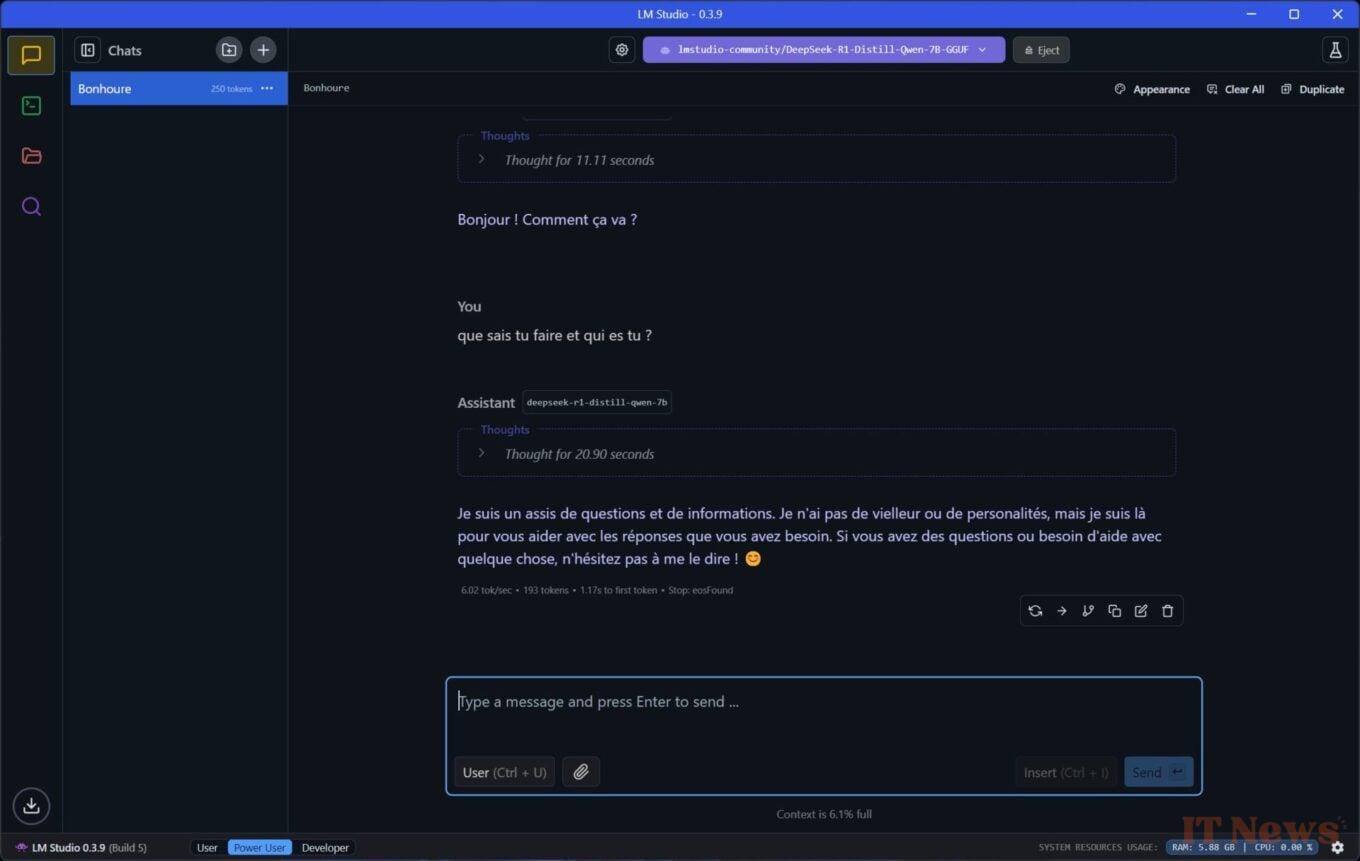
You can also keep an eye on the resources monopolized by LM Studio from the toolbar displayed at the bottom right of the window.
6. Download other AI models
The advantage of LM Studio is that the utility allows you to download many different language models that you can use locally on your computer. To download other language models, click on the purple magnifying glass button on the left of the window.
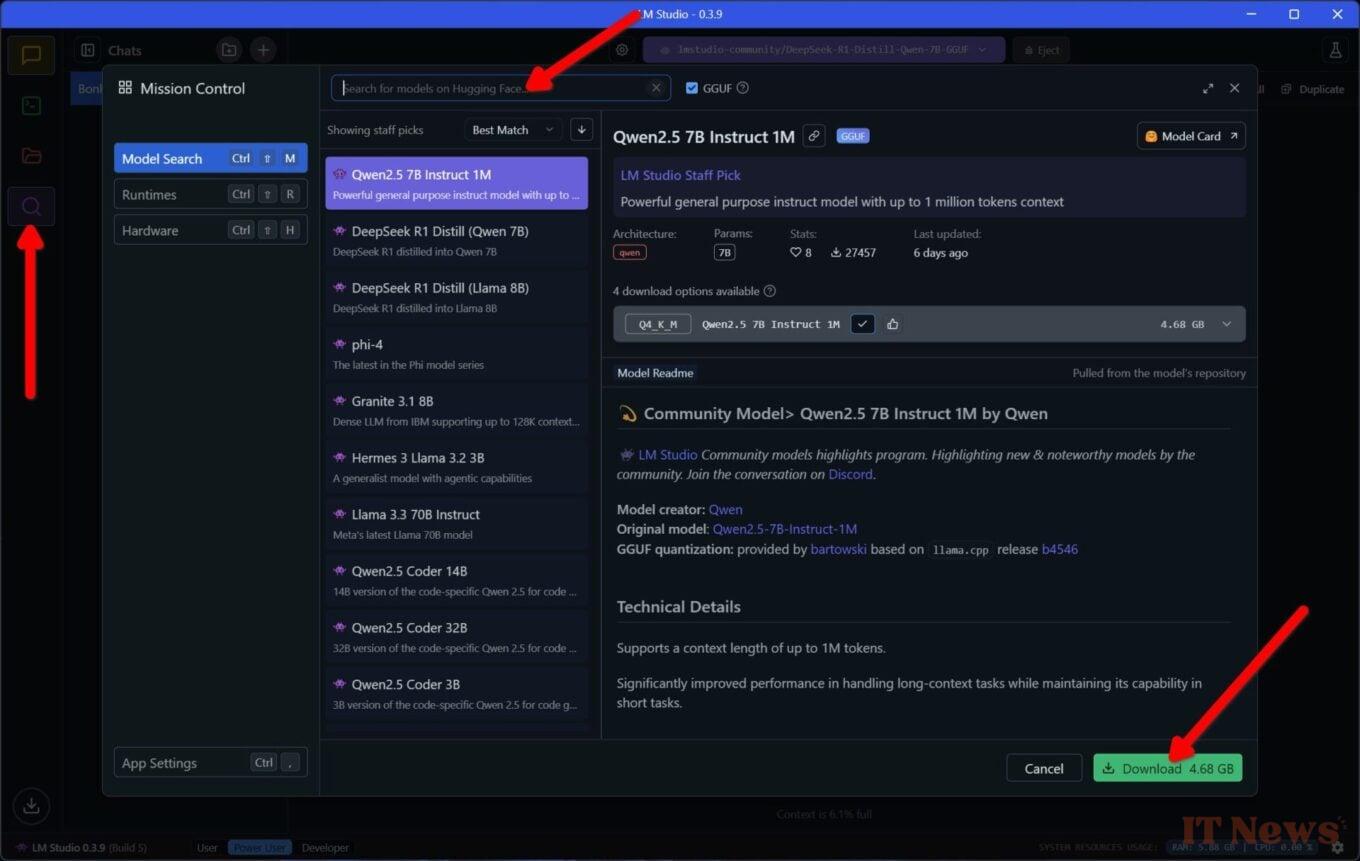
Explore the list of available LLMs, or directly enter the name of the language model you want to test in the search field provided for this purpose. Then select the LLM of your choice to display the detailed information sheet, and click on the Download button to start its download.
Once the language model download is complete, you can configure it (see step 4) and use it offline on your PC.


0 Comments