
On October 14, Microsoft will definitively end support for Windows 10. Users of the OS, including you, will then have only three options to continue using their PC safely if its configuration does not meet Microsoft's criteria for installing Windows 11.
The first is to force the installation of Windows 11 on an incompatible PC, with the risks that this can entail.
Microsoft has been clear on this subject. Those who risk this will do so in full awareness and will not be able to count on its help in the event of a problem. To dissuade you from doing so, the American company has also planned to make your life hell, in particular by polluting your desktop with a watermark.
The second option is to pay for an additional year of support for Windows 10. This year of reprieve should cost you around thirty euros.
The third and final option will be to abandon Windows 10 in favor of a Linux distribution. This is undoubtedly the wisest and most sustainable choice if you want to continue using your "old" PC safely. But changing your creamery after several decades under Windows is no easy task. You have to adopt new habits, but also adapt to new tools.
One of the advantages of Linux is that you can try before you adopt, thanks to the "Live" versions that can be executed directly from a bootable USB key on which you have written the installation disk image in ISO format. But this live version has its limits since it will not allow you to save documents or install software permanently. The Live versions will simply allow you to get to know it, or to use Linux very temporarily. To take full advantage of Linux, it is therefore better to install it.
To make the transition from Windows to Linux smooth, you can definitely consider installing Linux "alongside" Windows. You will thus be able to discover Linux at your own pace, while continuing to use Microsoft's operating system alongside it, for your daily operations. And nothing will stop you, once you have mastered Linux perfectly, from deleting the Windows partition to keep only one operating system.
The good news is that installing Linux has evolved a lot in recent years. It is now much simpler than usual, and above all almost entirely automated. So much so that it now seems simpler than installing Windows. For our manipulation, we opted for Ubuntu, a very mainstream distribution whose reputation is well established, and which clearly has nothing to envy Windows. Here is everything you need to know to get off to a good start to install Ubuntu in dual boot with Windows on your PC.
Create the installation USB key
Before you start installing Linux in dual boot on your Windows PC, you will need to create a bootable installation device. To do this, you will need a USB key of at least 8 GB that will be entirely dedicated to this purpose.
1. Download Rufus
If you haven't already done so, download Rufus and install the utility on your Windows PC. It is thanks to this utility that you will be able to "write" the installation disk image of your Linux distribution on the USB key and that it can be used by your machine to start.
2. Download your Linux distribution
For our manipulation, we opted for Ubuntu. This distribution, perfect for getting a foot in the door in the Linux world, is aimed at both beginners and experienced users. Above all, it is, with Linux Mint, one of the most widely used distributions, and therefore for which you will very easily find online support in the event of a problem. The user community is also very responsive on the forums to help newcomers when a problem arises.
3. Create your installation USB key
Now launch Rufus then, under the Device line, click on the drop-down menu and select your USB key if the utility has not already done so.
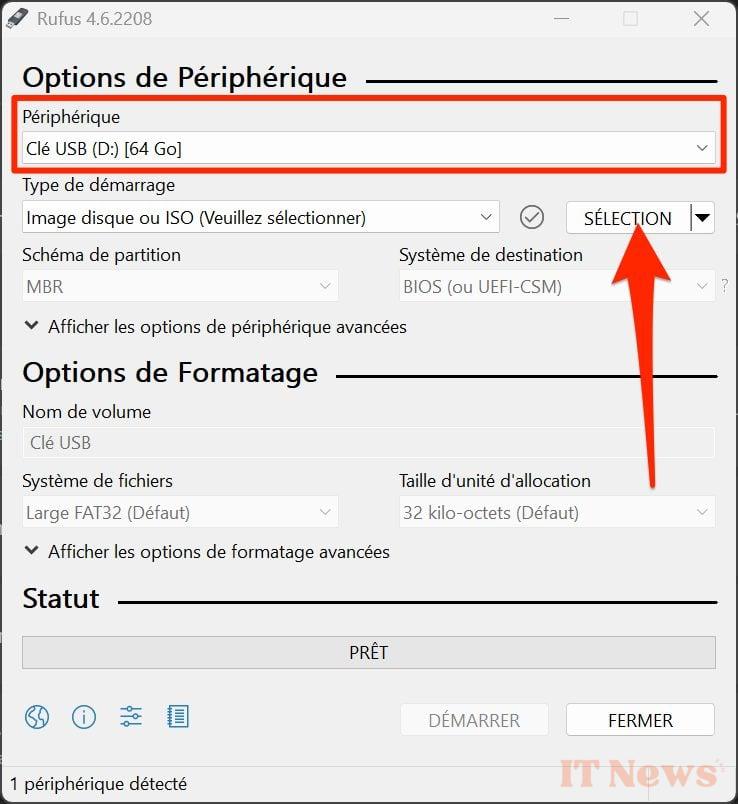
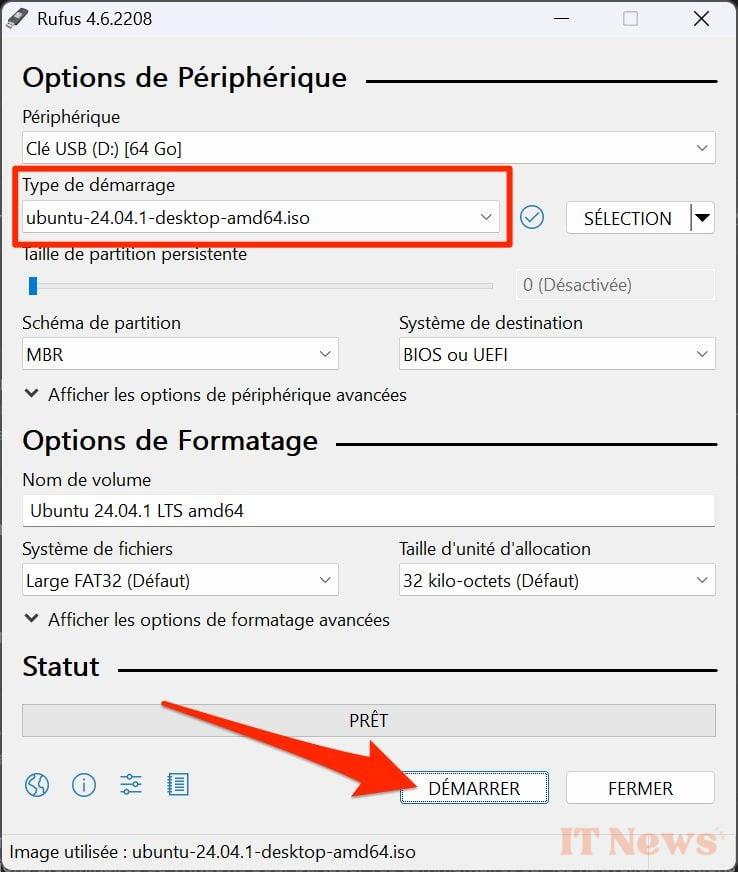
Then click on the Select button, then in the Windows File Explorer window that appears, select the Ubuntu ISO installation disk image, then click on the Start button.
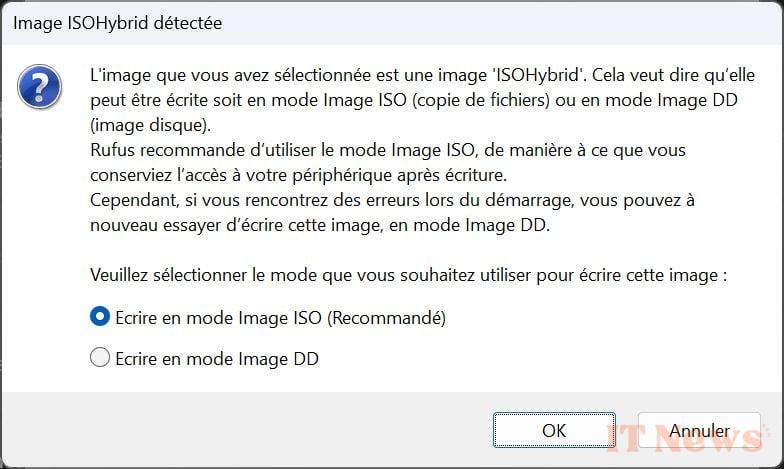
A warning window regarding the writing type chosen for the disk image should then appear. Keep the Write in ISO Image mode setting, then click OK.
A final alert window will then appear to tell you that all the data on the USB key is about to be deleted. Click OK and wait a few minutes for Rufus to finish writing the disk image to the USB key.

The message Ready should be displayed once the operation is complete. Click Finish to close Rufus.
Install Ubuntu in dual boot with Windows
Before you can start installing Ubuntu in dual boot with Windows on your PC, you will need to organize yourself a little. First, make sure that you have enough free storage space on your hard drive from Windows, especially if you plan to install Ubuntu on the same disk, in a different partition.
For Windows, it is best to keep at least 30 to 40 GB of storage space just for the system. If you still plan to use Windows for your main tasks, having an additional 100 to 200 GB of storage will not be too much, especially if you store large files there. You can, however, consider migrating your most important data and documents to an external hard drive.
To install Ubuntu, you need at least 25 GB of free storage space. Again, if you plan to use the OS for tasks requiring the manipulation of large files, it is preferable to have an additional hundred gigabytes.
In any case, you will not have to worry about partitioning. Ubuntu takes care of all of this directly during the installation of the OS. Just keep in mind that you need to keep between 30 and 100 GB free for Windows, and if possible a hundred gigabytes to use Ubuntu comfortably (if you plan to install applications and store documents in particular). It's better to plan a little large rather than being caught off guard with too little space once the OS is installed.
In addition, before starting the installation of Ubuntu on your PC, you will have to make sure that the boot order of your machine is configured to boot in priority on your USB key in BIOS/UEFI of it. To do this, when starting your PC, press the keys Esc, Del, F1, F2, F8 or F10 to access the BIOS/UEFI settings. Don’t hesitate to consult your PC (or motherboard) manufacturer’s manual or web support if you’re not sure which key to press.
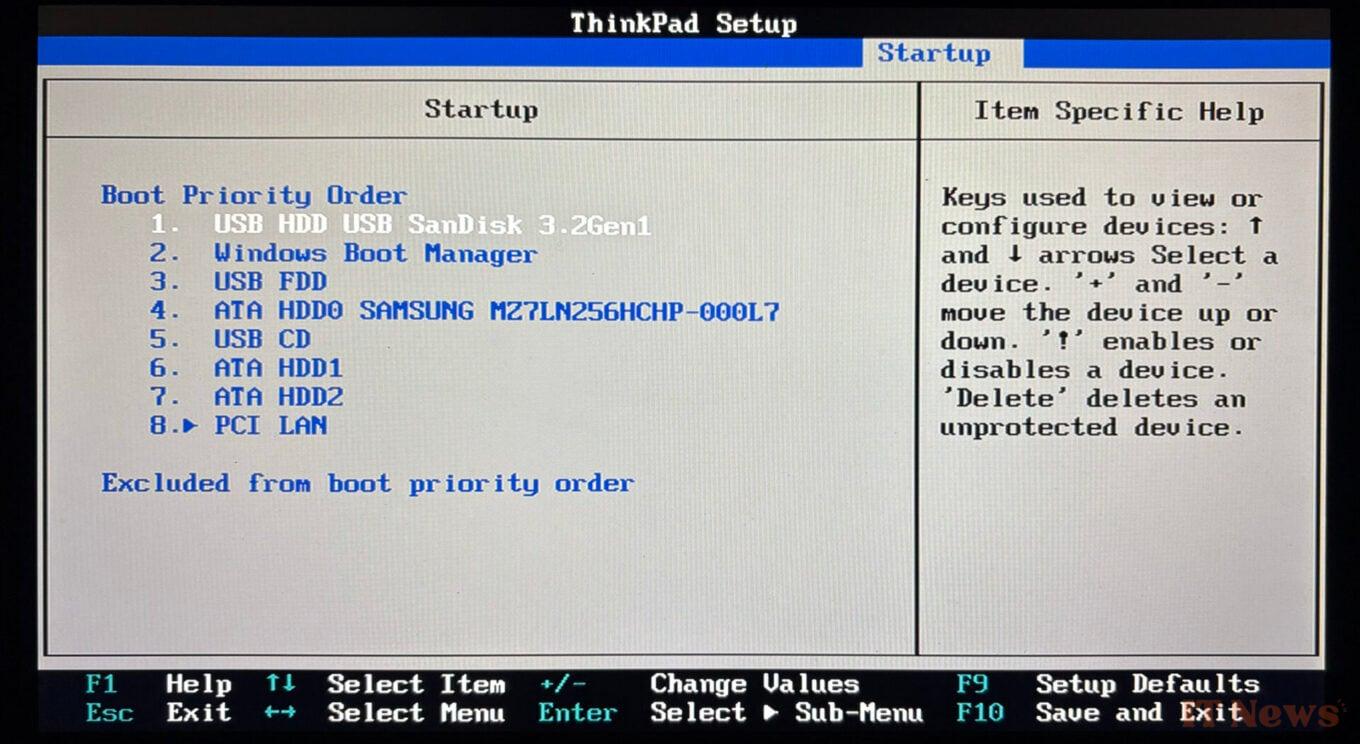
1. Start your PC on the key
Insert the USB stick containing the Ubuntu installation disk image that you previously created with Rufus into one of your PC's USB ports and turn it on. If your PC's boot order is configured correctly, your computer should boot directly from the USB stick.
A black GNU GRUB screen should then appear with various options. Select the first Try or Install Ubuntu, press the Enter key on your keyboard and wait a few moments.

2. Configure the Ubuntu installation
You should then arrive at the Welcome screen of the Ubuntu installation wizard. Select your language, click Next, and follow the instructions in the installation wizard to customize the system configuration according to your needs. You will be prompted to select your keyboard layout or connect to your Wi-Fi network.
The next window is the one that interests us the most. This is where you decide whether you want to Install Ubuntu (hard) or if you just want to try it out. Choose Install Ubuntu and click Next.
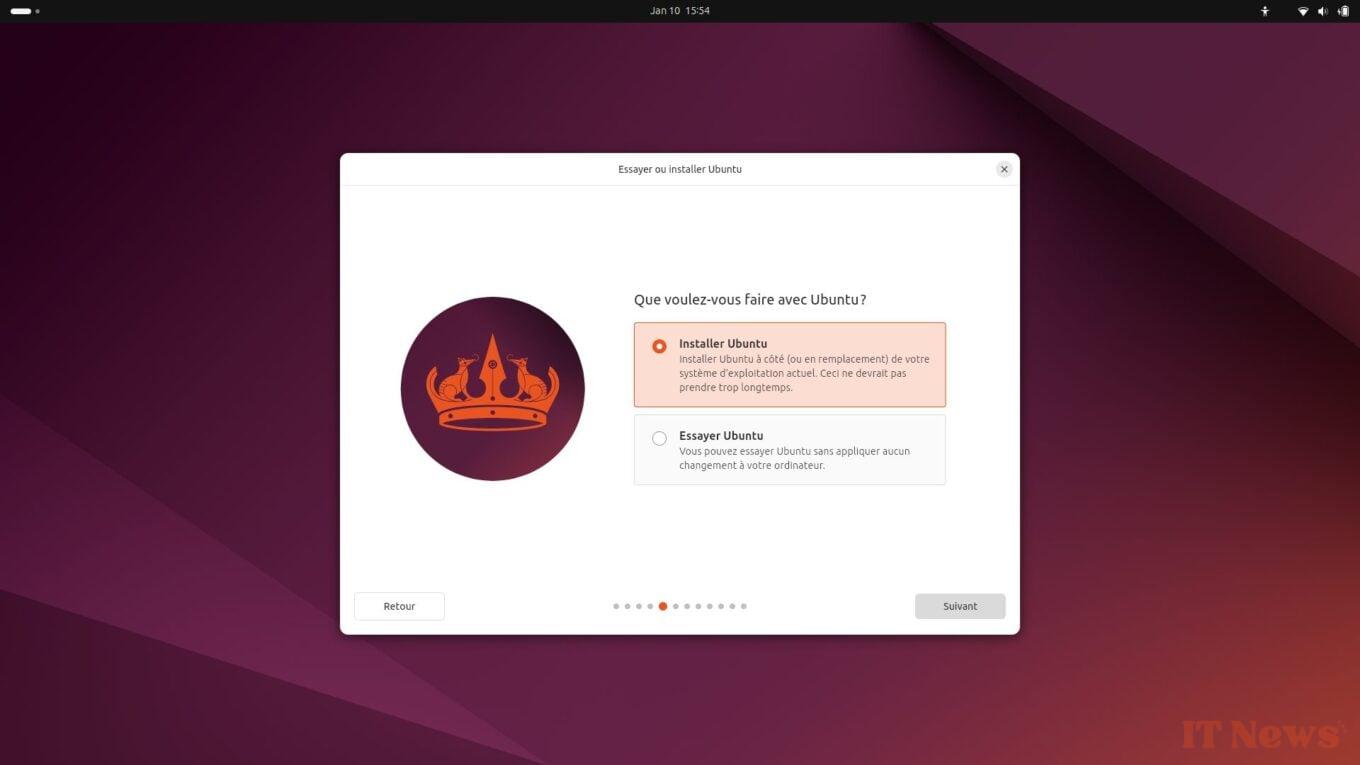
Then keep the Interactive installation setting and click Next again.
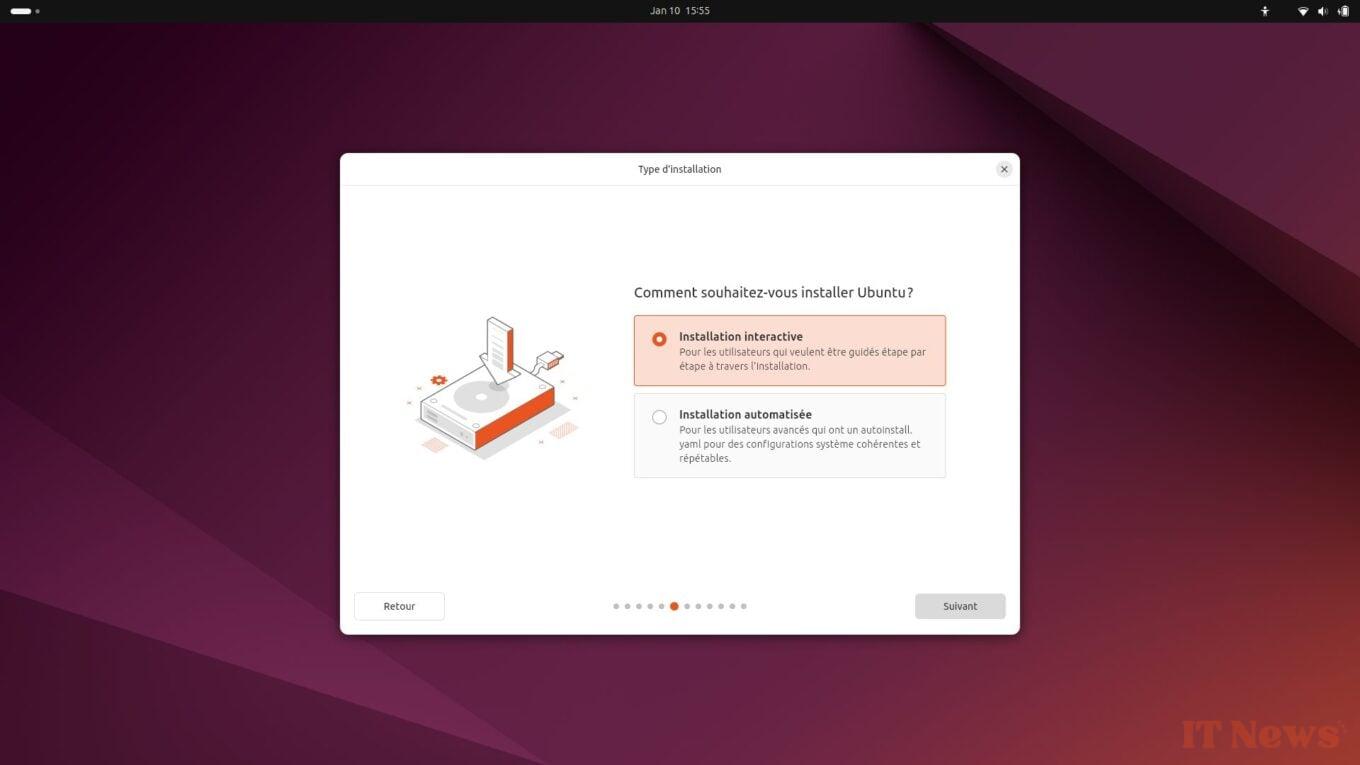
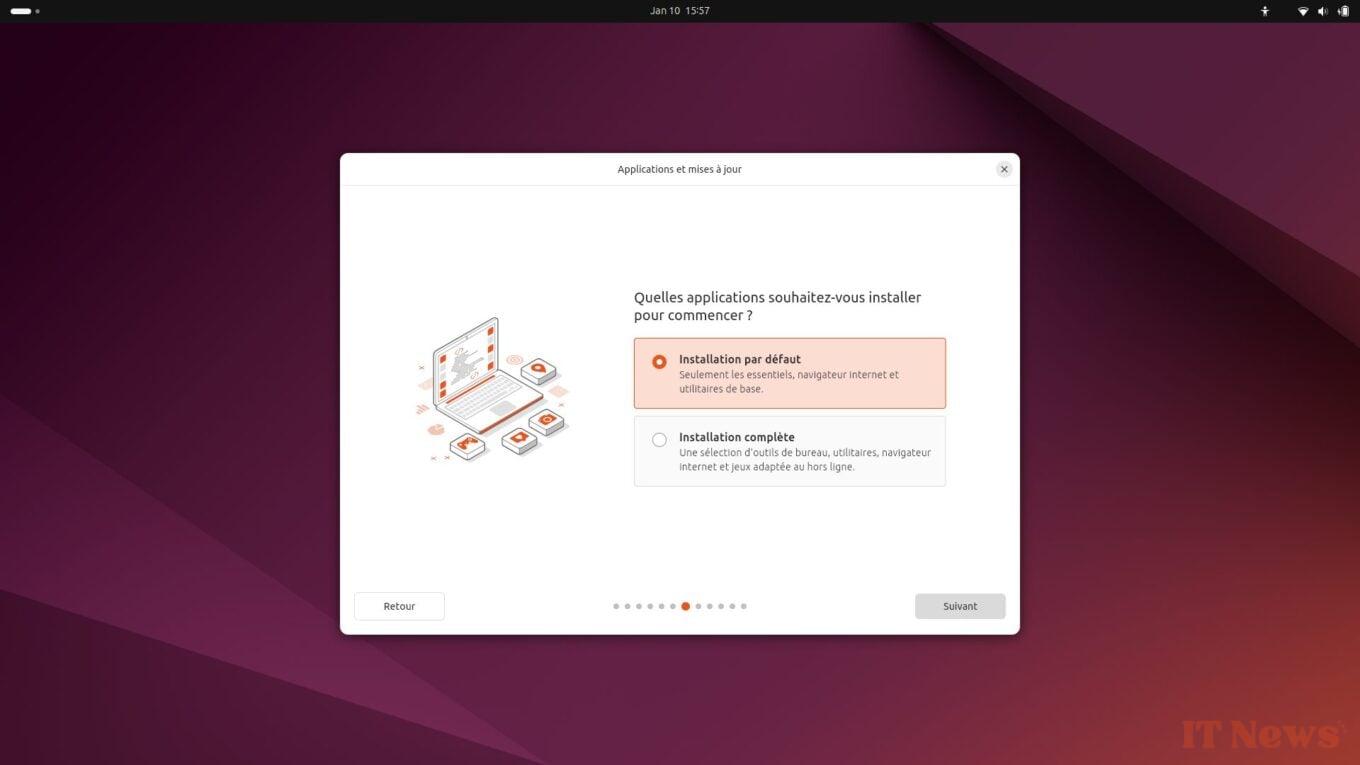
Then choose between the default installation (with the bare minimum) or the complete installation (with a selection of tools, utilities, etc.) and click Next.
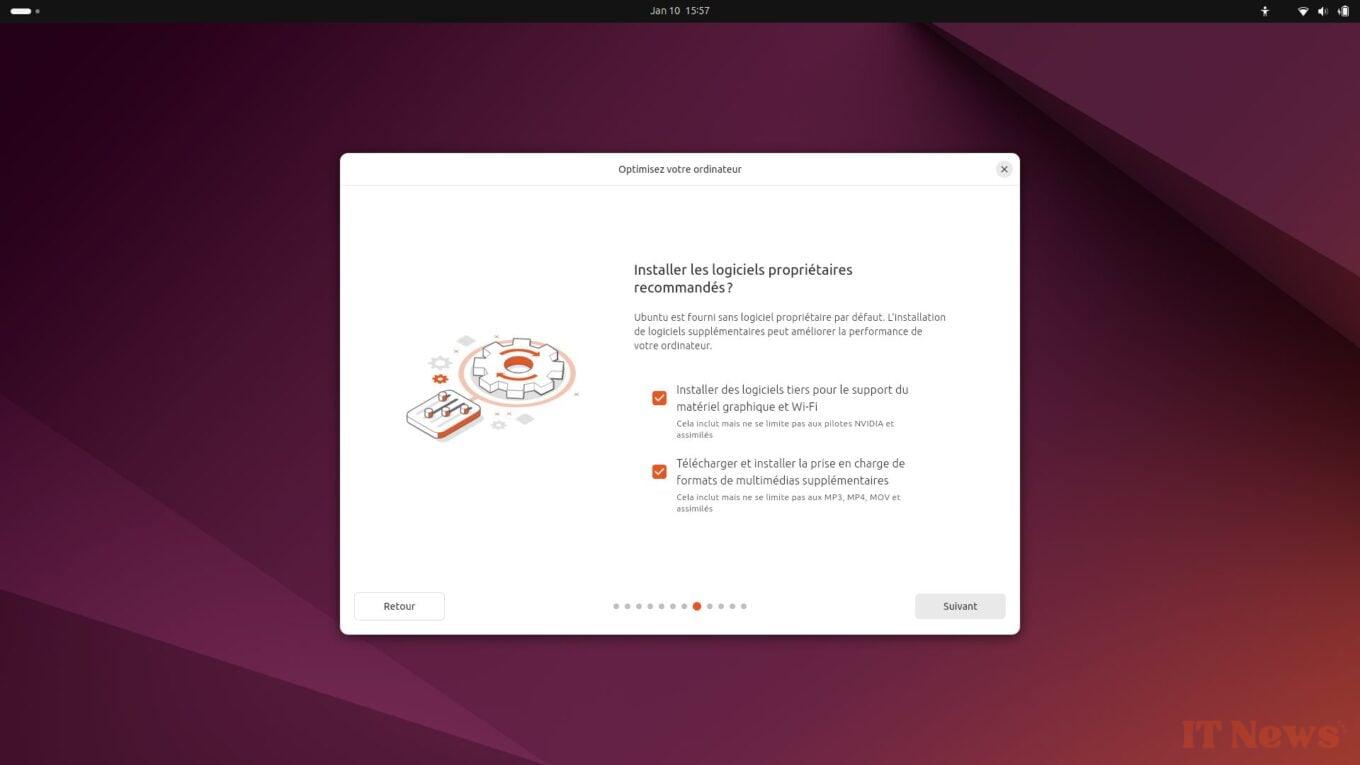
You will then be asked if you want to install the recommended proprietary software. Check both options to install hardware drivers specific to your configuration, as well as support for additional multimedia codecs, and click Next.
3. Install Ubuntu alongside Windows
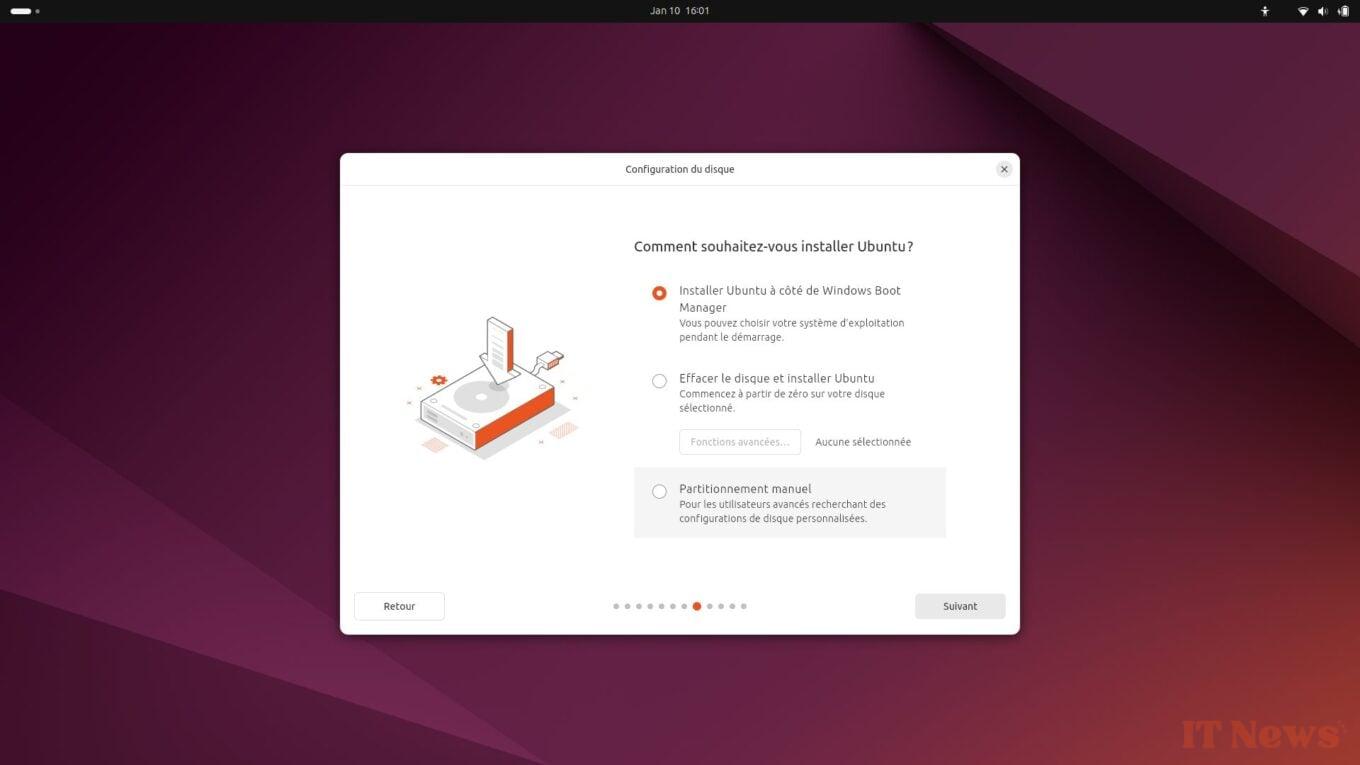
This is the most important moment for the dual boot installation of Ubuntu. The operating system installation wizard will indeed ask you How you want to install Ubuntu. Keep the default setting selected, Install Ubuntu next to Windows Boot Manager and click Next.
You must now choose the partition on which to install Ubuntu. If you want to install it on a different disk or partition than the Windows one, click on the appropriate drop-down menu. If you plan to install Ubuntu on the same disk as Windows, keep the partition selected by default (sda3). Then simply adjust the size of the partition you want to allocate to Ubuntu, by directly adjusting the slider provided for this purpose (which indicates the total free space remaining on the disk) or by entering the size directly in the appropriate field.
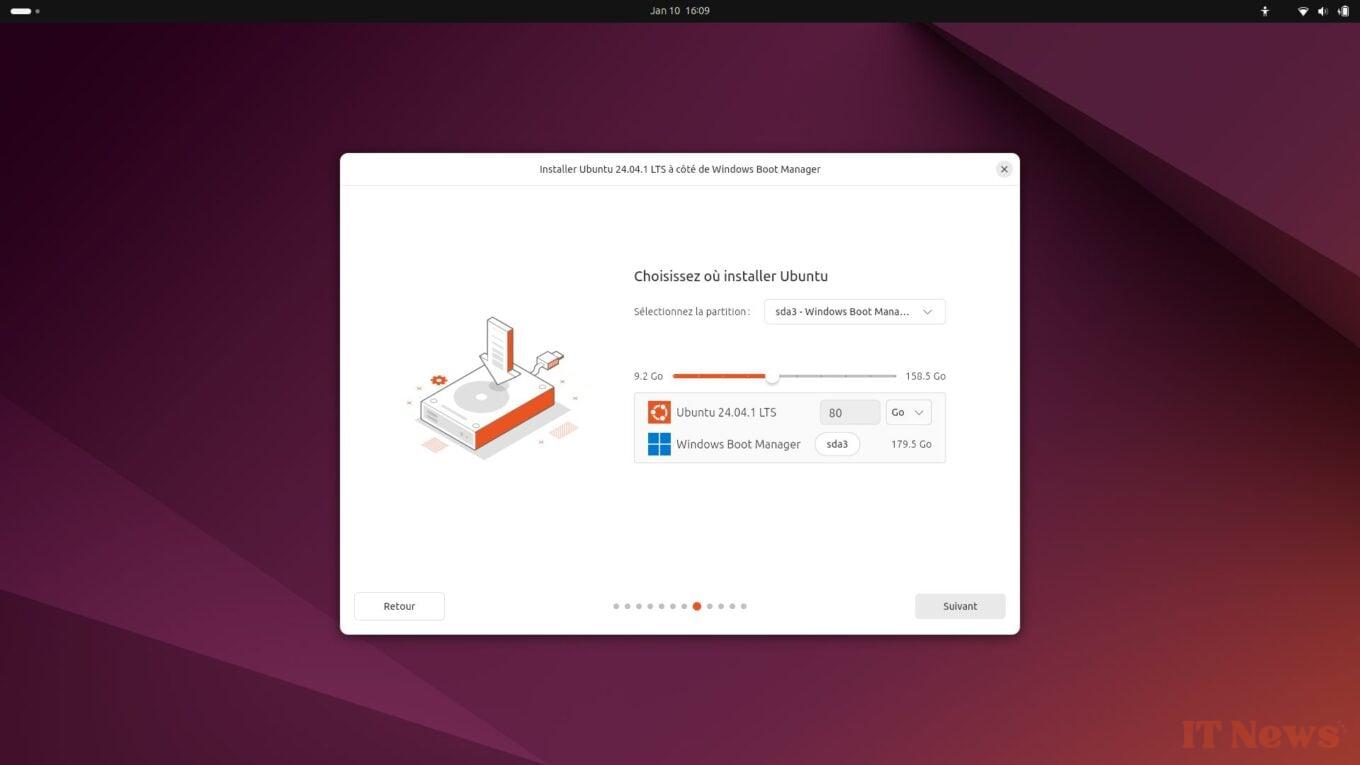
In our case, our machine's SSD has a total size of 232.9 GB, with 158.5 GB of free storage space remaining. So we split the difference in order to allocate about 80 GB of space to Ubuntu, and the rest to Windows. Then click Next.
4. Complete the Ubuntu installation
The remaining steps in the Ubuntu installation wizard will simply ask you to fill in the necessary information to create your user session on the OS (name, machine name, password).
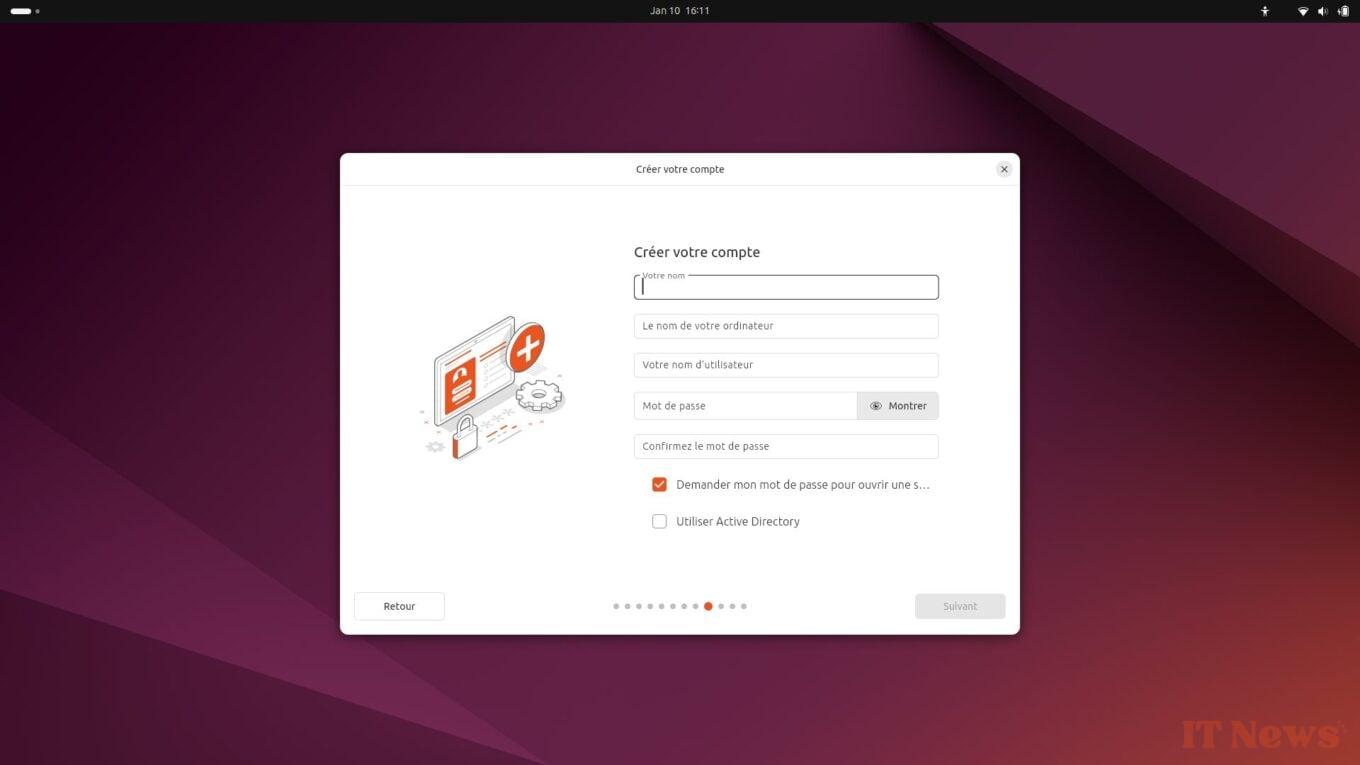
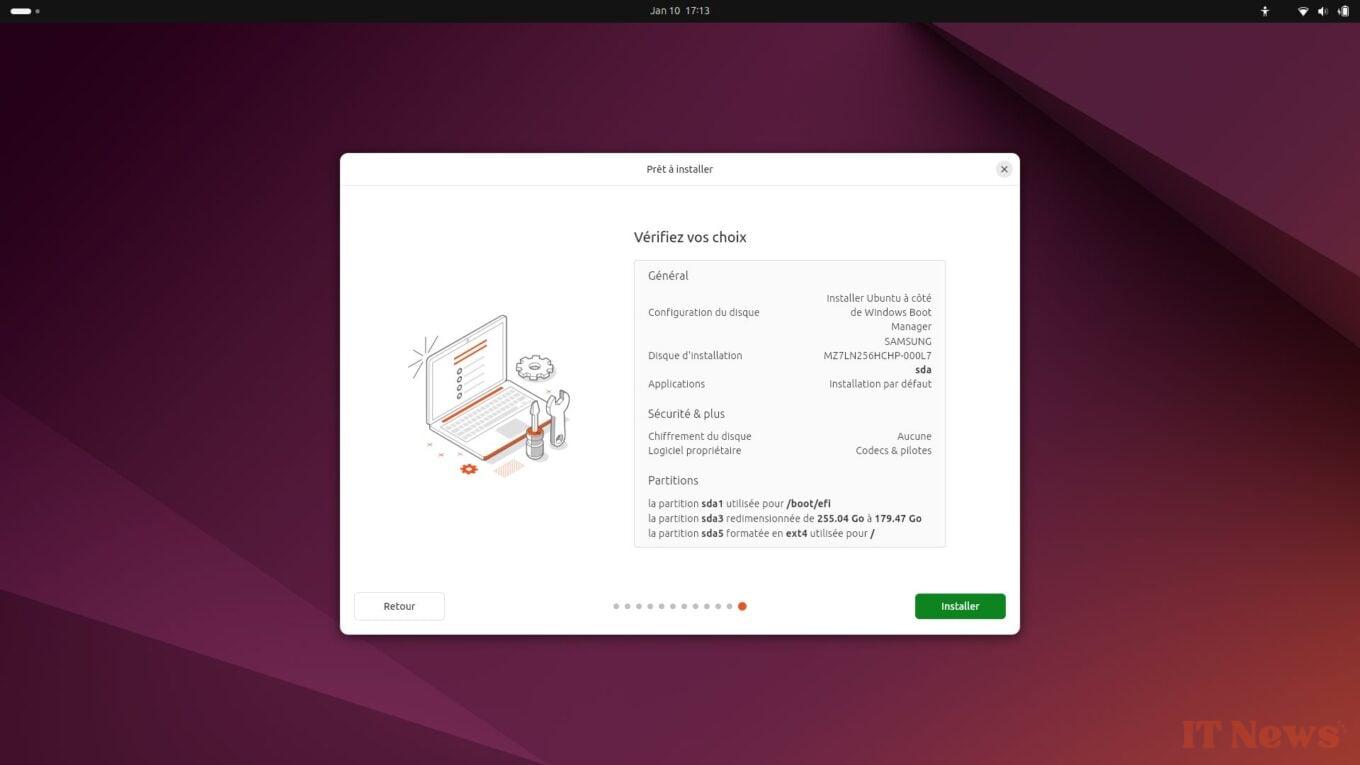
You will then need to choose your time zone to arrive at the screen summarizing your installation choices. After reviewing all of these elements, click on the Install button, and be patient. The installation wizard will copy all of the files needed for your installation onto your PC's hard drive.
After several minutes, the process should be complete. Your PC will then restart, and prompt you to remove the connected installation USB key. Once removed, press any key on the keyboard to boot your PC.
You should see a black GNU GRUB screen. This is the boot manager that lets you select the operating system you want to boot into. To boot Ubuntu, select Ubuntu and press Enter. You should quickly arrive at the desktop of your new operating system (which is supported until 2029). If you want to boot into Windows, however, select Windows boot manager.


0 Comments