
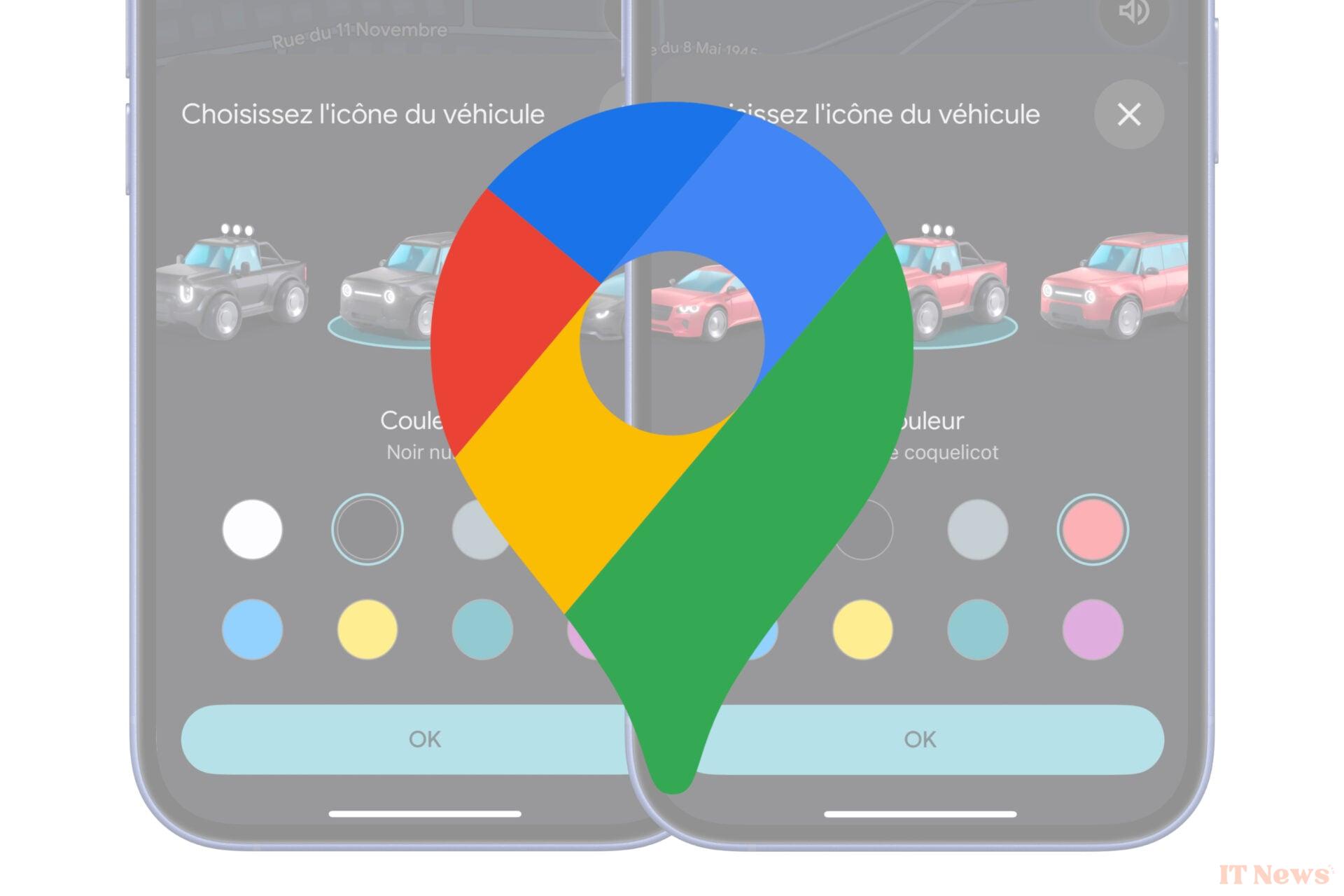
Google began rolling out a new customization option on Maps a few days ago. The Mountain View firm has integrated a feature already available on Waze into its mapping application: the ability to customize the vehicle icon. The option, which is already available on iOS, is still being tested on Android, but should arrive very soon. Here's how to customize your vehicle icon on Google Maps.
1. Create a route
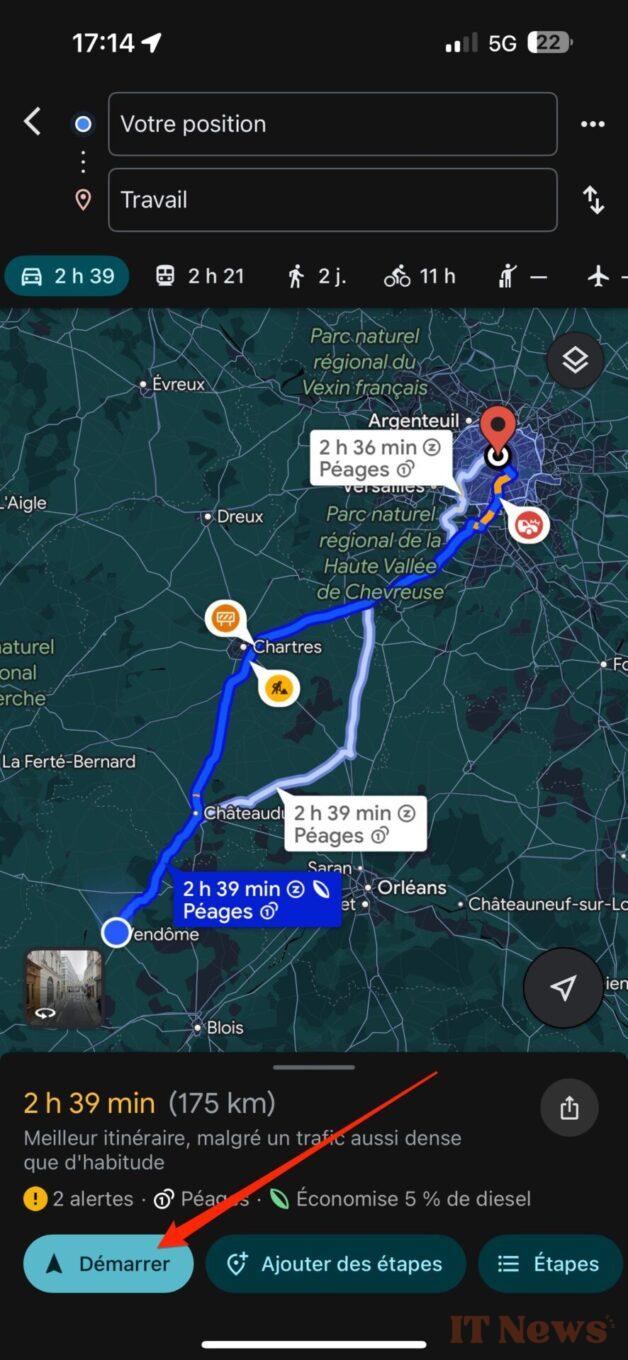
Start by creating a route in the application. To do this, enter a location to go to, and press the Start button to start navigation to your destination.
2. Show customization options
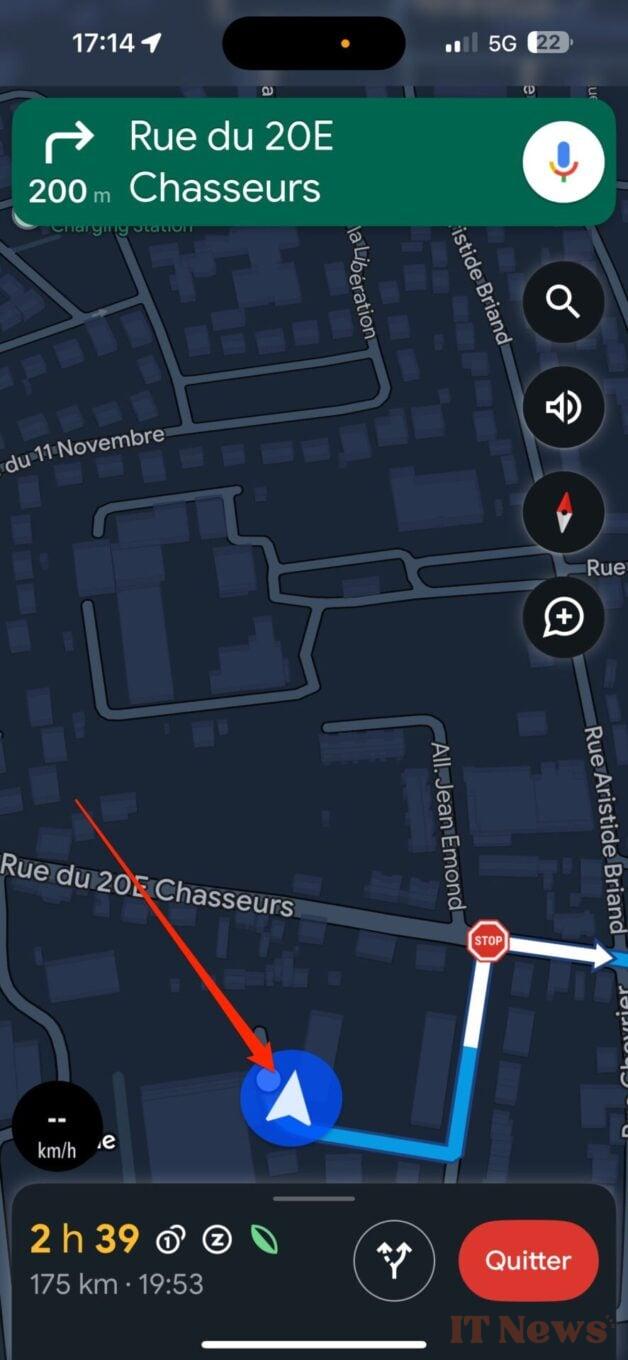
By default, your vehicle is represented on Google Maps by a blue dot with a white arrow. Click this icon to display the presentation options.
3. Customize your vehicle icon
Until now, Google only offered three vehicle icons (red, green and blue) with no other customization options. Now, Google's mapping application allows you to choose between these three icons, but also (and above all), between a city car, a sports coupe, an SUV, a Pick-Up and a sedan.
For each of these new vehicles, you can also select a color: white, black, gray, red, blue, yellow, green and pink.


0 Comments