
Creating an account on Instagram from the mobile app is trivial. And it seems rather logical, you might say, since it is from a smartphone that the majority of users access the platform. On the other hand, when it comes to wanting to permanently delete your Instagram account, the social network seems less inclined to let you go.
Deleting your Instagram account from the app is entirely possible, but the steps to follow to get there are far from intuitive. You will first have to go through the very mysterious Account Space, which allows you to manage all your accounts on Meta platforms (Facebook, Instagram, Meta Horizon, etc.). And you will then have to navigate through a real labyrinth of menus within this Account Space to be able to delete your Instagram account. A way, no doubt, for Meta to discourage you from doing so.
You will find in the following lines the steps to follow to save all your Instagram publications, but above all the solution to delete your account for good.
1. Save your publications
Before permanently deleting your Instagram account, you may want to save the magnificent photos and videos – which have not always garnered the number of likes they deserved – that you have published on the platform.
To do this, open the application from your smartphone and go to your profile. Expand the main menu at the top right, and enter the Your activity menu. Then scroll through all the options, and under the heading Information you’ve shared with Instagram, select Download your information.
Meta’s Account Center should then open to the Download your information page. Tap the Download or transfer information button. Then choose the profile for which you want to get the information and tap Next. Then select All available information to retrieve a full copy of your data hosted on Instagram, and choose to Download it to device.
Meta clearly likes to make things complicated to discourage you. Because by default, the amount of data you’re about to download is set to the last year only. So press the Period menu, and change Last year to Since the beginning and press Save.
It is also possible to choose the Quality of the multimedia content, understand, the quality of the photos and videos recovered. By default, Instagram will integrate content in medium quality. Enter the appropriate menu and select a quality High. The download may take longer, but you will recover your content in optimal quality. Finally, press the Create files button, then Finish.
Now, arm yourself with patience. Depending on the number of photos, videos, messages, etc. on your Instagram account, creating your backup archive may take more or less time. Either way, Meta will automatically send you an email to the email address associated with your account to let you know when it’s available. All you have to do is click on the Download your information link to access the data download page, then on the Download button to transfer your data to your machine.
2. Go to Account Space
Now that you’ve backed up all of your Instagram account data, it’s time to get down to business. So start by going to your Account Space. To do this, go to your profile, tap the hamburger menu at the top right, then select Account Space.
3. Access your personal information
Once in your Account Space, under the heading Account Settings, enter the Personal Information menu. Then tap Account Ownership and Control, and select Deactivation or Deletion.
4. Delete your account
Now select your Instagram account, choose the Delete Account option, and tap Continue. Select Other Reason (to save you additional steps during which Meta will try to make you change your mind) and tap Continue.
Then authenticate yourself with your password to validate the procedure, and confirm the permanent deletion of your account by tapping Delete Account.
5. Cancel your account deletion
From this point on, you have one month to reverse the deletion. If you eventually change your mind and want to get your Instagram account back, simply open the app and log in to your account as you normally would.
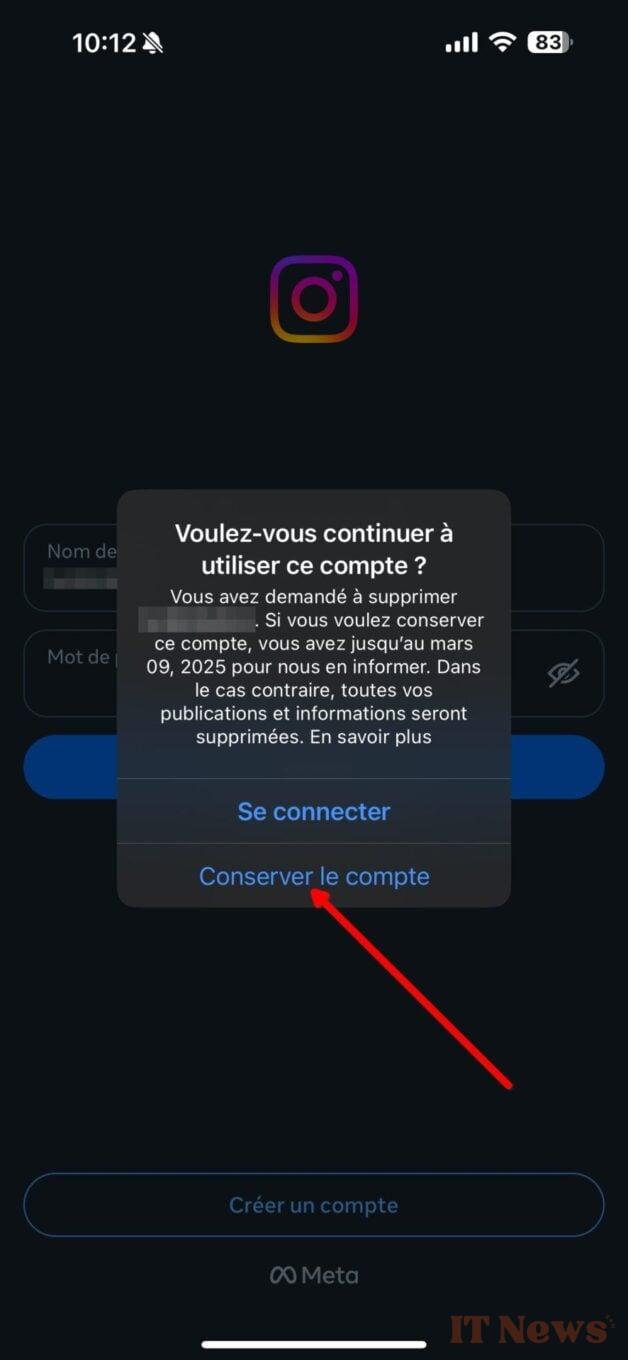
A pop-up should then appear indicating that you have requested the deletion of your account. Tap Keep Account to confirm the connection and cancel the deletion of your Instagram account.


0 Comments