

With only 15 GB of free storage space, Google Photos quickly saturates the available space. And this is especially true since this storage offered by Google is shared between the various services of the Mountain View giant. Indeed, in addition to Google Photos, these 15 GB of storage are also used by the documents that you store on Google Drive, as well as by the emails (and their attachments) that you receive on Gmail.
In other words, you risk quickly saturating it. To avoid finding yourself high and dry and no longer able to synchronize your photos and videos on Google Photos, it is therefore preferable to take certain measures.
Apart from regularly cleaning out your photo library, you can take certain measures to perpetuate the free storage at your disposal. Here is everything you need to know to free up space on your Google Photos account.
1. Reduce the original quality
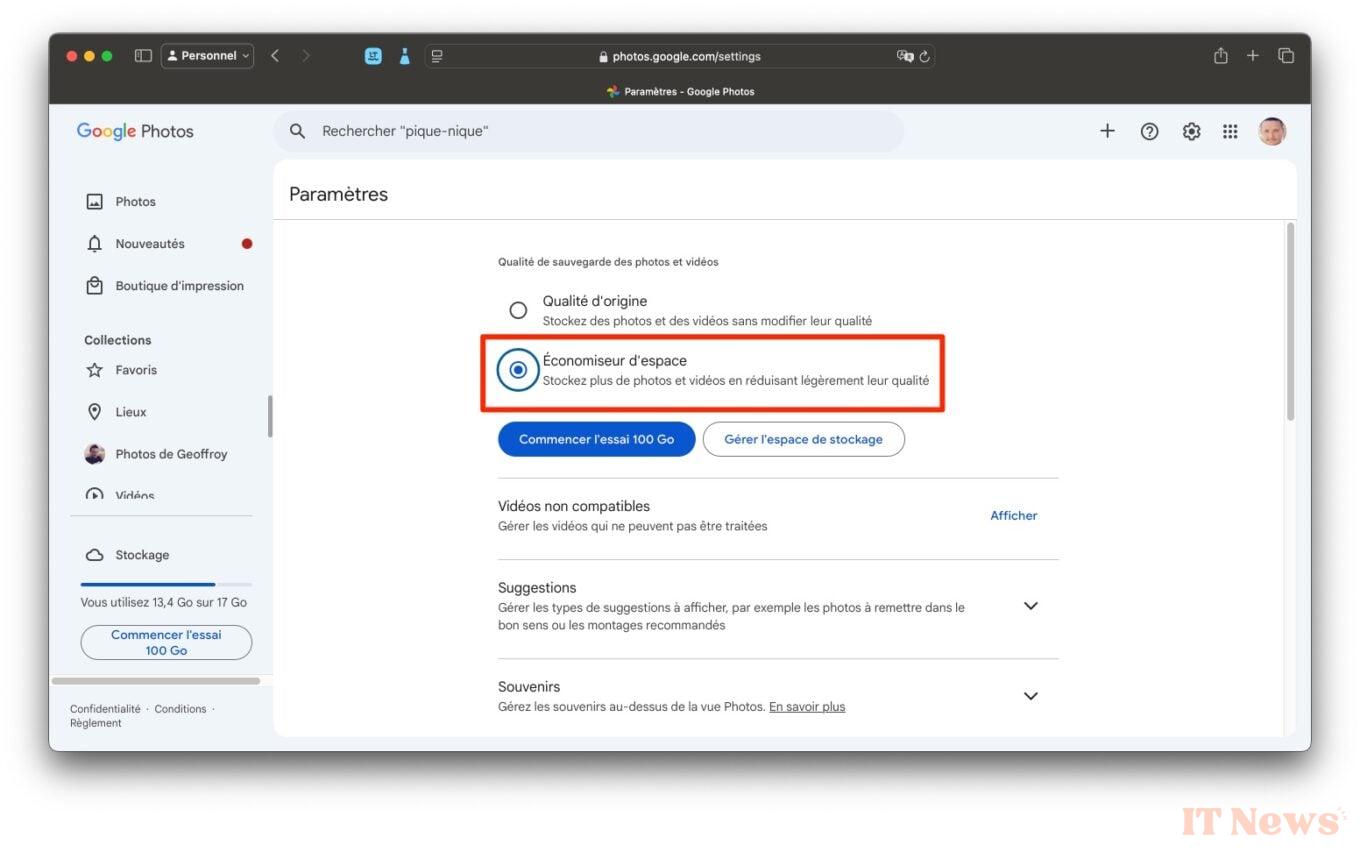
This is often a difficult decision to make, but it can be essential to free up some space in your free storage. Google Photos offers two options for the quality of your image backup: Original quality, which keeps your photos and videos without compression, and Space Saver, which slightly reduces the quality of your photos so that they are smaller and therefore take up less space.
If your free storage is close to full, opting for the latter option will allow you to perpetuate your storage for a few more weeks or months. To enable it, go to Google Photos Settings and select Space Saver.
2. Convert your photos to Space Saver quality
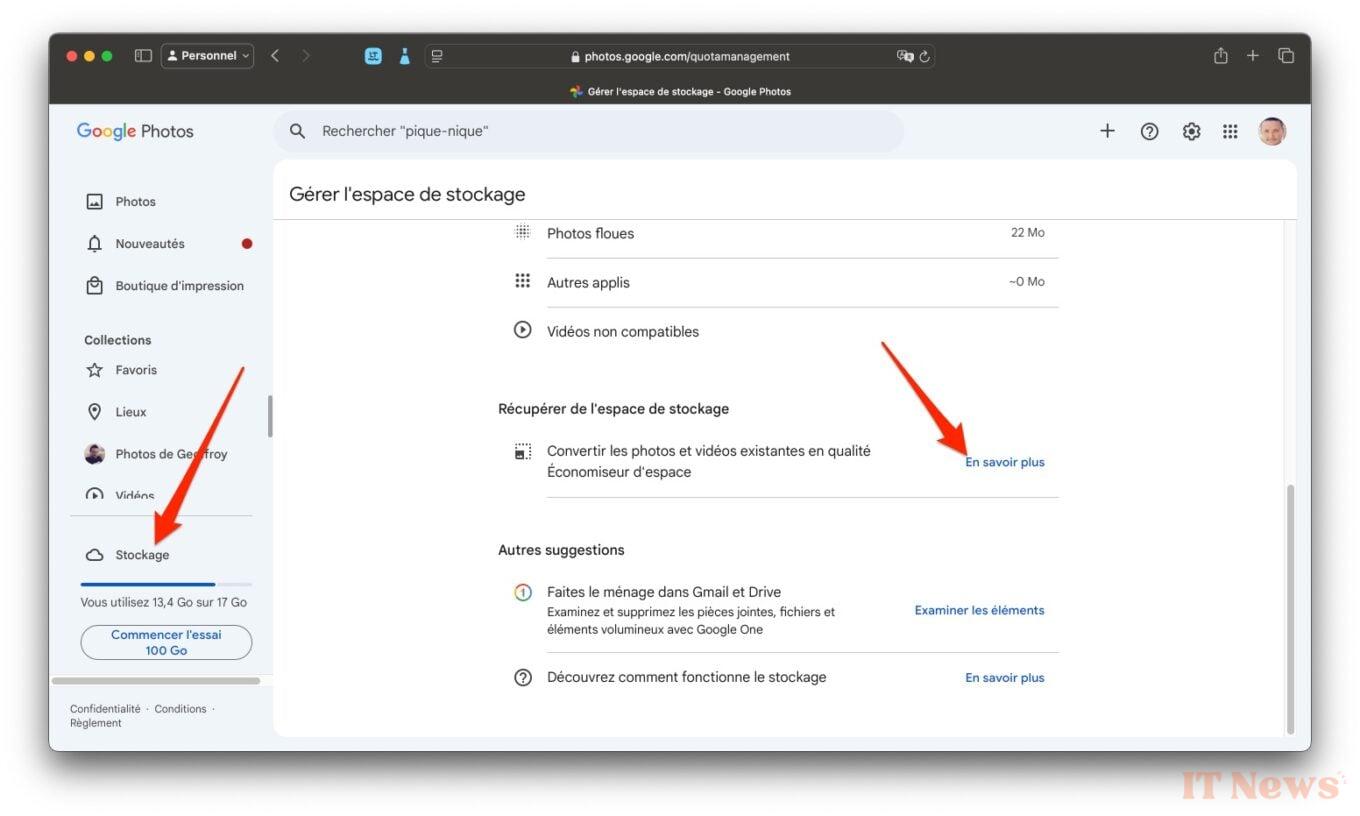
Turning on Space Saver typically only applies to new photos that you sync to Google Photos. If all your old photos and videos were backed up in their original quality, they will remain that way. However, you can free up some space on your storage if you want by converting them to Space Saver quality. The operation, which will compress your photos and videos, and therefore slightly reduce their quality, is irreversible, but will allow you to store more content.
To do this, click on Storage in the left column then, under the heading Recover storage space, click on Learn more on the line Convert existing photos and videos to Space Saver quality.
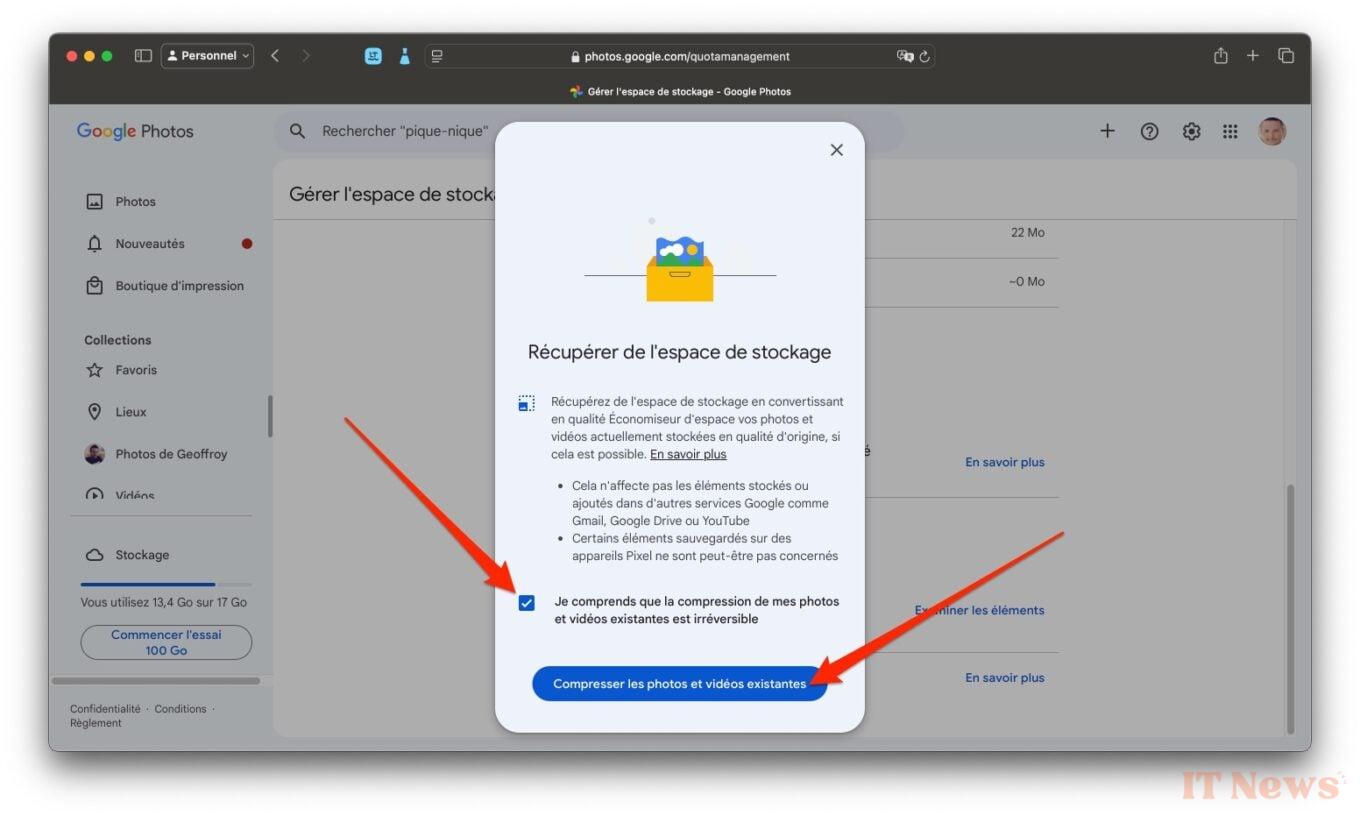
In the Recover space pop-up that appears on the screen, check the box I understand that compressing my existing photos and videos is irreversible, and confirm your choice by clicking on the Compress existing photos and videos button.
3. Use the storage manager
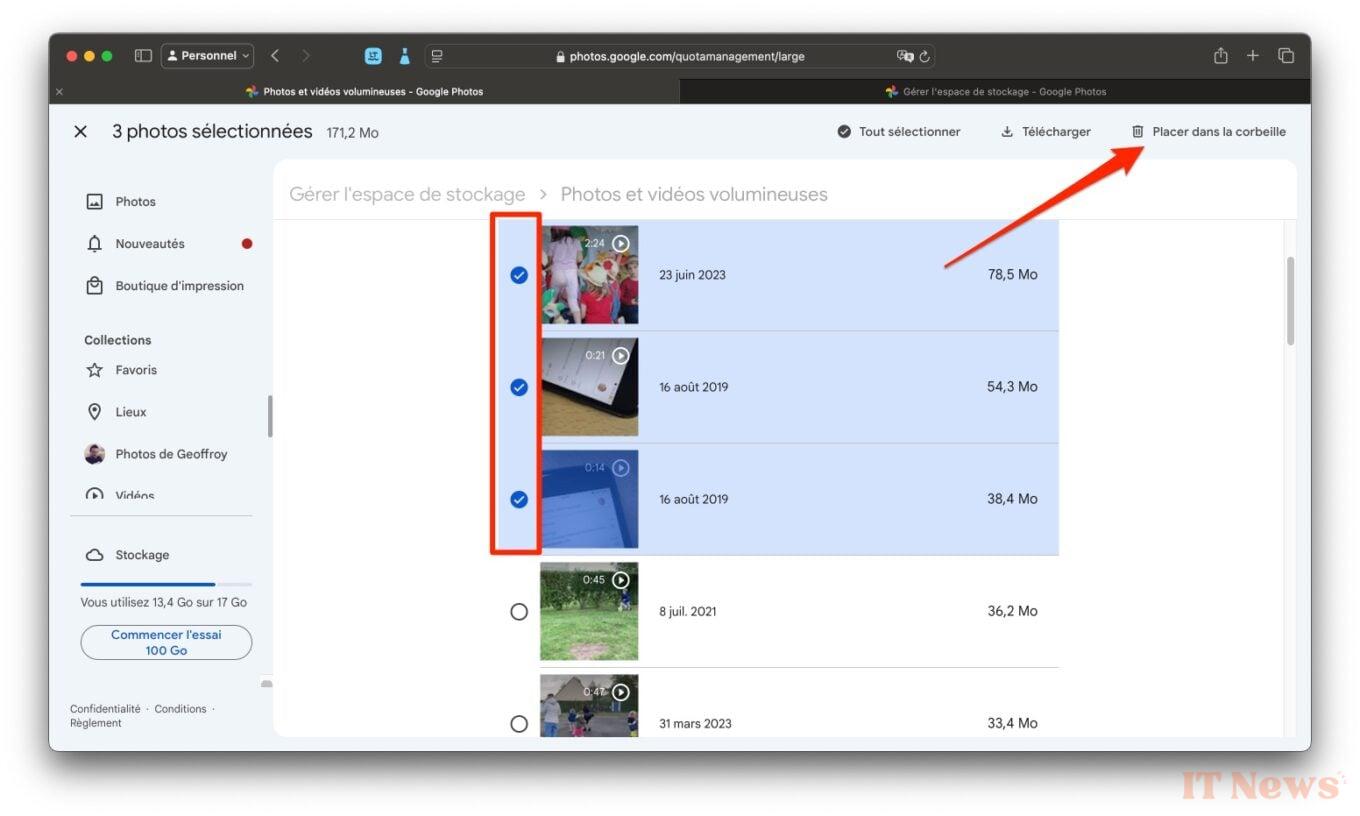
In the Google Photos Storage settings, a Review and Delete section is available. This is the platform’s storage manager, which allows you to do some cleaning up of your content: large photos and videos, screenshots, blurry photos, etc.
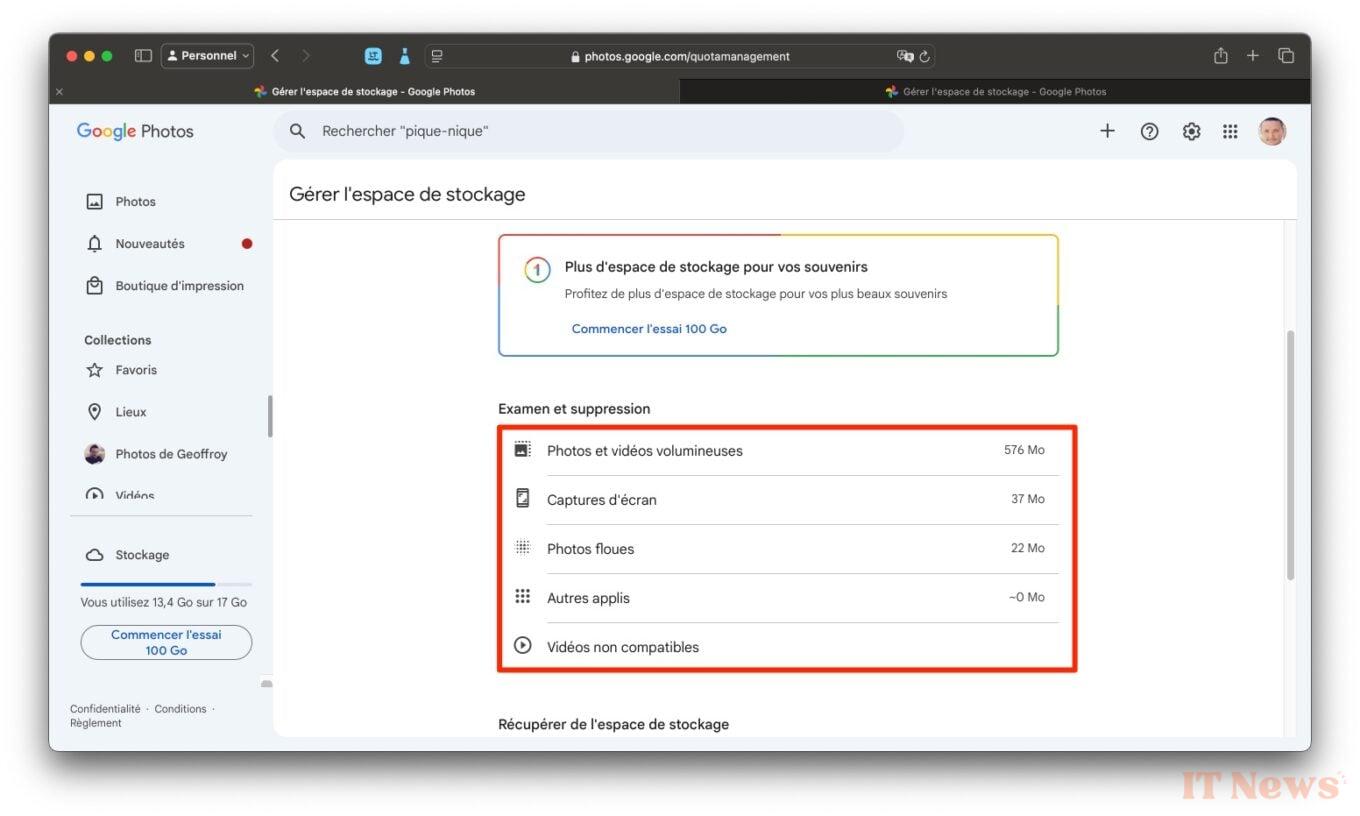
Click on the first category, Large Photos and Videos, and review each item that Google Photos suggests. Select the items you want to get rid of, and click Move to Trash, at the top right of the window.
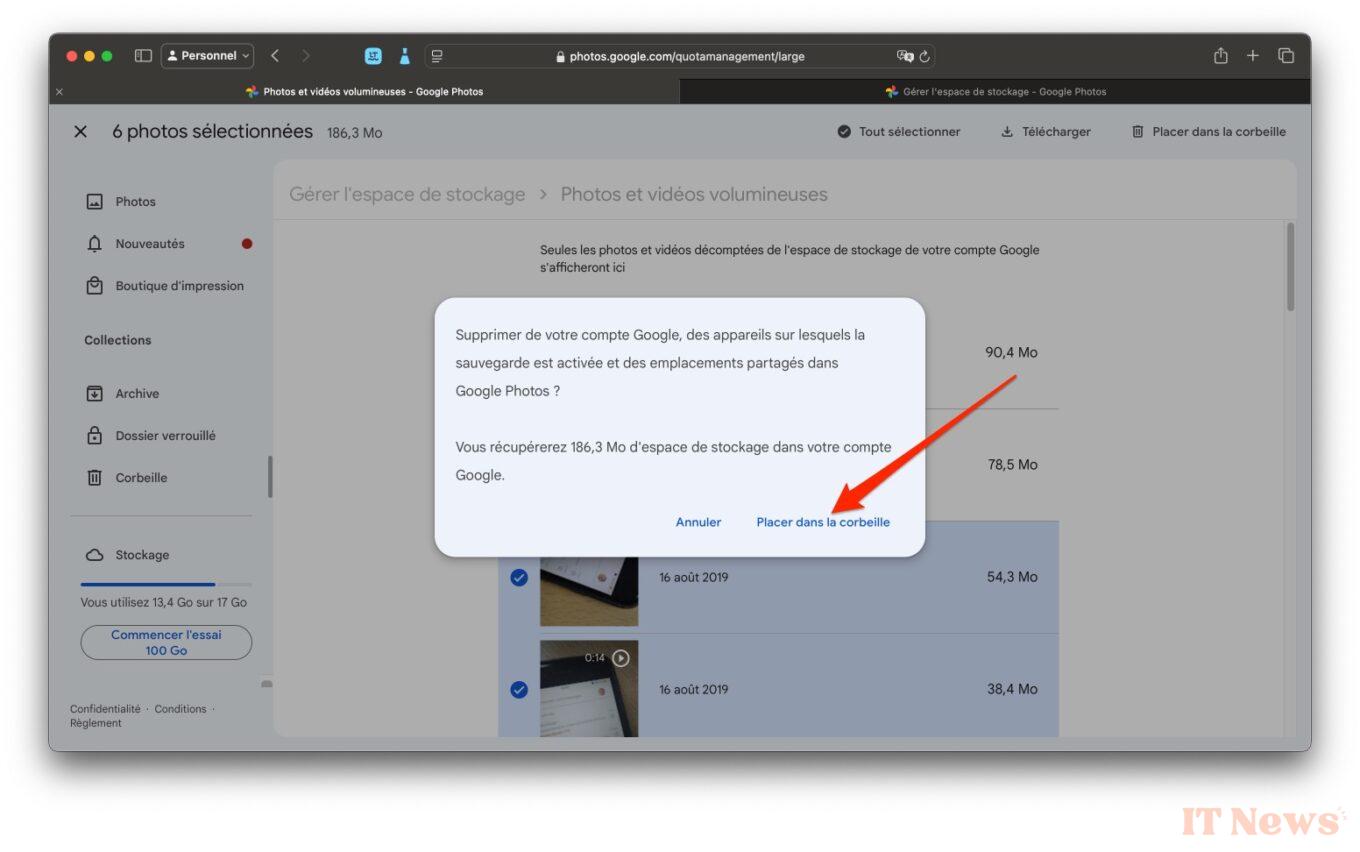
In the pop-up that appears, click on Place in trash to confirm your choice. Repeat this for each category suggested by Google Photos.
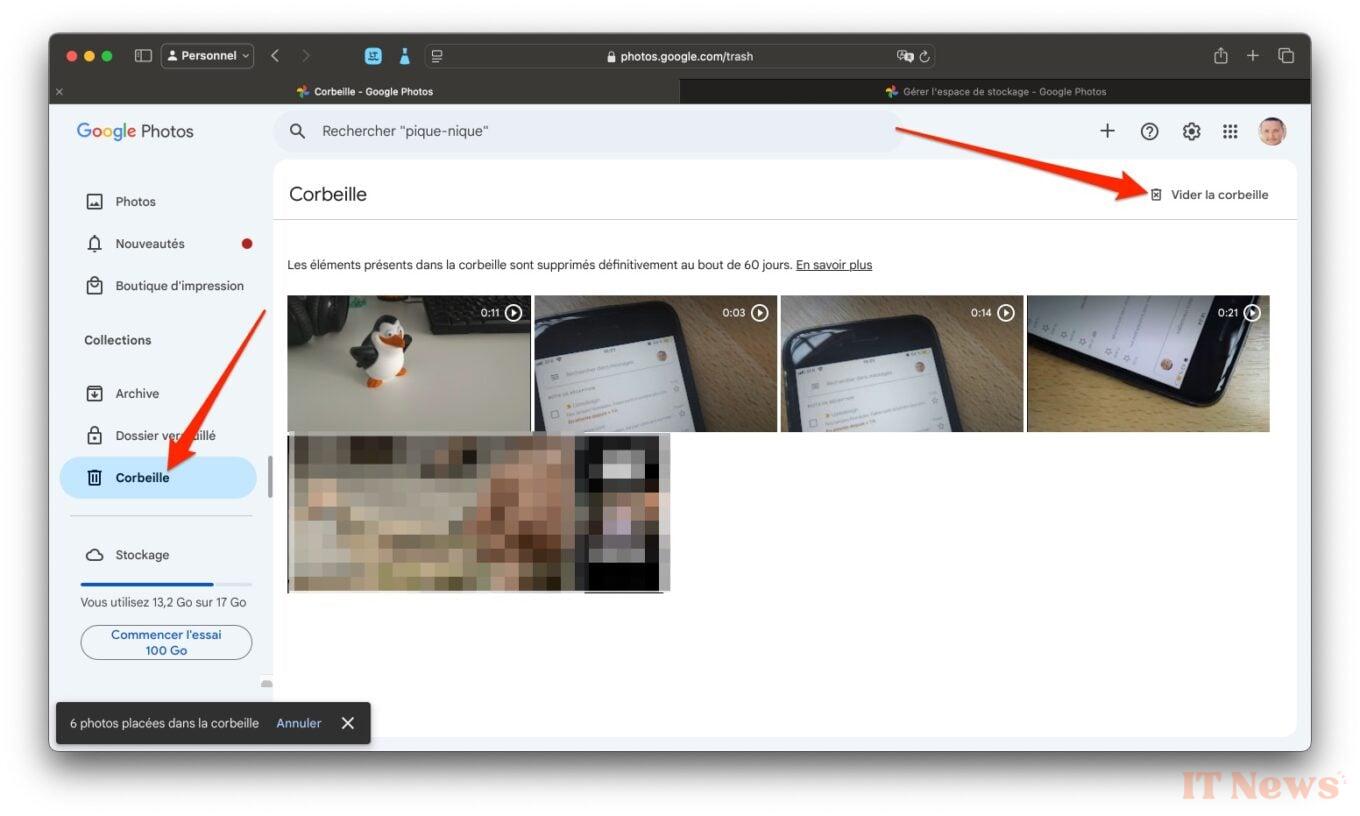
Then don't forget to go to the Google Photos trash, at the bottom of the left column, then click on Empty trash at the top right.
4. Delete unnecessary backups
Recently, Google announced the arrival of the “Cancel backup for this device” feature. In concrete terms, this new option allows you to delete photos and videos saved to Google Photos from a specific device. If you use multiple devices and they are all synced to Google Photos, you can choose to delete the content of one of these devices from Google Photos, while keeping them locally on the device.
The feature, already available on iOS, is currently being prepared for Android smartphones. To delete a device's backup in Google Photos, open the application, tap on your avatar at the top right, select Settings, and enter the Backup menu. Then select Cancel backup for this device and, in the next window, check the box "I understand that photos and videos from this device will be deleted from Google Photos". Finally, tap Delete Google Photos backup.
5. Clean up Gmail and Google Drive
Since Google Photos storage is shared with Gmail and Google Drive, you’ll definitely want to consider cleaning up both services if you’re serious about freeing up space. There are several ways to free up space in your Gmail inbox.
You can rely directly on the suggestions in Google One Storage Manager to delete content from both Gmail and Google Drive, and you can also set up a few rules to easily delete unnecessary emails (and attachments).


0 Comments