
Like many users, your iPhone is probably full of many valuable notes. But rather than using them only on your phone, you may be looking for a way to export them to use elsewhere, such as on your PC, or to store them somewhere else, safely.
After all, by keeping a copy of these notes, you can decide, when the time comes, to import them into another application. Unfortunately, iOS does not provide an option to easily export the notes you store in the Notes application. As long as your notes are synced to your iCloud account, you can retrieve a complete copy of them fairly easily, but with a little patience. Here's how.
1. Go to Apple's website
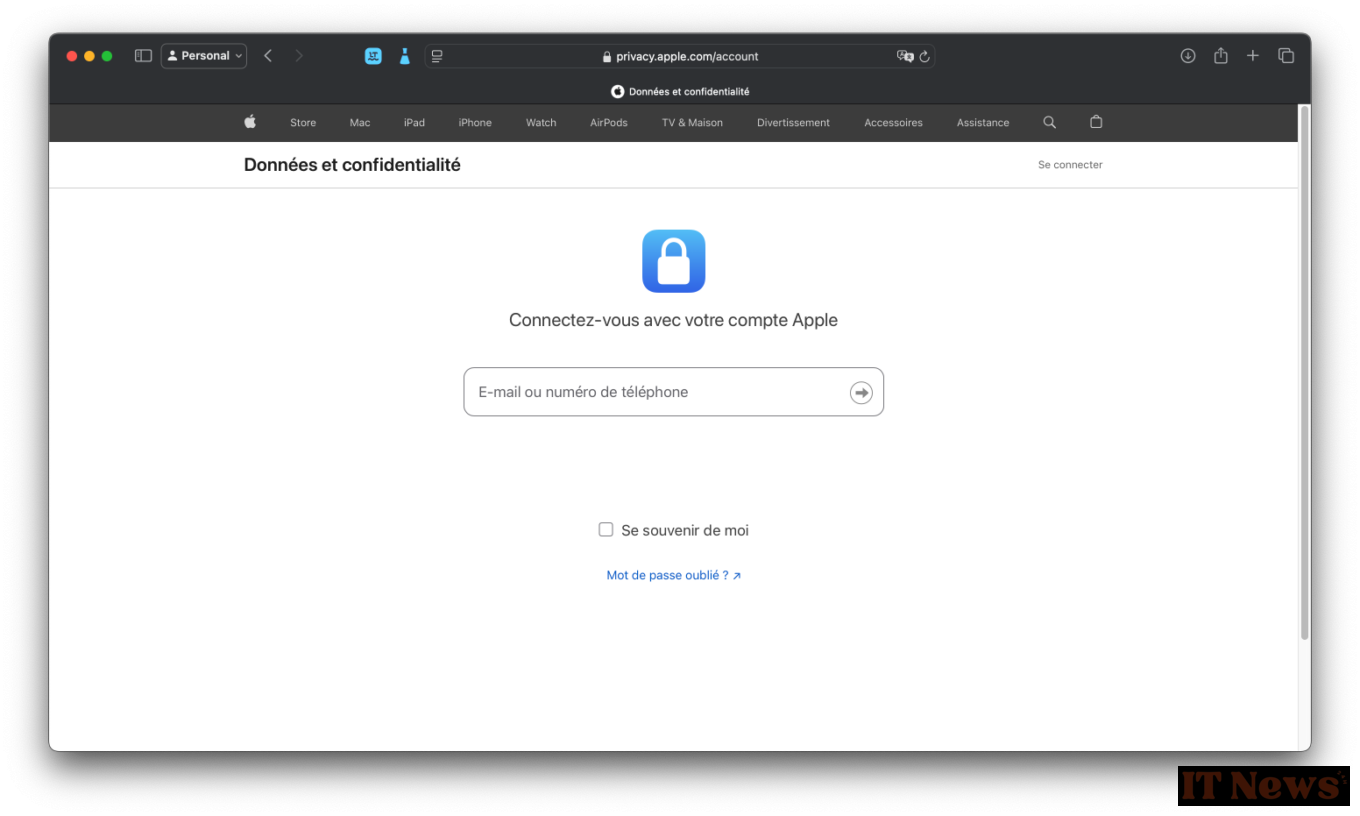
Open your web browser and go to Apple's Data and Privacy hub. Log in to the service using your Apple ID.
2. Request a copy of your data
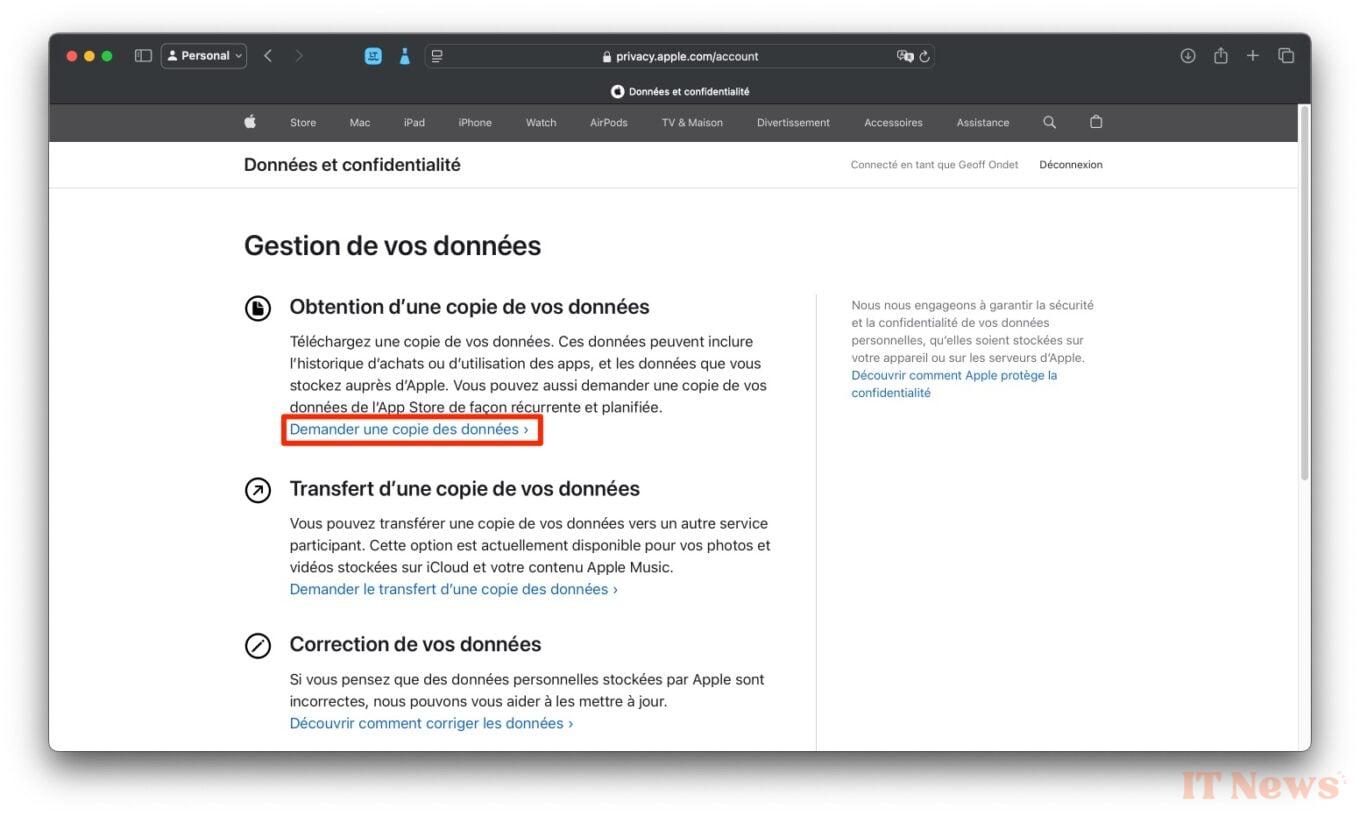
Once you are on the Data Management page, under the heading Obtain a copy of your data, click on Request a copy of your data.
3. Select the data to export
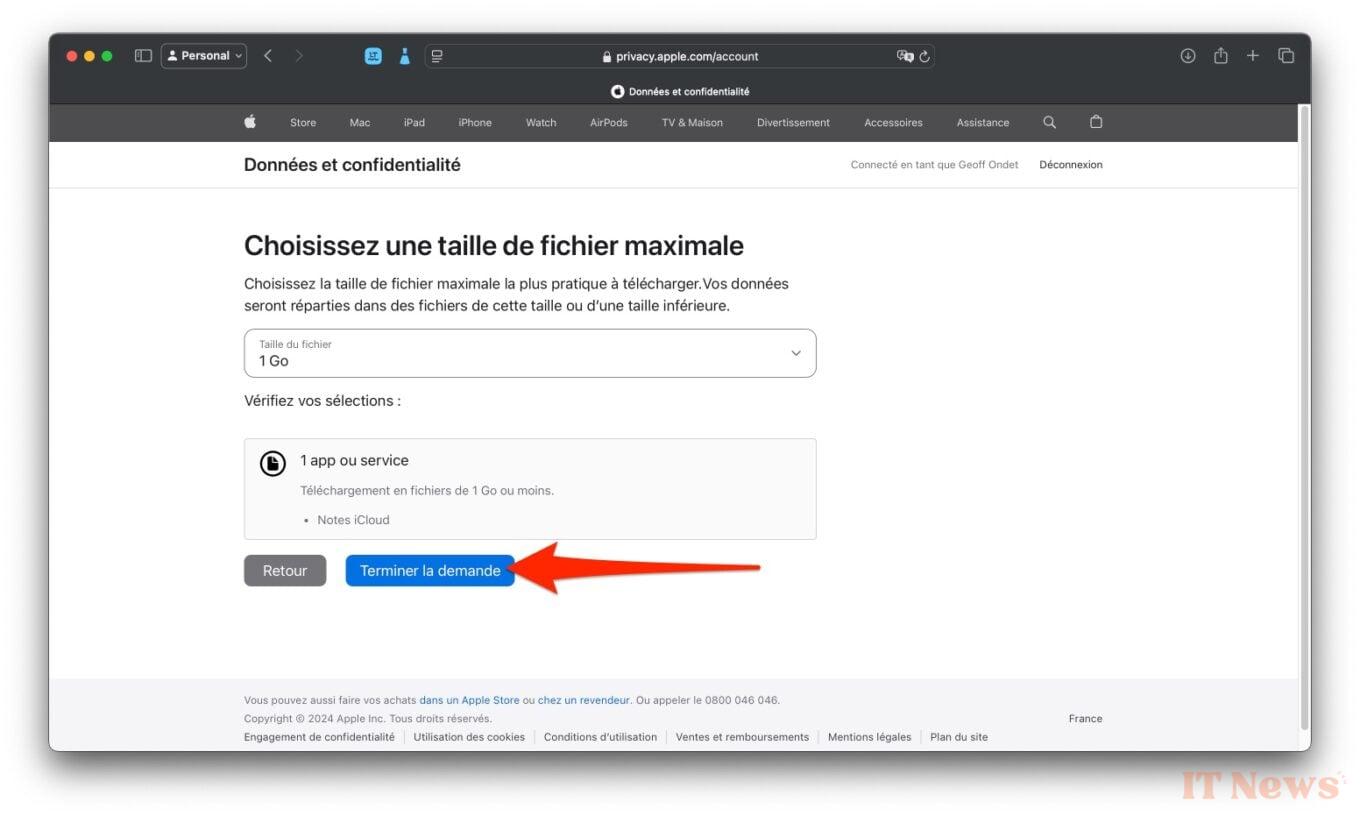
Then scroll through the options until you reach the line iCloud Notes. Check the associated box, then at the bottom of the page, click on the Continue button.
Then select the maximum size of the files you want to obtain. By default, Apple chooses to distribute your data into one-gigabyte files. Then click on Complete request.
4. Download your Notes
Once you submit your request, you’ll have to be patient. Apple says it can take up to a week to prepare your data for export from their servers.
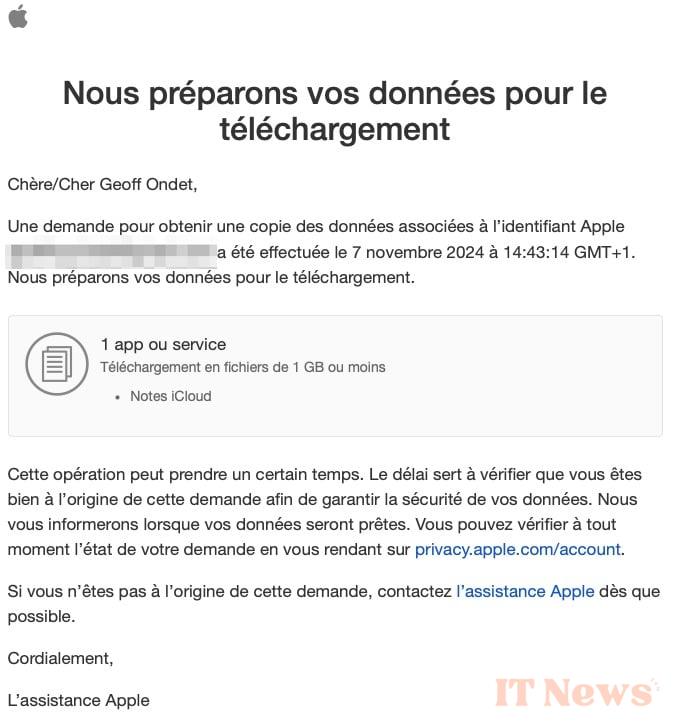
Either way, you’ll receive an email to your Apple ID address when your notes backup is ready. You will then only have to click on the link provided by Apple, then log in to your Apple account to download the compressed archive containing your notes.
You will thus recover a zipped archive in which you will find different directories (notes, quick notes, recently deleted notes, etc.) in which each of your notes are recorded. These take the form of subfolders in which are grouped, the text file in .txt format, as well as any associated multimedia elements, such as images, scanned documents, call recordings, etc.


0 Comments