
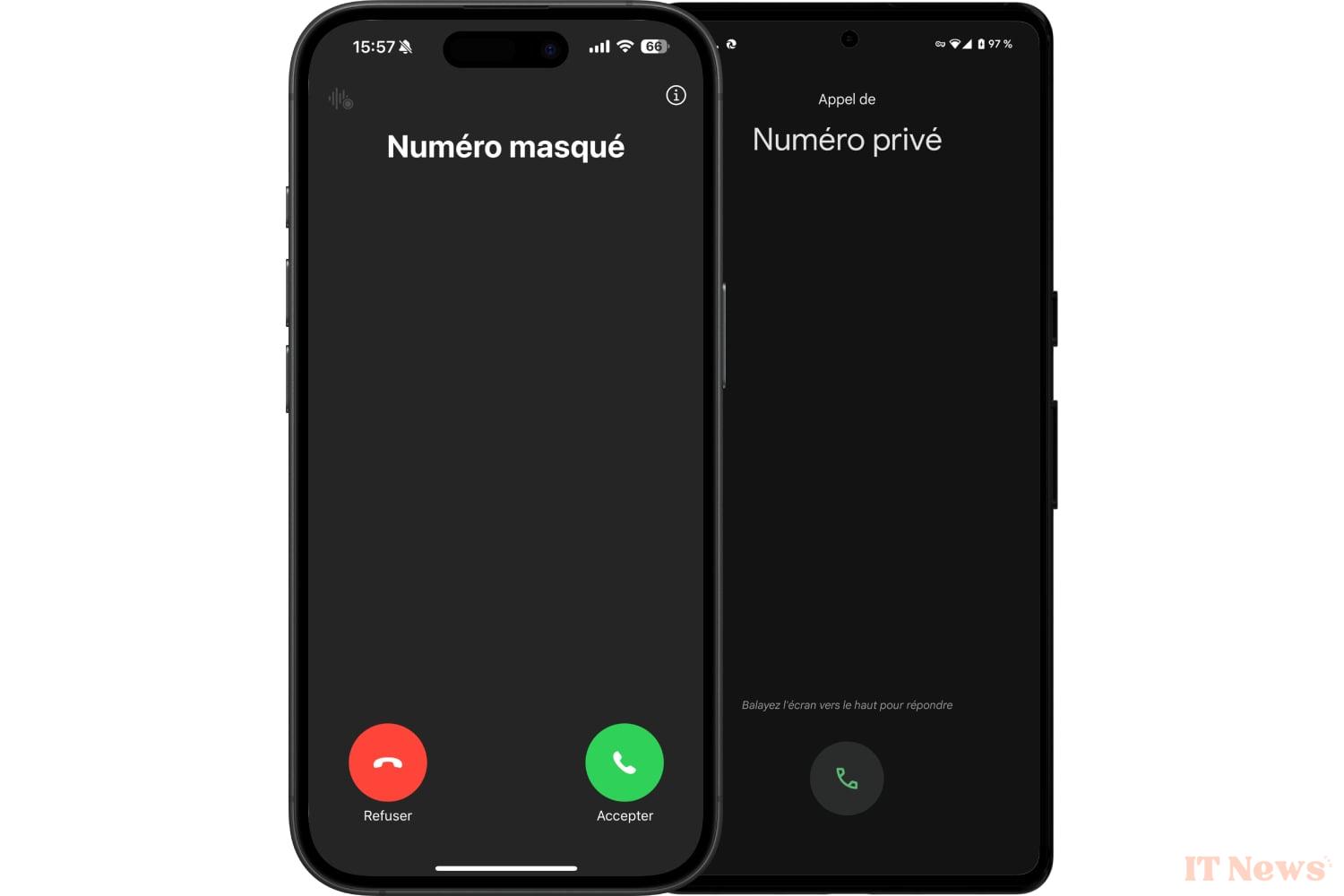
There are a thousand and one reasons why you might want to hide your mobile number during a call. Whether it's to use your personal number for professional purposes or to contact a stranger for a purchase on leboncoin, hiding your mobile number can, in some cases, save you a lot of trouble.
Be careful, however, hiding your phone number may send you straight to the voicemail of the person you're talking to. And for good reason, more and more phone applications or call filtering apps allow you to automatically block incoming calls from unknown numbers. This is the case, for example, with the Google Phone application.
Now that you know the ins and outs of this practice, here's how to set it up on your smartphone.
How to call with a hidden number on an iPhone?
If you have an iPhone, hiding your phone number will not take you more than a few seconds. Be careful though, because iOS does not offer to hide your number, but rather to display it. In concrete terms, you will therefore have to deactivate the option to display your number.
To hide your number on an iPhone, open the Settings of iOS and enter the Apps menu. Then select Phone, then under the heading Calls, enter the Show my number menu. Then deactivate the Show my number option.
Please note that once the deactivation of the display of your number is in place, all the calls you make will be made by hiding your mobile number. You will therefore need to remember to reactivate the display of your number if you wish to display it again during a call.
How to call with a hidden number on an Android smartphone?
Depending on the manufacturer of your smartphone, access to the menu for hiding your phone number during a call may be different.
If you have a Pixel smartphone, or if you use the Google Phone application by default on your smartphone, the option for hiding your number is directly in the settings of the Phone application.
To access it, open the Google Phone application and press the options button represented by three small dots, at the top right of the screen. Then enter Settings and go to the Phone Accounts menu.
Then select your phone line, and enter the Other Settings section. Tap Caller's number, then in the pop-up that appears, select Hide number.
Once this option is enabled, your number will be hidden from your correspondents for all calls you make. You will therefore have to return to this same menu and select Show number if you wish to be identified by your contacts again.
How to hide your number temporarily?
Whether you are using an Android smartphone or an iPhone, it is entirely possible to hide your phone number sporadically, for a single call for example. The manipulation consists of adding the prefix #31# before the number of your correspondent.
For example, for a number in the format 06 xx xx xx xx, you will have to enter #31#06xxxxxxxx and press the button to make the call. Your correspondent will not see your number displayed on their phone screen.
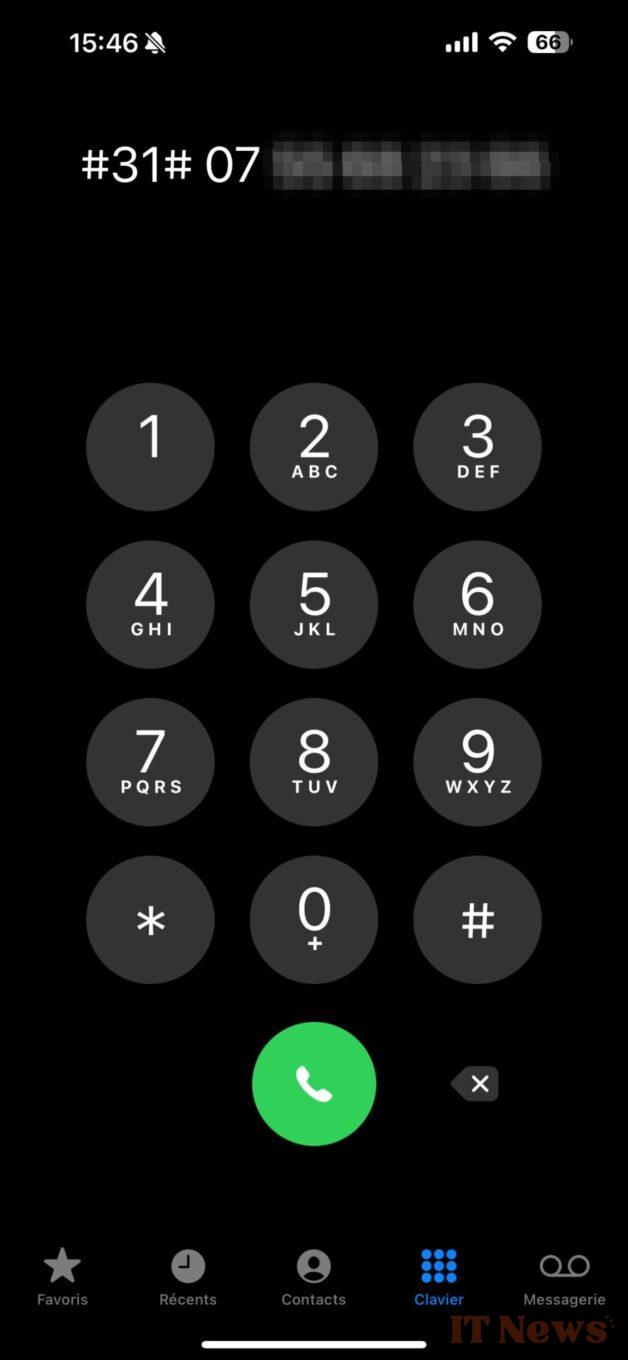
This manipulation will only work for this call only. You will therefore have to repeat it each time you want to hide your number before calling someone.


0 Comments