
macOS 15.2 (Sequoia) has been available for a few days now on all compatible Macs and introduces a number of new features. While most of them concern Apple Intelligence, which can only be accessed on Macs in Europe, macOS 15.2 also introduces a very practical new function that allows you to display the day's weather in the menu bar of your Mac.
The module, disabled by default, also displays a weather report in a pop-up window showing the forecast for the rest of the day when you click on the appropriate icon. Here's how to enable it.
1. Open System Settings
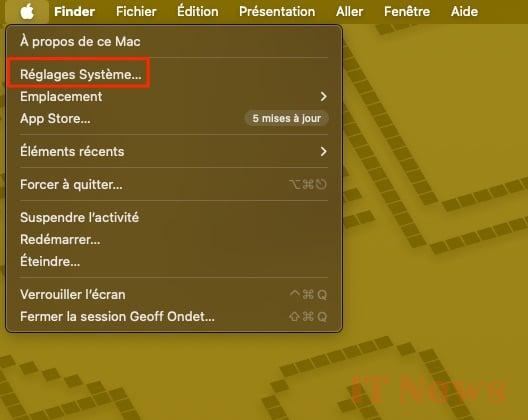
Start by opening macOS System Settings, by clicking directly on the appropriate icon if it is pinned to the Dock, or by clicking on the Apple menu > System Settings.
2. Change Control Center settings
In the System Settings window that just opened, select Control Center in the left column and then scroll down to the section called Menu bar only.
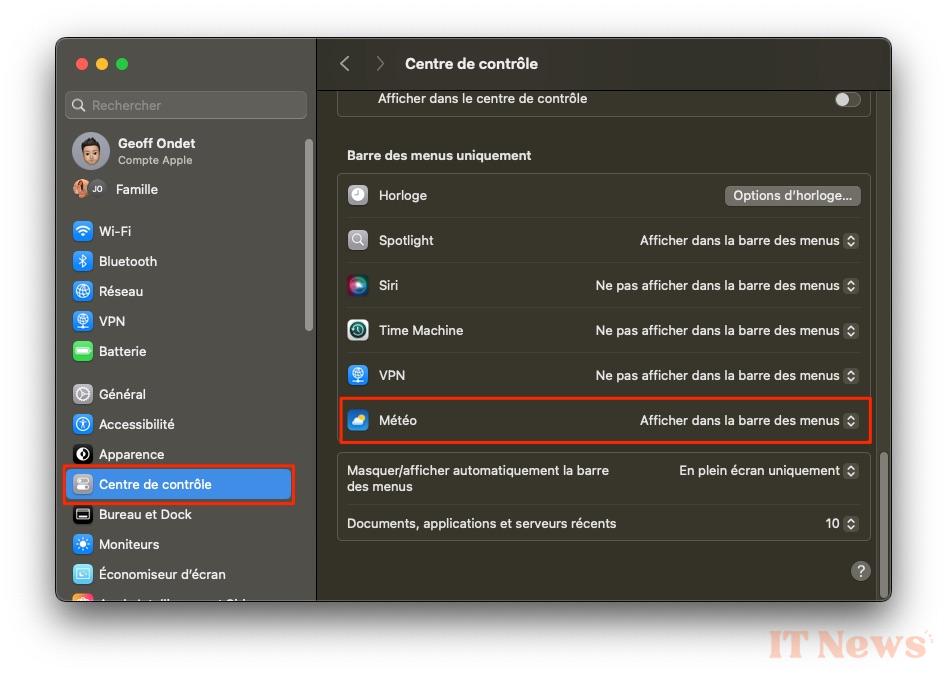
At the very bottom of the box, in the Weather line, click on the setting selected by default "Do not display in menu bar" and choose "Show in menu bar" instead. Then close System Settings.
3. Check the weather report
A new icon should have appeared in the macOS menu bar and display the weather for the day, wherever you are geographically. Click on this icon to display the weather report for the next few hours of the day.

A click on one of the displayed information will automatically initiate the opening of the Weather application, allowing you to access the complete forecasts for the next ten days.


0 Comments