
We often return from vacation with our heads full of memories, but also our smartphones and tablets full of photos and videos. Rather than abandoning them in a forgotten folder, why not group them into short, thematic films that are pleasant to share and watch?
While video editing was an activity carried out mainly on a computer in the past, the power provided by our smartphones is now sufficient to manage this practice. Application publishers have understood this well, and they now offer free applications accessible to everyone for editing — just like on PC and Mac.
To help you save time, we have produced a comparison of the best video apps for Android, iPhone and iPad. These services are open to everyone, allowing each user profile to unleash their creativity.
Summary
1. CapCut
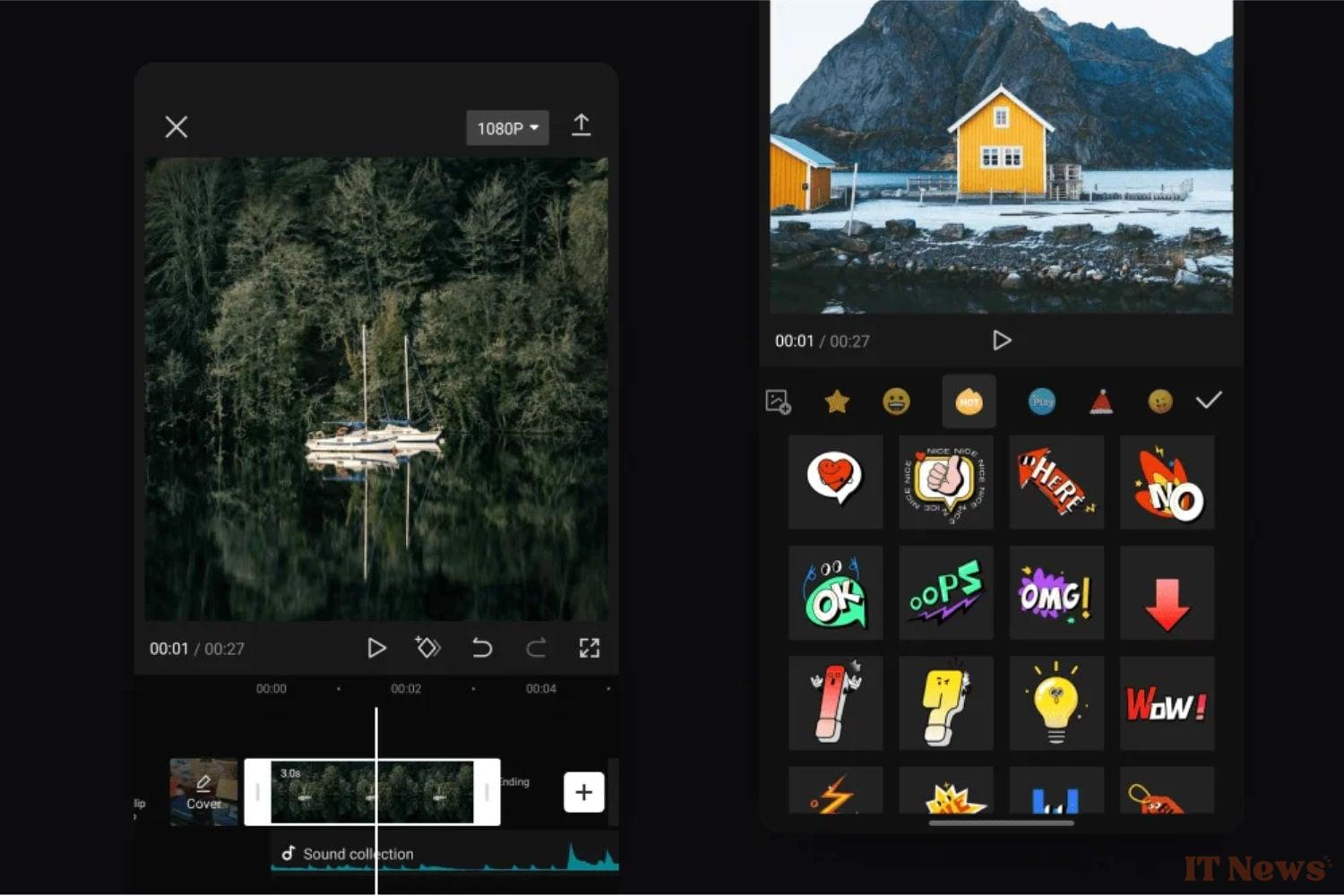
Arriving like a rocket with the advent of TikTok, CapCut has established itself as the best free video editing software on Android, iPhone, and iPad. Its PC and Mac version is also gaining momentum with very frequent updates.

CapCut is an application that has become known for its ability to use easy templates to create short, vertical formats for social networks. Over time, the features have piled up and it is increasingly becoming a choice for video specialists, compared to DaVinci Resolve, Final Cut Pro or Adobe Premiere Pro. The mobile version is very powerful, even without the premium subscription.
Beyond the templates, you can perform all the actions expected of video editing software: cut, insert music, titles, subtitles, make transitions, play with colorimetry with filters, you have plenty to do. Of course, the paid subscription allows you to go further with, for example, automatic subtitles via AI. A nice point is that export, even with a free account, goes up to 4K at 60 frames per second. On the App Store, CapCut is rated 4.7 with 97,000 voters.
- Download CapCut on Telecharger.com (Free)
The +
+ The free account has all the necessary features
+ The templates
+ The integrated music
The –
– Sister app of TikTok, which may displease some
2. Edits
Earlier this year, Instagram announced plans to launch its own video editing app. Edits, as it's called, is to Instagram what Capcut is to TikTok. The app, which officially launched a few weeks ago, is closely linked to the social network. Meta created it specifically to give content creators access to a simple and free editing tool to create the videos they publish on the platform.
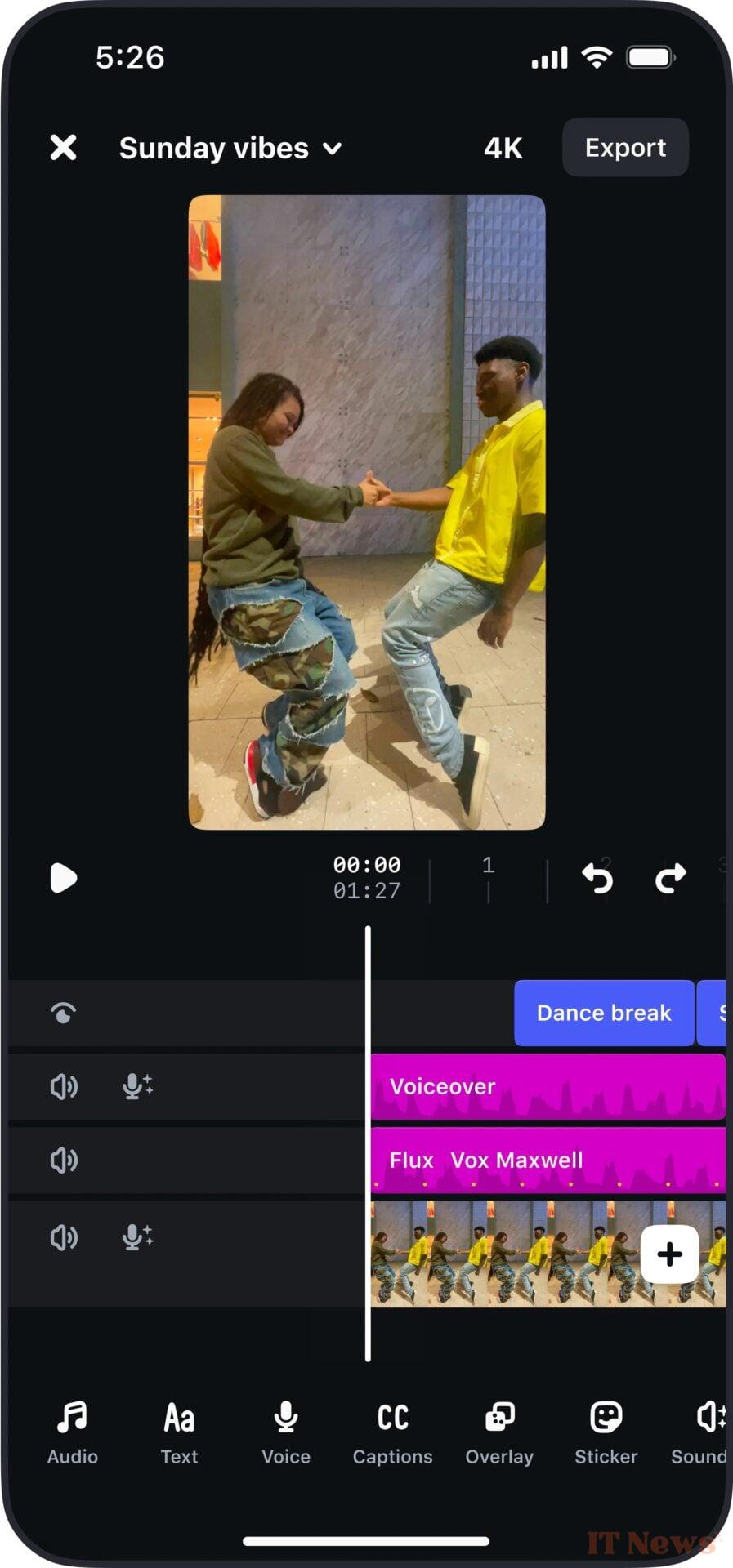
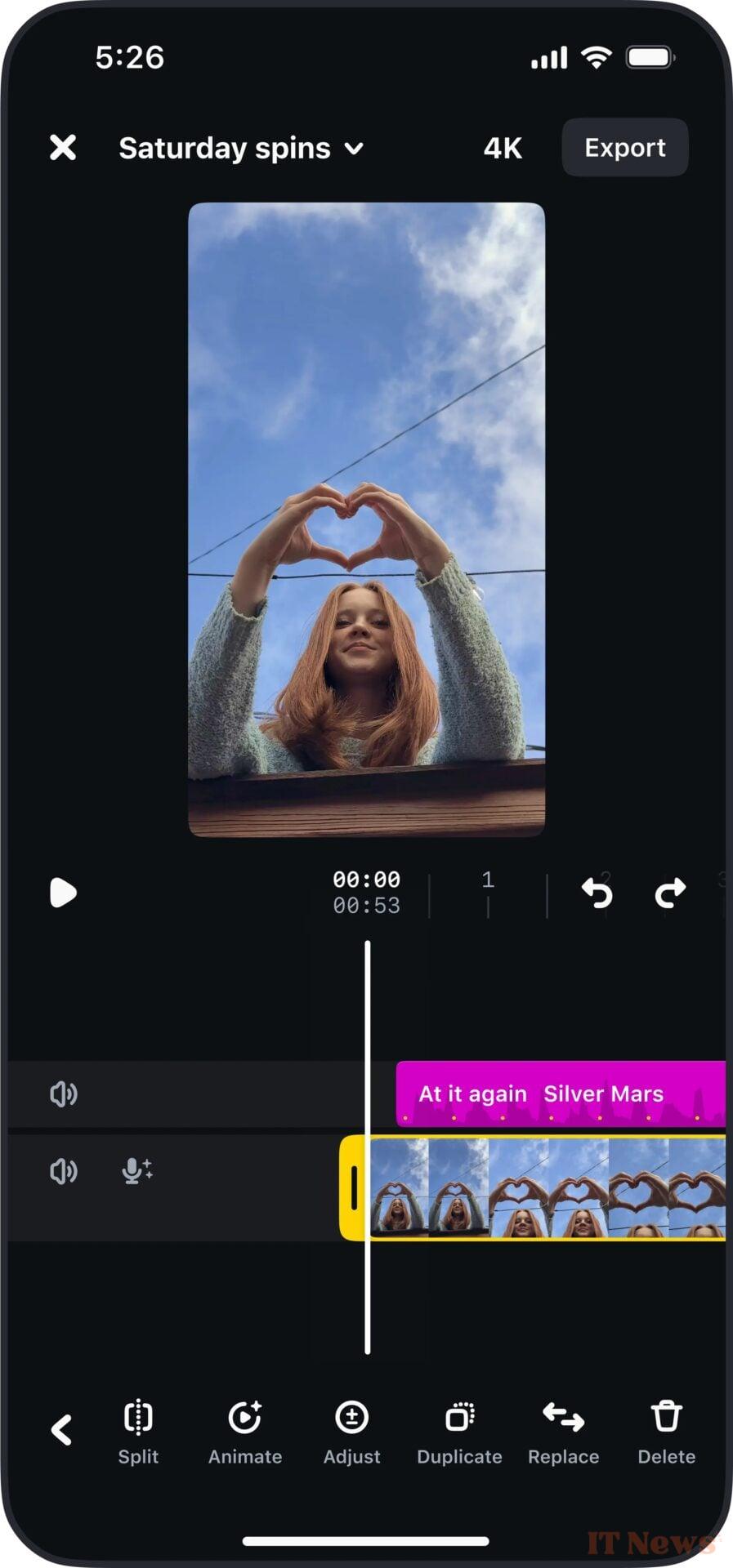
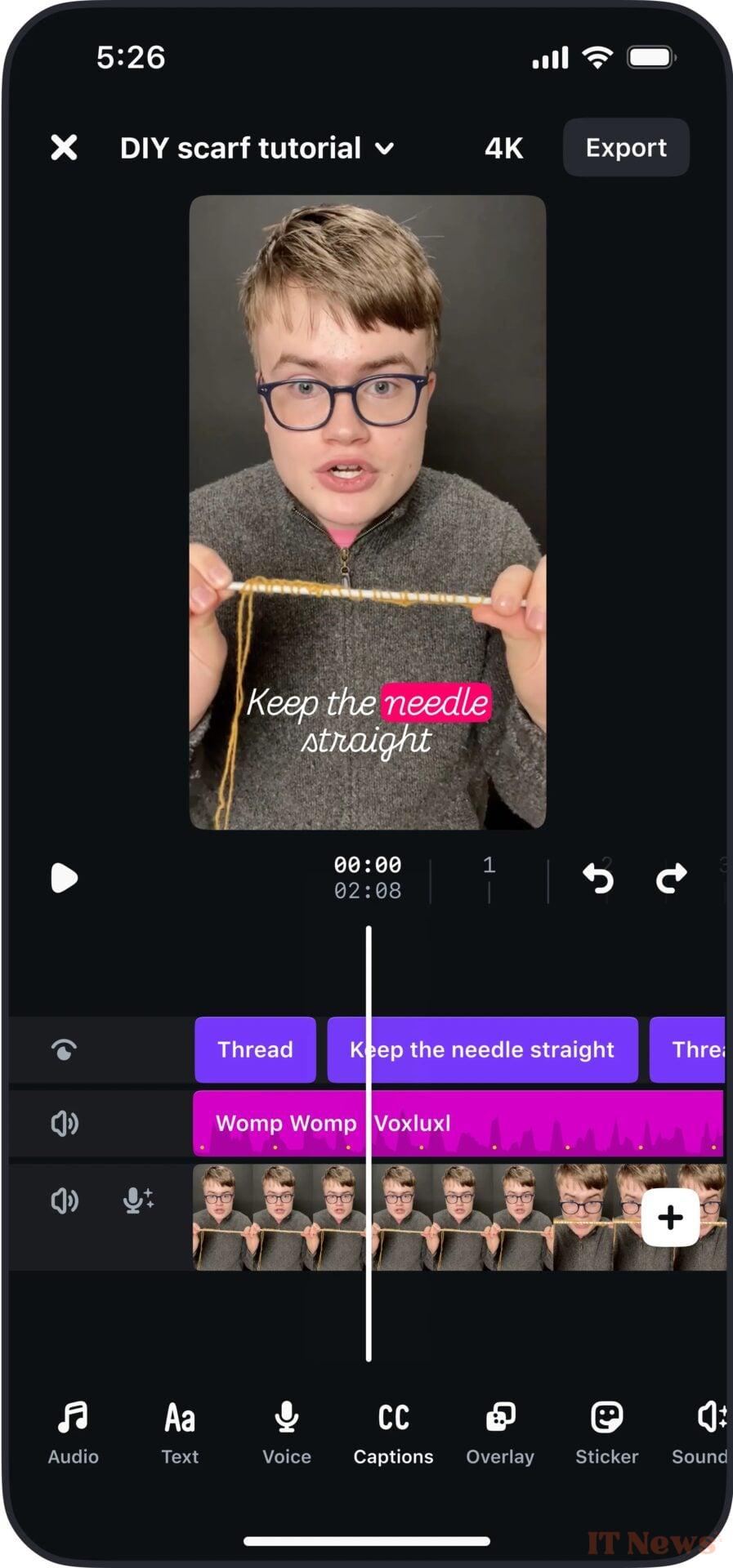
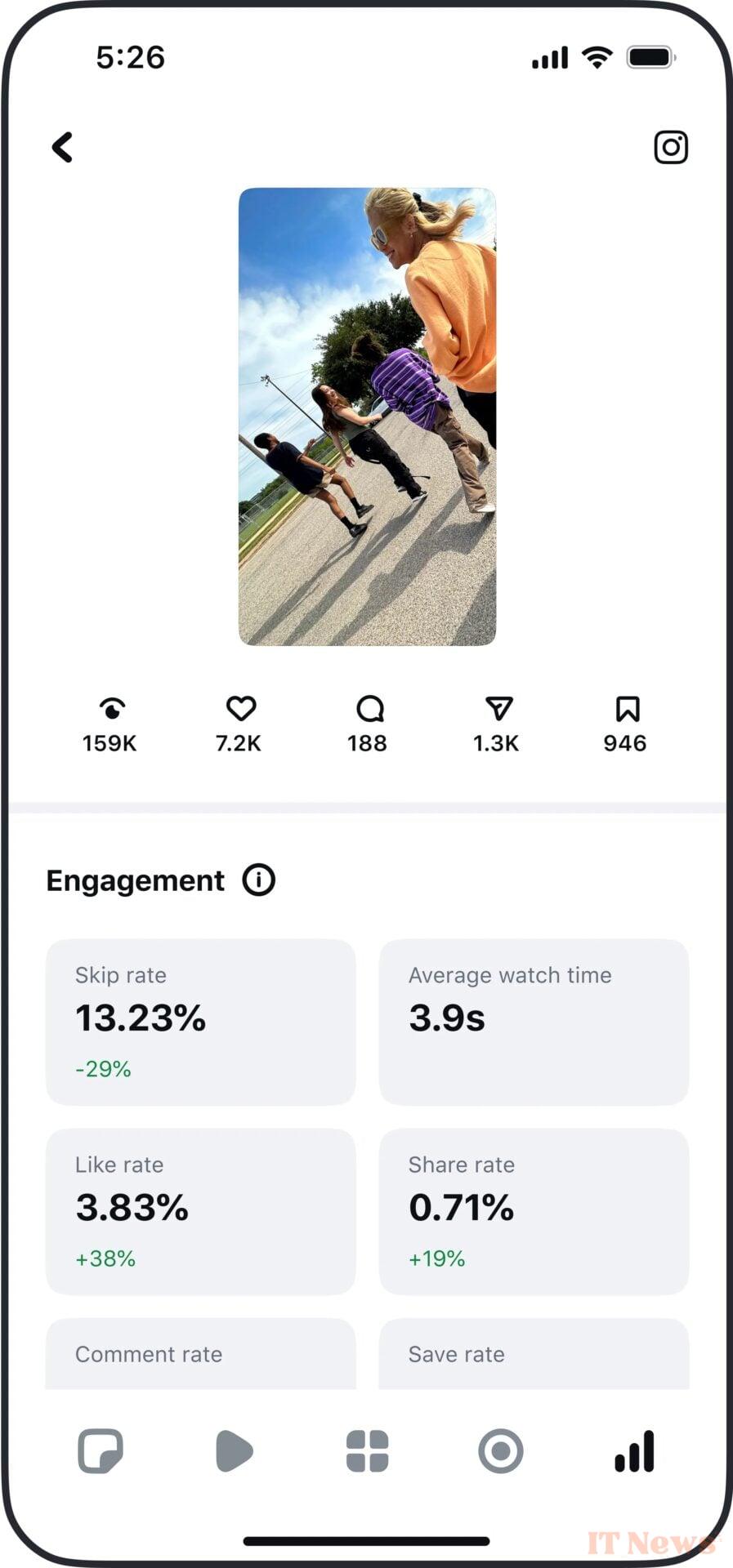
As you might imagine, using Edits requires you to have and log in to an Instagram account. Once this is done, you can create your first editing project. It's easy to learn, but includes everything you need to create a high-quality edit. You can add sound, text, and voices to your film, as well as automatically generate the associated subtitles. Edits even offers a library of sound effects and filters that you can use at will to give rhythm to your creation. The app also supports green screens and offers numerous visual effects for your clips. You can play with your voice by modifying it.
And if you ever lack inspiration, Edits offers access to Reels that have been edited with the application that you can swipe up like you would on Instagram. Videos can be exported in HD, 24 and 4K with a frame rate of 24, 30 or 60 images per second. You can also apply an HDR filter to your final video to improve its rendering, particularly in terms of colors and brightness.
Finally, once exported, your videos are automatically saved to your smartphone's camera roll. As a bonus, you can track the statistics of videos edited and published on Instagram with Edits, directly from the application.
- Download Edits on Télécharger.com (Free)
The +
+ Totally free app
+ Numerous effects for your edits
+ Tools to track the statistics of videos published on Instagram
The –
– Connection to an Instagram account required
3. VN Video Editor
With VN Video Editor, the video editing applications offered by the big names in the sector, such as Adobe and Apple, have serious concerns. Offered by Ubiquiti, a network hardware manufacturer more accustomed to offering routers and other servers, the service clearly has nothing to envy from the competition.
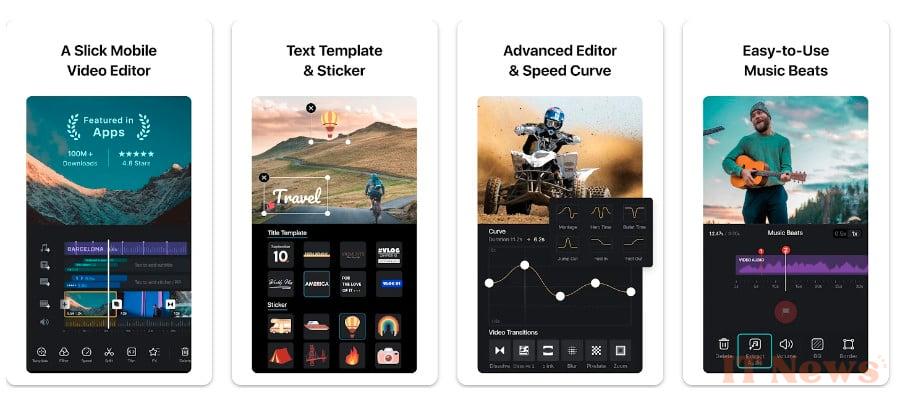
VN Editor Video lets you create video montages from scratch or use pre-existing templates, suitable for publication formatted for TikTok, or for publication in Instagram Reels and Stories.
On VN Video Editor, browsing files stored locally on your smartphone is incredibly smooth, allowing you to import your video clips onto the timeline in no time, whereas it can take several minutes on other applications. Each of the imported videos can then be repositioned in the order you want using a simple drag and drop.
VN Video Editor is based on an interface that almost makes it pass for a professional application. Everything is there, or almost: the Timeline, divided into several tracks, can accommodate videos on which stickers, picture-in-picture content, text, and music can be superimposed. Each imported clip can be resized, cut, trimmed, and can benefit from improvements through filters and other effects.
Otherwise, VN Video Editor offers a multitude of options for editing your montage so that it perfectly matches your expectations. It is thus possible to adjust the playback speed of your clips, to integrate effects in the middle of them, to apply transition effects between two videos or even to directly modify the rendering of a passage by modifying its opacity, by broadcasting it in reverse or by applying a momentary stop effect.
All the montages made in VN Video Editor can be saved to be modified later. As for exporting the final video, the video editing application offers to apply automatic settings (probably defined according to the capabilities offered by your smartphone), or to manually select the resolution (540p to 4K), the frame rate (24 FPS to 60 FPS), and the Bitrate level (1Mbps to 150 Mpbs) or even to activate HDR.
- Download VN Video Editor on Telecharger.com (Free)
The +
+ Very numerous editing tools
+ Simple, but very complete interface
The –
– Not enough video templates
– In English only
4. Adobe Premiere Rush
Previously a paid service for exporting more than three projects, Adobe Premiere Rush—which officially replaces Adobe Premiere Clip—now allows you to export unlimited projects at no cost. The video editing app is available on Android and iOS, and requires that you have a Creative Cloud account (including the free version) and log in.

Once you launch Adobe Premiere Rush, you can create your first project in Rush and start importing your videos. The application is able to draw from content stored locally on your smartphone, but can also connect to the Cloud to let you choose files stored on Creative Cloud or Dropbox.
The interface of the editing table on Adobe Premiere Rush is only available in portrait view. It is structured around three workspaces: at the top the video preview, in the center the timeline which can be enlarged or reduced by zooming with two fingers, and at the bottom of the screen the access banner to the various editing tools.
While each imported clip can be shortened manually by acting directly on one of its ends, Adobe Premiere Rush also allows you to split them or even duplicate them. Once selected, each element can be edited using the tools at the bottom of the screen.
With Adobe Premiere Rush, you are free to add text and effects, modify the color rendering with various filters, adjust the associated audio track, and transform the clip as desired by rotating it, cropping it, or changing its opacity. The video can be punctuated by transition effects between the different clips, and dressed up with the music of your choice. The video editing application even provides a tool for inserting a voiceover, recorded on the fly.
When your editing is finished in Adobe Premiere Rush, the finished film can be exported in a maximum resolution of 1080p. The application reserves 4K export for Creative Cloud members with a paid subscription.
- Download Adobe Premiere Rush on Telecharger.com (Free)
The +
+ Ability to edit 4K videos
+ Well-designed and easy-to-use interface
+ Ability to change the format of the current project
The –
– 4K export reserved for Premium members
– Creative Cloud account login required
5. iMovie
Made free by Apple for devices running iOS 10 or later, iMovie is attractive for its extreme simplicity and multiple features. You can import your photos and videos from your local storage space or your iCloud account without, unfortunately, being able to synchronize your other online storage spaces like Google Photos or Dropbox.
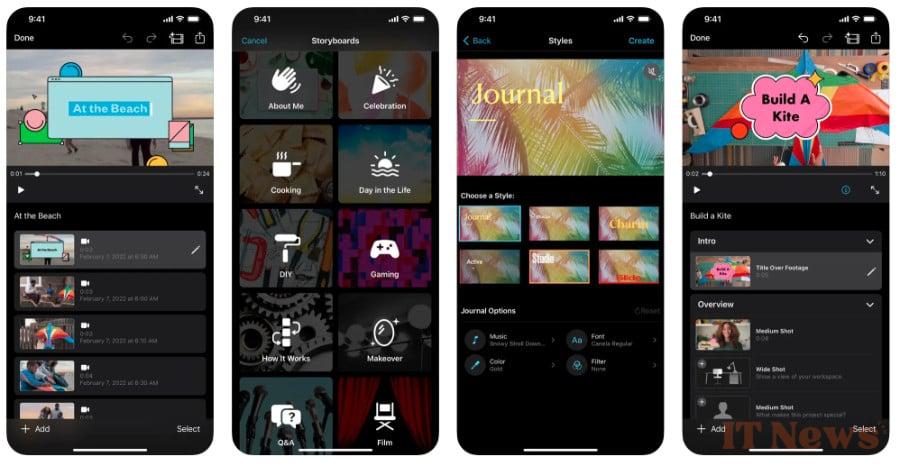
iMovie strives to make the various manipulations of multimedia content as easy as possible. You can rearrange your files with a swipe of your finger, add transitions between each shot to smooth out the animation, and even produce a Ken Burns effect to create movement within a frozen image.
Furthermore, iMovie introduces many additional features that deepen the customization work. Adding a soundtrack is done with a tap from your own music, even giving you the possibility of layering sounds thanks to multitrack support. A text editor allows the formatting and integration of titles, transition effects are left to your discretion, filters add style to your projects, and fade-in and fade-out options take care of the finishing touches of your creations.
Finally, iMovie automatically saves your videos in the application. You can export them to your computer via iTunes, save them locally in 360p, 540p, 720p, 1080p or 4K (for compatible devices), or sync them directly with your iCloud account.
- Download iMovie on Telecharger.com (Free)
The +
+ Numerous customizable effects and transitions for a neat rendering and finishing
+ Partial multitrack management
+ Videos exported up to 4K
The –
– No synchronization possible with online storage spaces other than iCloud
6. KineMaster
Free to download, KineMaster is an editing application that offers many paid options via in-app purchases. Therefore, upon opening the service, users are encouraged to upgrade to a paid version to unlock its full potential. However, it is possible to override this, although the latter likes to remind you to subscribe on its main page.
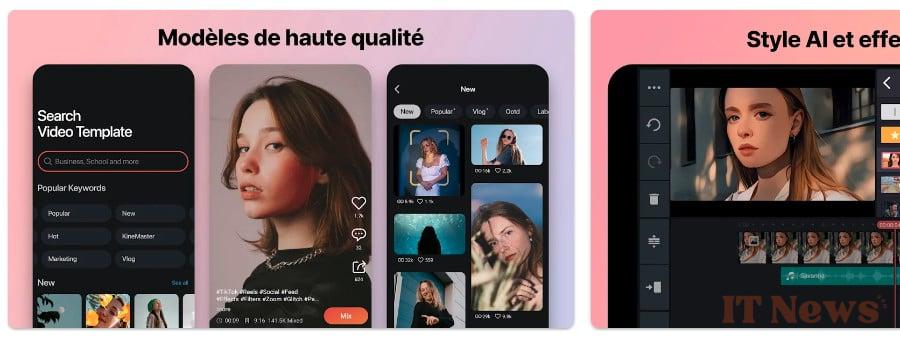
Creating a project in KineMaster is very simple. The application first offers to configure your project's preferences. You must enter its name, choose its ratio, define a display mode and a duration (for photos), and adjust the duration of the transitions that will be used in your project.
Then, KineMaster plunges you into the deep end. On the left of the editing table, you will find the project options, in the center the video preview and the timeline, and on the right a very well-designed wheel to navigate through the different editing tools. It is used to import files into the project, add layers (for effects, text or stickers), insert audio files and even to record an audio commentary on the fly.
On KineMaster, editing a clip is done by selecting it, which will display on the right of the screen all the possible tools and actions. You can then cut them, adjust their speed, rotate them or even apply various effects to them.
In addition, KineMaster features an online store where you can download video content, effects, or even music to integrate into your projects, some of which are reserved for premium subscribers.
As for exporting your videos with KineMaster, this can be done in all resolutions, up to 4K, with a frame rate of up to 60 FPS. Be careful when exporting, the application offers to subscribe, falsely suggesting that exporting a project is reserved only for premium members. A "Skip" button displayed at the top right of the screen, however, allows you to skip this screen to start exporting the film.
The only drawback of this free version is that a KineMaster watermark is automatically embedded on exported videos.
- Download KineMaster on Telecharger.com (Free)
The +
+ Use of the intuitive editing table
+ Numerous downloadable contents
The –
– Too frequent subscription suggestions, especially when exporting
– Watermark in the free version
7. InShot
With its sleek interface, InShot offers a simple and intuitive editing experience. You add as many elements as you want to your edit, and the work of cutting, sorting, and organizing clips can begin. The video editing app offers a wide range of formats, including some specifically designed for Instagram, TikTok, and YouTube.
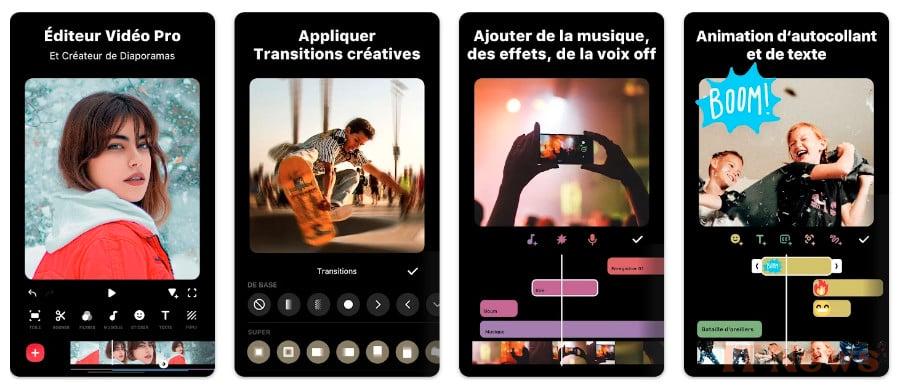
Depending on the orientation of the videos you choose and the type of editing you want to do on InShot, you can choose to zoom in or adjust the video to the ratio you want to apply. The video editing application also offers to customize the type of fill (background, color, blur) to use for the empty bands visible around the main video.
Clips, added one after the other on InShot, can be moved in the timeline using a simple drag and drop. It is then possible to adjust the size of each video constituting your montage by selecting them one by one and then adjusting the handles displayed on either side of the clip.
Also, InShot allows you to apply modifications and adjustments to the selected clip, or to all the videos used in the montage. You can add text and stickers, split clips, adjust the soundtrack of each clip, change their playback speed, and even apply a freeze or reverse playback effect.
InShot offers a number of paid options: when a filter or effect is not included in the free version, the app displays an "Unlock All" button allowing you to subscribe to access all of InShot Pro's content. Finally, the export of edited videos is done in 720p or 1080p, and a watermark, which can be removed only once in its free version, will be automatically displayed at the bottom right of the film.
- Download InShot on Telecharger.com (Free)
The +
+ Many predefined ratios
+ Very easy to master
+ Many adjustment and image correction settings
+ Video export in 720p or 1080p
The –
– Watermark applied to exported videos
– Many paid effects and options
8. Adobe Express
Adobe Express was originally designed to help entrepreneurs create videos for social media and the web. However, the video editing app will do the trick for putting together a perfectly polished holiday movie in just a few minutes.

The Adobe Express application is easy to use, as the video is built around a system of slides, which you simply tap to insert media. If the main goal is to edit a film, it is possible to integrate photos, fixed text, or even icons.
In Adobe Express, each clip is cut individually by pressing a dedicated button, and not from the timeline as in more professional applications. Nine predefined themes can be applied to the video, which can be wide or square.
To give rhythm to the video in Adobe Express, it is possible to add a soundtrack by integrating music stored locally in the media library or in the iOS file manager. You can also select a song from the music catalog included in the application. Once the project is finished, the video can be exported directly to the device's camera roll, or shared online.
In its free version, the application displays an Adobe Express logo at the bottom right of the video, as well as a final slide indicating that it was created with the Adobe application.
- Download Adobe Express on Telecharger.com (Free)
The +
+ Several predefined themes
+ Integrated music library
The –
– Only two possible editing formats
– Importing videos not practical
– Watermark and Spark ad slide on the final video
– No option to choose the export quality (limited to 720p)
9. PowerDirector
Very comprehensive, PowerDirector is aimed at a more sophisticated audience than Adobe Premiere Rush. Excluding any form of automatic or semi-automatic editor, the video editing application forces you to manually edit your video. Import your files from your camera roll, internal storage, or Google Drive.
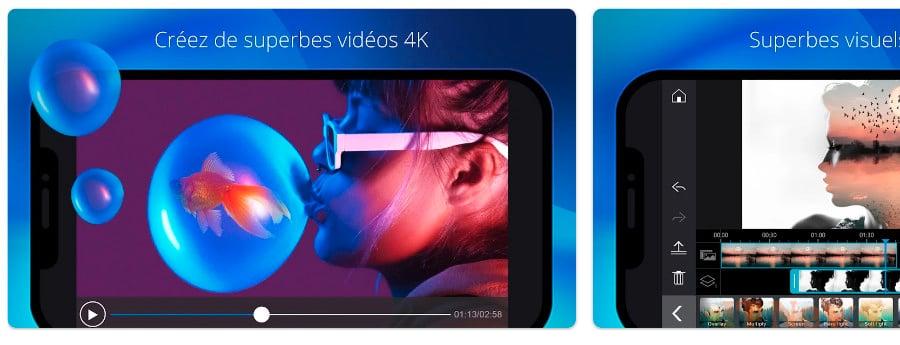
At first glance, the PowerDirector editing platform may seem intimidating, but it's easier to learn than it looks. It has a familiar structure with the preview window, timeline, timeline slider, and the juxtaposition of video and audio tracks. All the features offered by the application are accessible from the editing window for increased working comfort.
PowerDirector aims to make its app a quality tool, capable of combining professionalism and ergonomics, knowing how to adapt to the touch interfaces for which it is intended. The result is rather convincing, the various editing manipulations being carried out with ease. We appreciate the porting of many options essential for good project management such as multitrack support, titling, effects, audio mixing parameters, traditional image framing tools, or even speed and color adjustments.
In its free version, PowerDirector allows the production of your videos in HD 720p. You can save your edits locally or share them instantly on Facebook and YouTube.
- Download PowerDirector on Telecharger.com (Free)
The +
+ Complete and successful port of a traditional editing software
+ Multi-track support
+ Numerous transition effects
+ Precise adjustments of numerous parameters for a neat rendering and finishing
The –
– The free version includes a CyberLink watermark on all videos
– The free version limits productions to HD 720p
– Slightly cramped interface on smartphone screens
10. Canva
As surprising as it is unexpected, Canva offers a very respectable free video editing tool. If you're not yet familiar with the application, it's an online service offering numerous graphic design tools of all kinds.
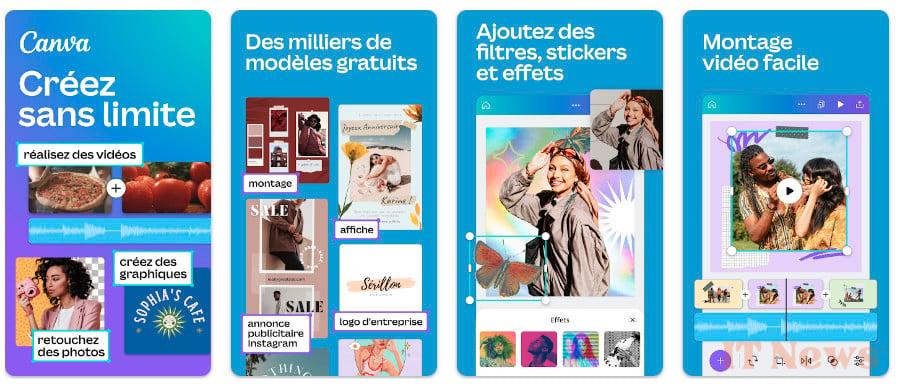
Canva includes a multitude of templates that can be used to create content. Video editing is no exception, as it is possible to quickly create small video montages from the mobile app without any prior knowledge.
Once you're signed up to Canva, you have a section dedicated to video. From there, you can start from scratch on a blank page or rely on established templates. The video editing app offers several formats, from the most classic to formats adapted for social networks, mobile platforms, etc.
Once you have selected your format and template, Canva allows you to import the videos stored on your smartphone. You can organize them as you wish on the Timeline, trim them, crop them, add zoom effects and even apply transitions between each of the clips making up your video.
Canva offers numerous export options. Indeed, you can export your projects for direct publication on social networks (Instagram, Facebook, Twitter, TikTok, etc.) on your feed or in stories, save them to the Cloud (Google Drive, Dropbox, Microsoft OneDrive, etc.) and much more. It is also possible to save the edited film locally in high-quality MP4 format.
- Download Canva (Free)
The +
+ Many predefined formats and templates
+ Ease of use
+ Suitable for immediate publication on social networks
The –
– Many in-app purchases
– Fairly limited clip editing functions
– Lack of fluidity in import navigation


0 Comments