

After unveiling Google has just opened the floodgates of Android 16. The very first public beta of the next major update to Google's mobile operating system is available and can already be installed if you own a Pixel smartphone.
Be careful, however, not all devices are eligible. Android 16 will only be available for the following devices:
- Pixel 6 and Pixel 6 Pro
- Pixel 6a
- Pixel 7 and Pixel 7 Pro
- Pixel 7a
- Pixel Fold
- Pixel Tablet
- Pixel 8 and 8 Pro
- Pixel 8a
- Pixel 9, Pixel 9 Pro, Pixel 9 Pro XL and Pixel 9 Pro Fold
If you are lucky enough to own one of these Pixels, you can definitely claim to install this first public beta of Android 16. The procedure, which is very simple, will not take you more than five minutes.
That being said, it should be kept in mind that this preview version, still under development, may be subject to some bugs and other instabilities. The installation of this public beta must therefore be done in your soul and conscience.
1. Sign up for the Google beta program
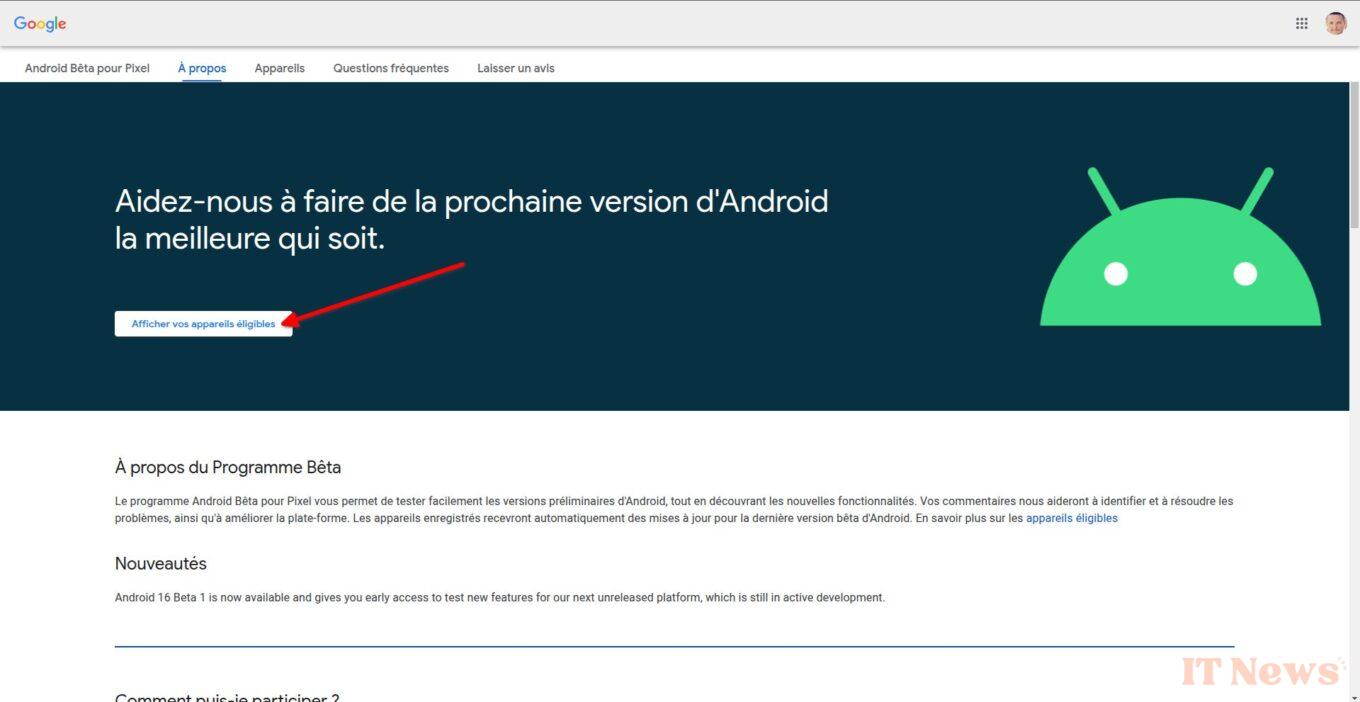
Open your web browser, from a PC or directly from your smartphone, and go to the Google Android Beta Program sign-up page. Once on the page, click on the View your eligible devices button.
2. Enroll your eligible devices
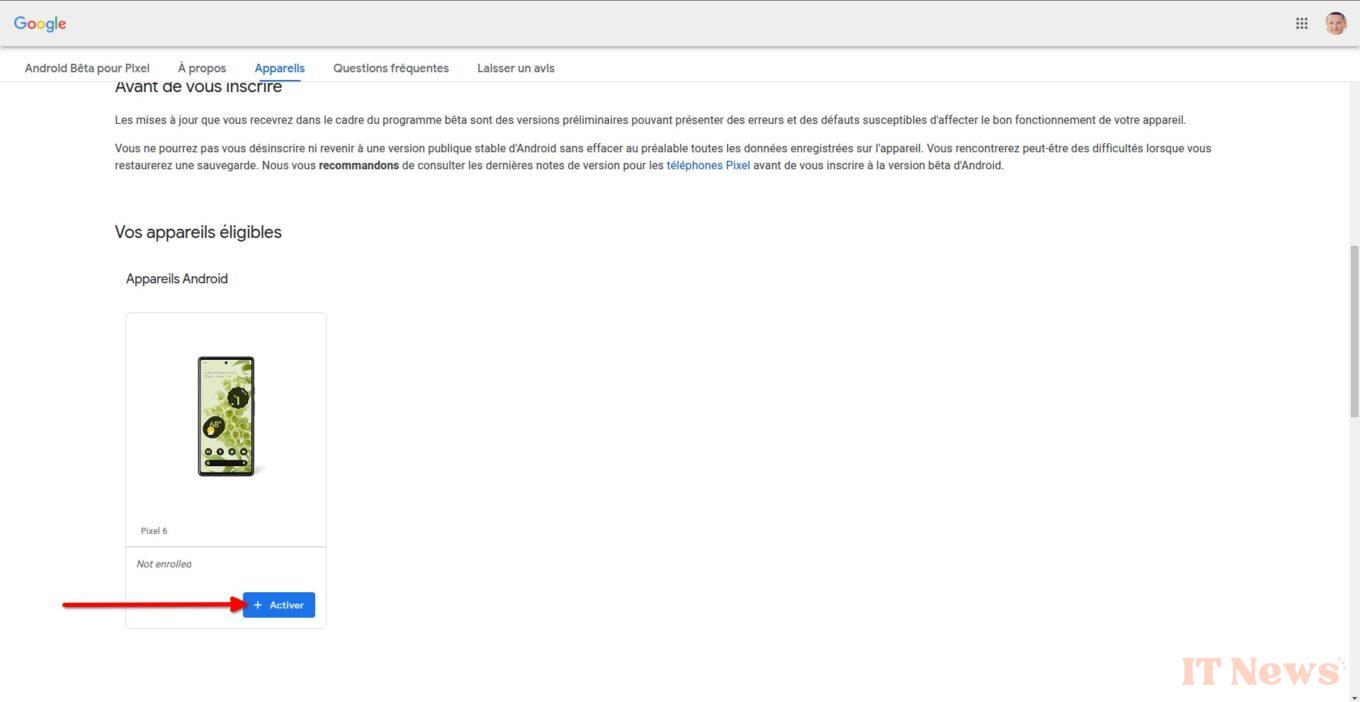
The Android Beta Program page should then take you to the list of your devices eligible to install Android 16 beta 1. Click the Activate button for the device on which you want to install Android 16.
3. Accept the Terms of Use
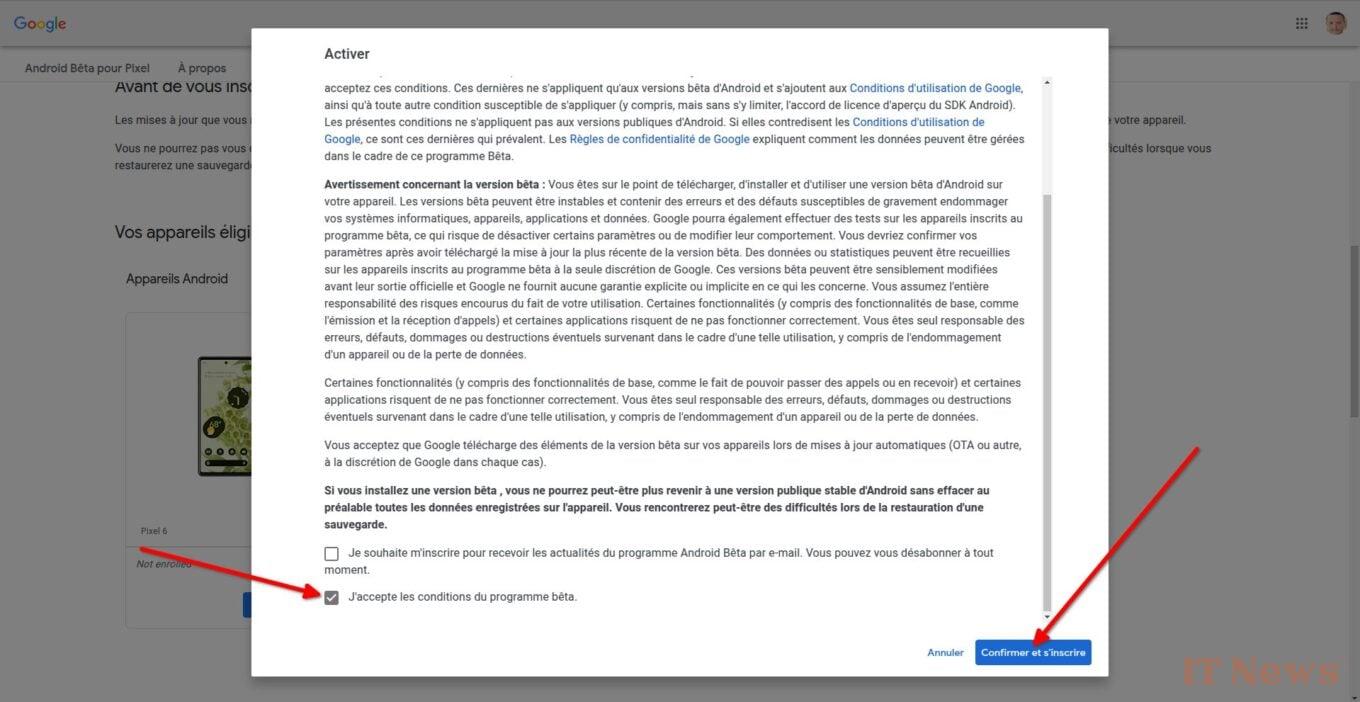
A pop-up displaying the Terms of Use should then open. Scroll to the bottom (after reading everything, of course), check the I accept the terms of the beta program box and click Confirm and register.
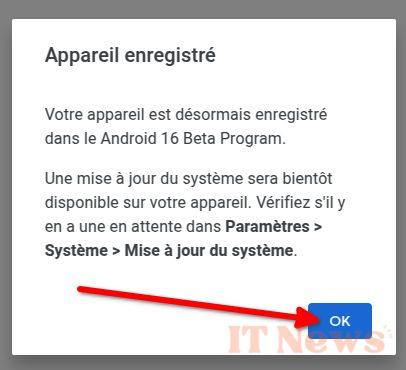
A Registered Device window should then appear, confirming your smartphone’s registration in the Android Beta program. Click OK to close it.
4. Update your Pixel
Android 16 beta 1 is then installed directly on your Pixel. To do this, go to the device's Settings and go to the System menu. Then enter the Software Updates menu and select System Update. The Android 16 Beta 1 update should then be offered to you. Press the Download and install button displayed at the bottom right of the screen.
Then wait a few minutes for your smartphone to download the update corresponding to your device. Once the update file is downloaded, press the Restart button now to finalize the installation.


0 Comments