

That's it, you've taken the plunge, and you've finally succumbed to the sirens of Windows 11 24H2. As happy as you are, it's possible that you didn't have time to immediately take a tour of the place to check that everything was perfectly functional. Until that terrible moment when you realized that a horrible bug (and there are many) is preventing you from using your PC or some of its features correctly.
Never mind, after installing a major update to the operating system, it is possible to go back very easily. To do this, you have to go to Windows 11 Settings. Unfortunately, this "rollback" is only possible for a fairly limited period. Microsoft only gives you about ten days to go back to the previous version of Windows if you are not satisfied with the latest update.
After this period, it is impossible to go back using this method. So you find yourself with your PC stuck on this buggy update. You then have no choice but to be patient, waiting for the patches to be published by the Redmond firm. Unless you consider a complete manual reinstallation of Windows 11 23H2 on your machine?
This solution, which seems to be the simplest in appearance, is in reality much more complex to set up than you imagine. Because unless you have kept a copy of the Windows 11 23H2 installation disk image, there is no "official" solution to recover the Windows 11 23H2 ISO from Microsoft servers.
On its website, the company has definitively stopped offering the disk image of this version, and instead only offers version 24H2. All is not lost, however. Recovering a Windows 11 23H2 installation disk image isn’t impossible, provided you have the right tools at your disposal. Here’s how to get it in just a few clicks.
1. Download the Windows 11 ESD
Start by downloading the Windows 11 Home 23H2 ESD. This ESD file (for Electronic Software Distribution) is used by Microsoft to distribute updates, installations and compressed system files for its OS. It contains all the elements necessary for a Windows 11 installation.
2. Download Dism++
As it stands, you won't be able to do anything with this ESD installation file. To use it, you'll have to convert it to a disk image, in ISO format. Don't panic, there is a tool for this that is very easy to use and, above all, has a graphical interface. This tool, Dism++, can be downloaded by clicking here. Once the archive is recovered on your disk, unzip it.
3. Convert ESD to ISO
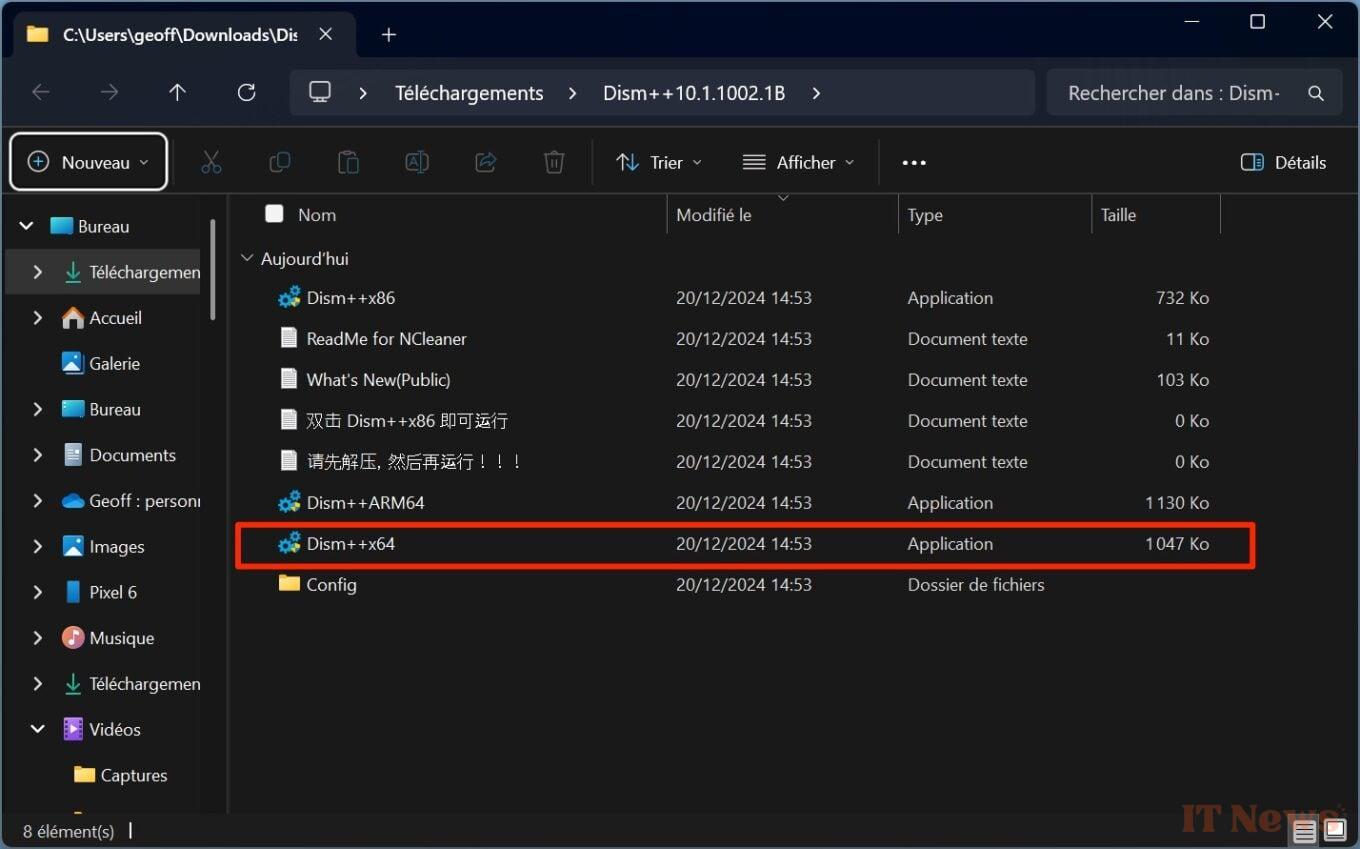
Open the Dism++ directory that you just unzipped on your PC and double-click on Dism++x64.
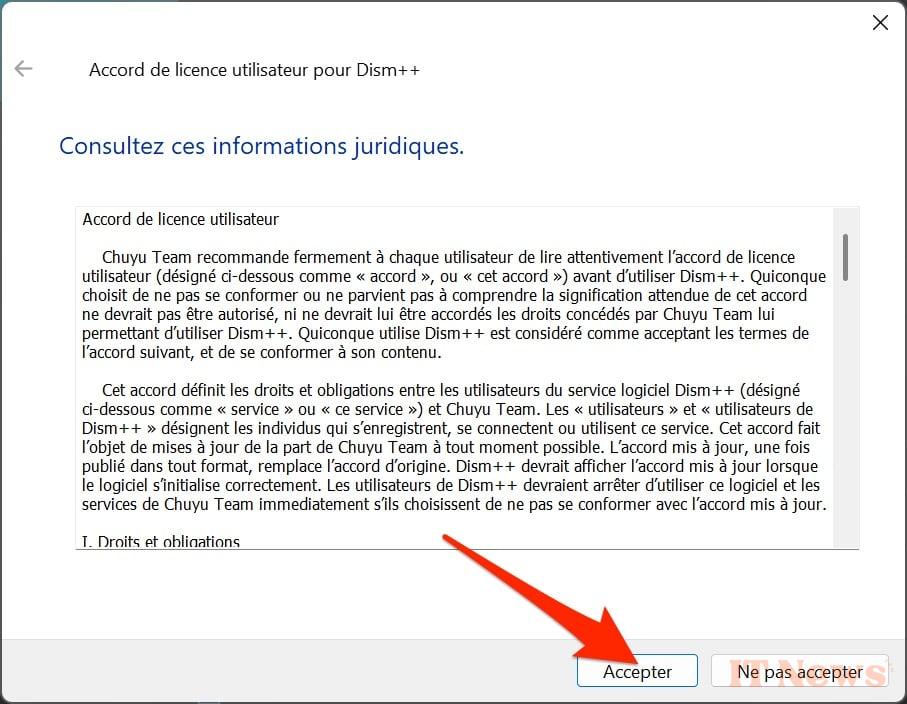
In the window that appears, click on Accept to accept the user license agreements.
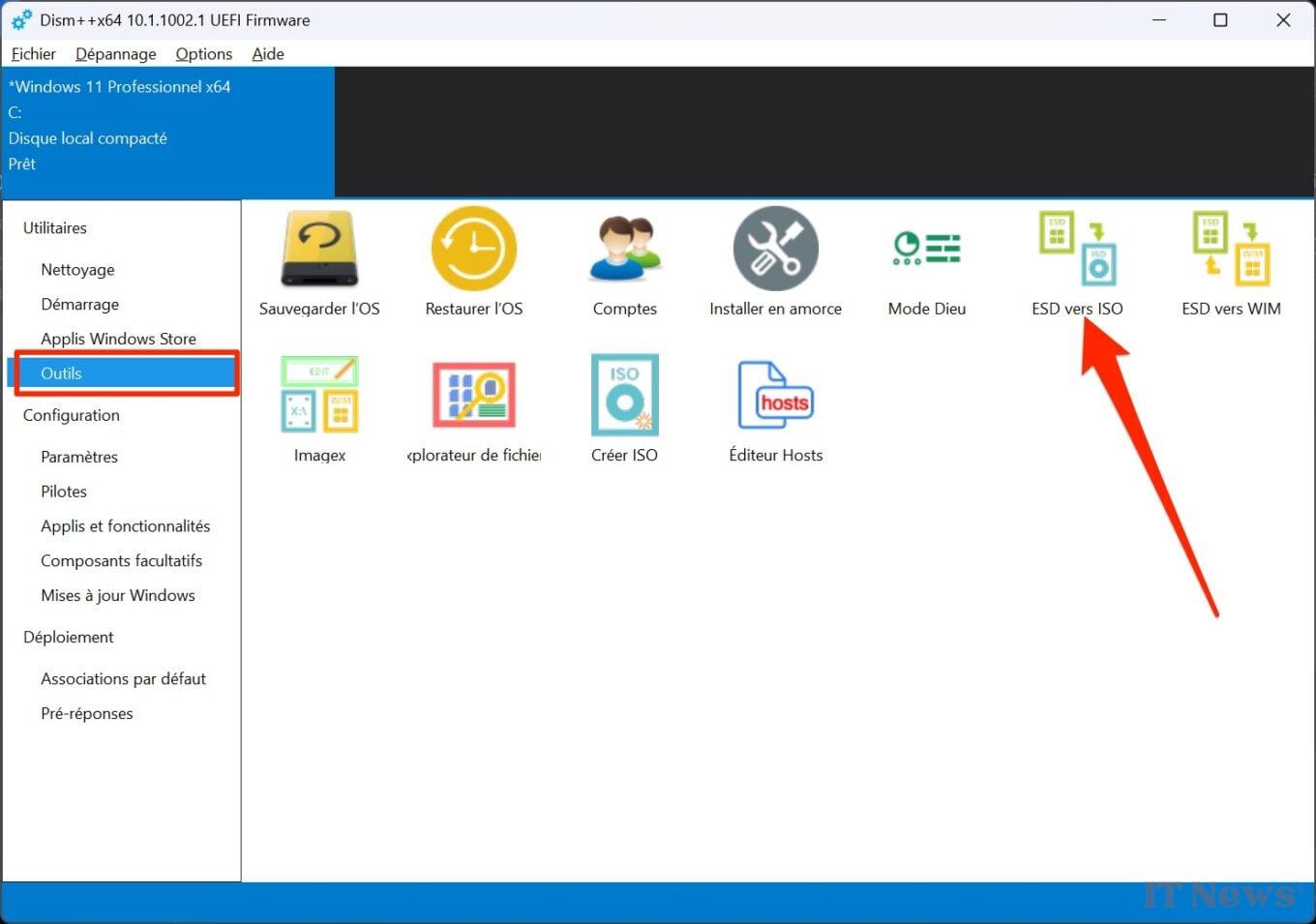
In the left column of Dism++, under the heading Utilities, select Tools. Then click on ESD to ISO.
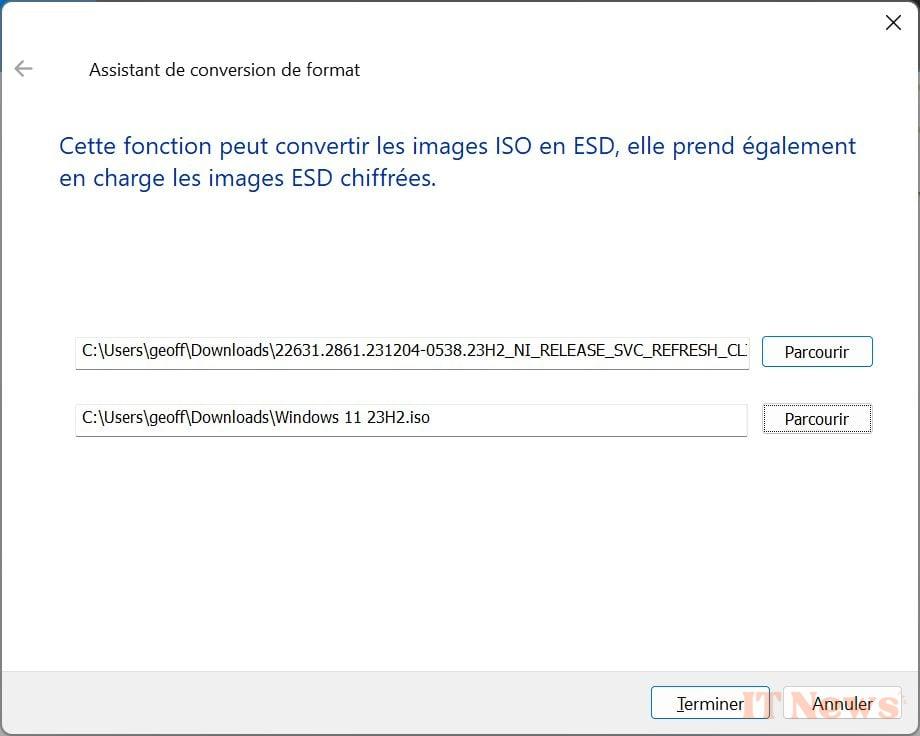
A Format Conversion Wizard window should then open. On the line Please enter the path to the source file here, click Browse, select the ESD file you previously downloaded, and click the Open button.
In the line Please enter the destination file path here, click Browse, select a backup directory in File Explorer, and fill in the name of the file you want to create, for example, Windows 11 23H2, and click Save. Once the source file and backup directory have been correctly entered, click on the Finish button.
Dism++ will then automatically start converting the Windows 11 23H2 ESD installation file to an ISO disk image. The message "Succeeded" will be displayed once the process is complete.
4. Create your Windows 11 23H2 installation USB key
Now that you have your Windows 11 23H2 installation disk image in ISO format, all you have to do is create a bootable installation USB key.
You will then be able to boot your PC from this USB key in order to properly reinstall Windows 11... in version 23H2.


0 Comments