
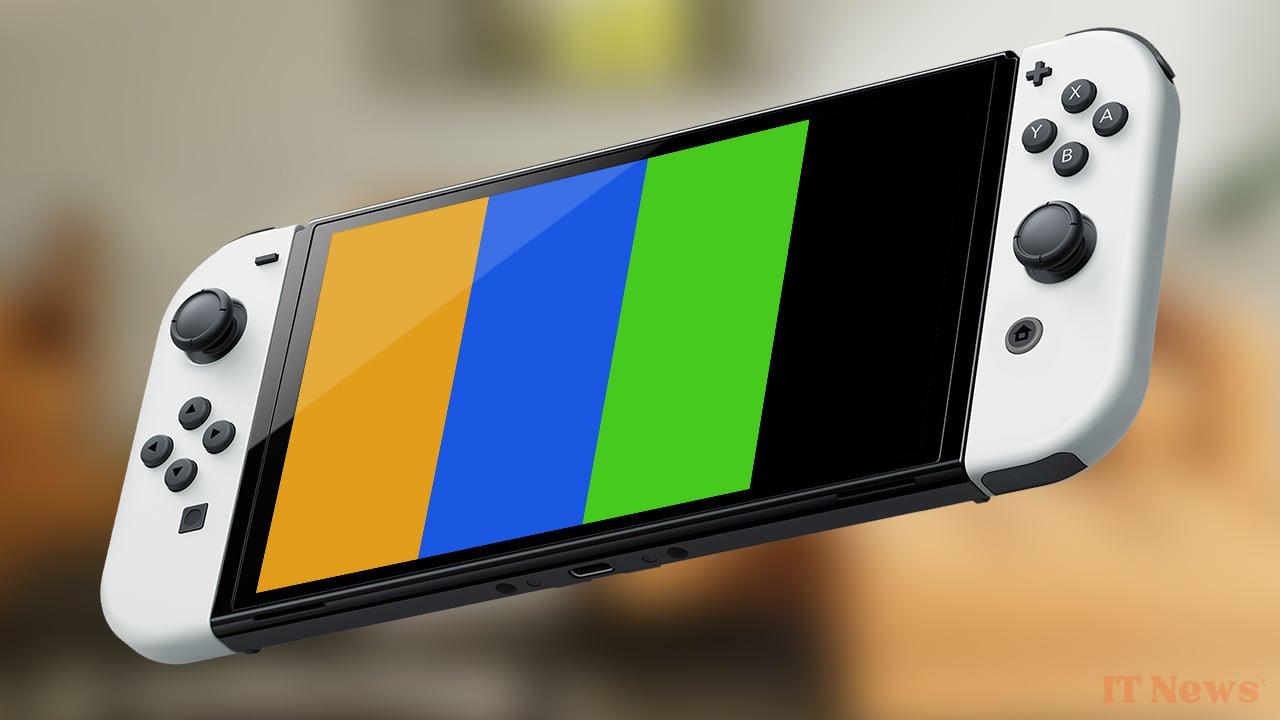
In addition to the various Joy-Con or microSD port issues that don't work, for example, it may happen that your Nintendo Switch displays a solid color screen. Green, blue, orange or even black, such a screen is bound to be a bit stressful for your console. Some cases are more serious than others and we'll explain everything to you.
The Nintendo Switch screen displays a solid color in portable mode
My Nintendo Switch displays an orange screen
This completely orange screen problem usually occurs after a shock or a fall of the Nintendo Switch. Because of this, small pieces of tin can fall onto the console's Wi-Fi card and therefore make contact. It is therefore unfortunately impossible to resolve the problem easily: you have to go through the repair box. Either via Nintendo's official after-sales service or by an approved repairer. But in any case, this problem is generally not covered by the warranty.
My Nintendo Switch is displaying a blue screen
Unlike the orange screen, a blue screen on a Nintendo Switch can potentially come from a software problem that you can fix; but it can also be caused by a broken processor. Here are some details to help you troubleshoot your console.
- Hard reset
- Disconnect all accessories from your Nintendo Switch (Joy-Con, charger, controllers, headphones, etc.);
- Press the power button on the console for 30 seconds. Release, then press it again briefly to turn your Nintendo Switch back on.
- Update the console
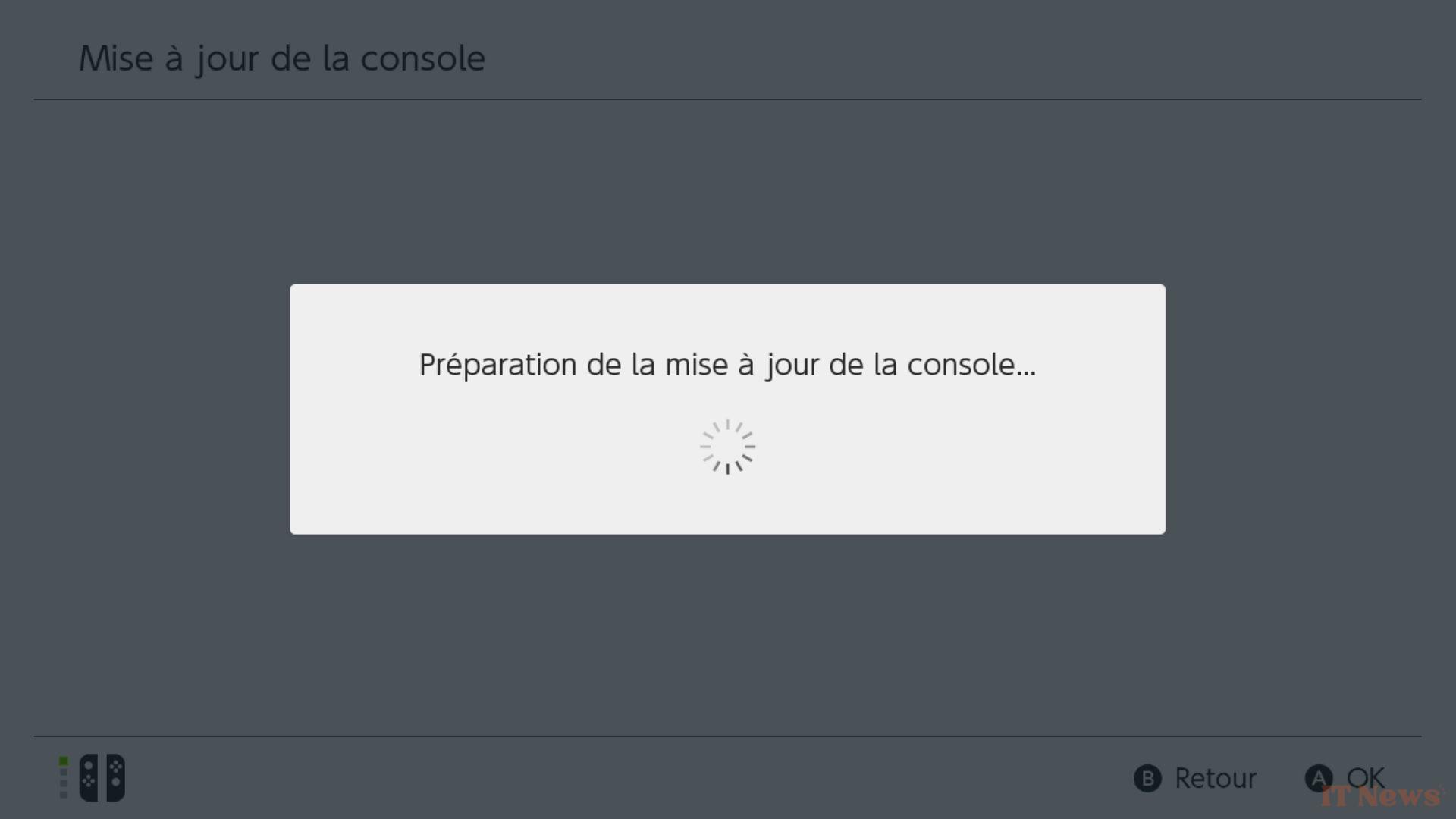
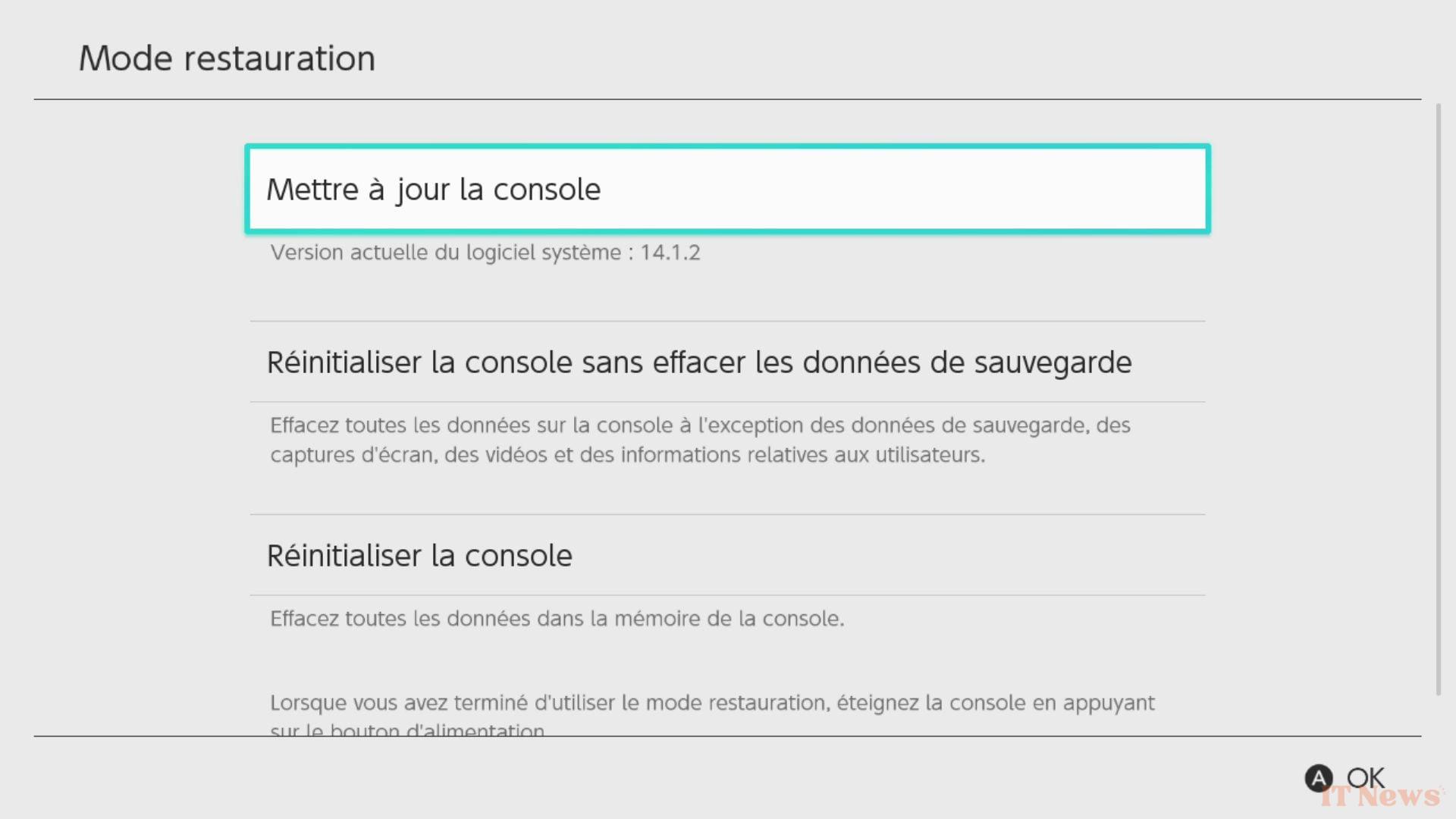
This manipulation, like others below, will depend on one thing: whether your Nintendo Switch can launch maintenance mode or not. Here are the steps to follow:
- Make sure the console is completely turned off;
- Press the “Volume +” and “Volume -” buttons;
- Keep them pressed, then press the console’s power button until you see the “Nintendo Switch” logo (you will first see a “Nintendo” logo by itself), then release;
- Maintenance mode is displayed;
- Select the software update option.
- Overflowing storage
The Nintendo Switch only offers 32GB of internal storage, or 64GB if you have the OLED model. Such low storage can cause problems, like many devices, if it is too full.
To recover some space despite the blue screen, it is necessary to switch to maintenance mode. Obviously, if the problem is not the storage, the console will not be able to enter this mode; but it's better to try:
- Make sure the console is completely turned off;
- Press the “Volume +” and “Volume -” buttons;
- Keep them pressed, then press the power button on the console until the “Nintendo Switch” logo (you will first see a “Nintendo” logo by itself), then release;
- Maintenance mode is displayed;
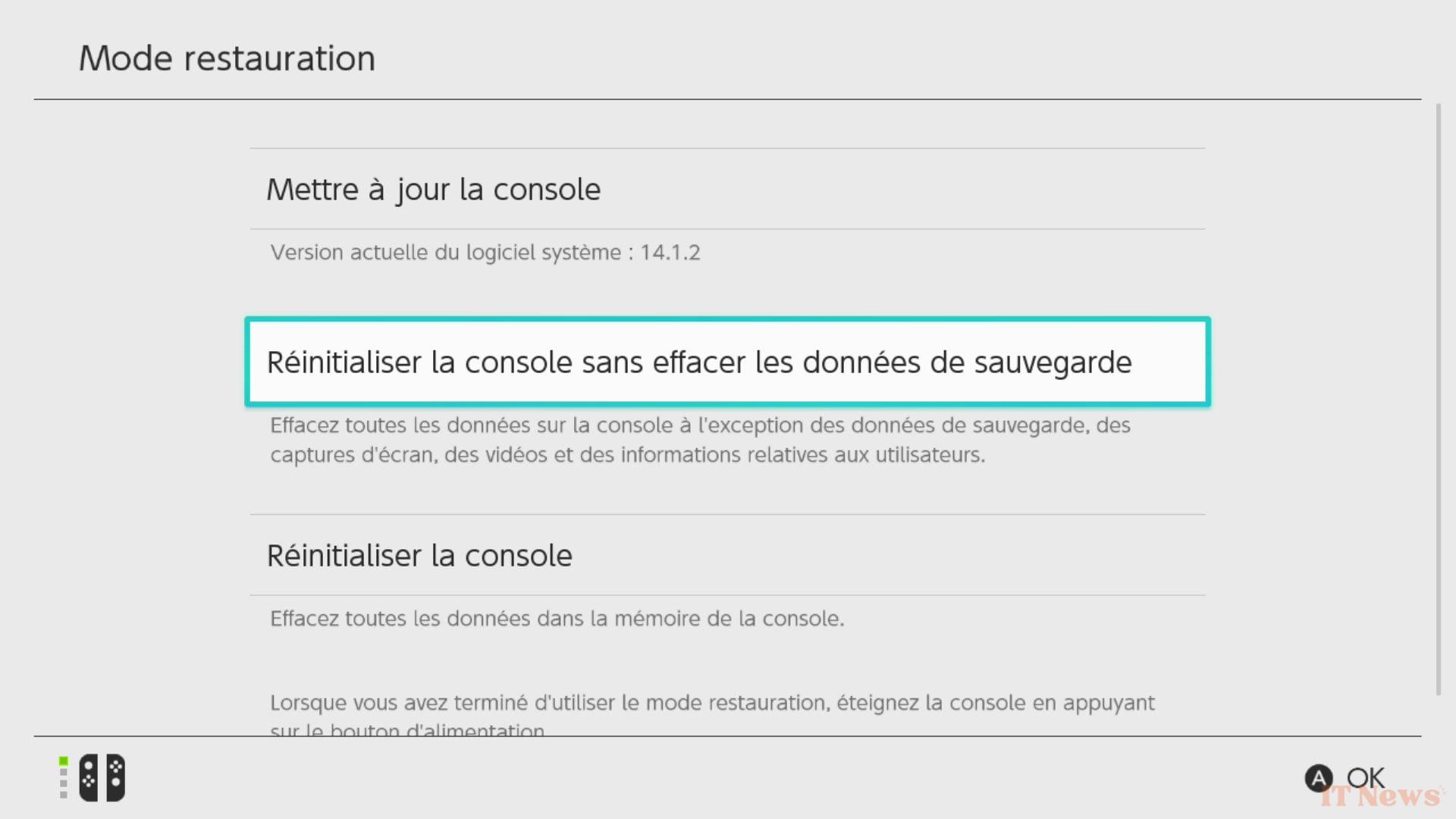
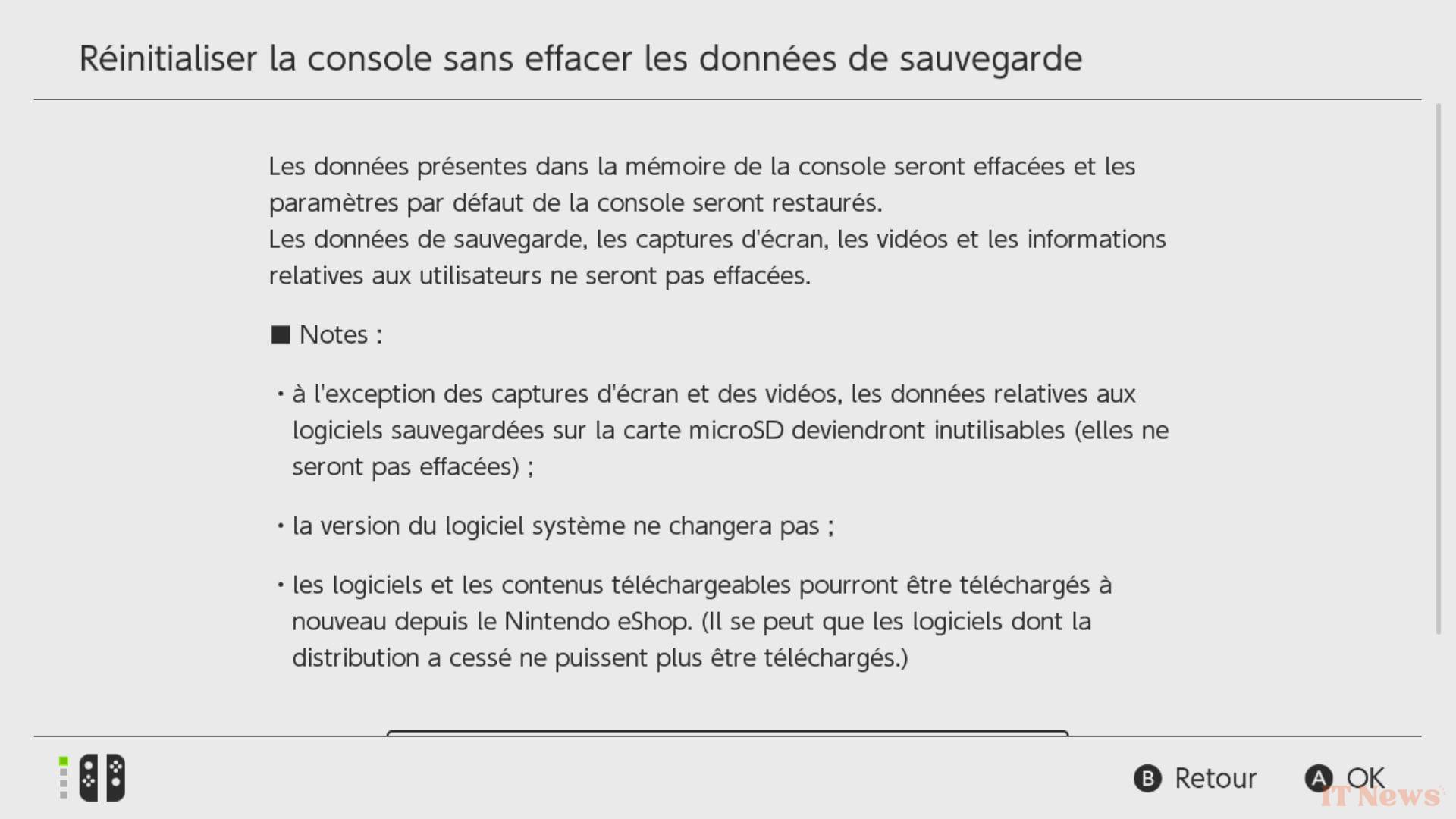
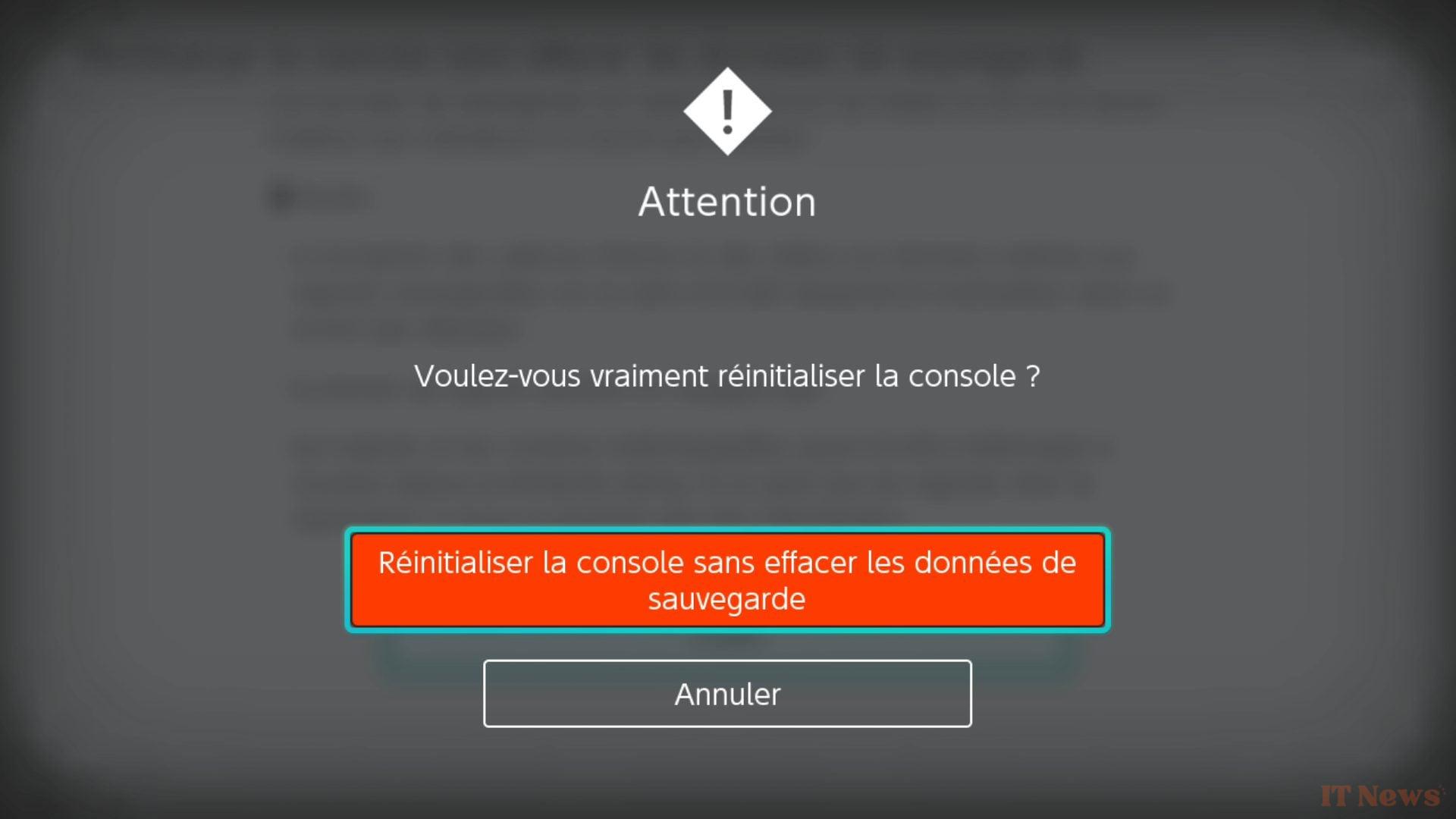
- If the mode starts, select the “Reset console without deleting save data” option.
By doing this, you will keep all your saves, but the games will be deleted. You will just have to re-download them for free via the eShop, taking care not to fill up the storage space again.
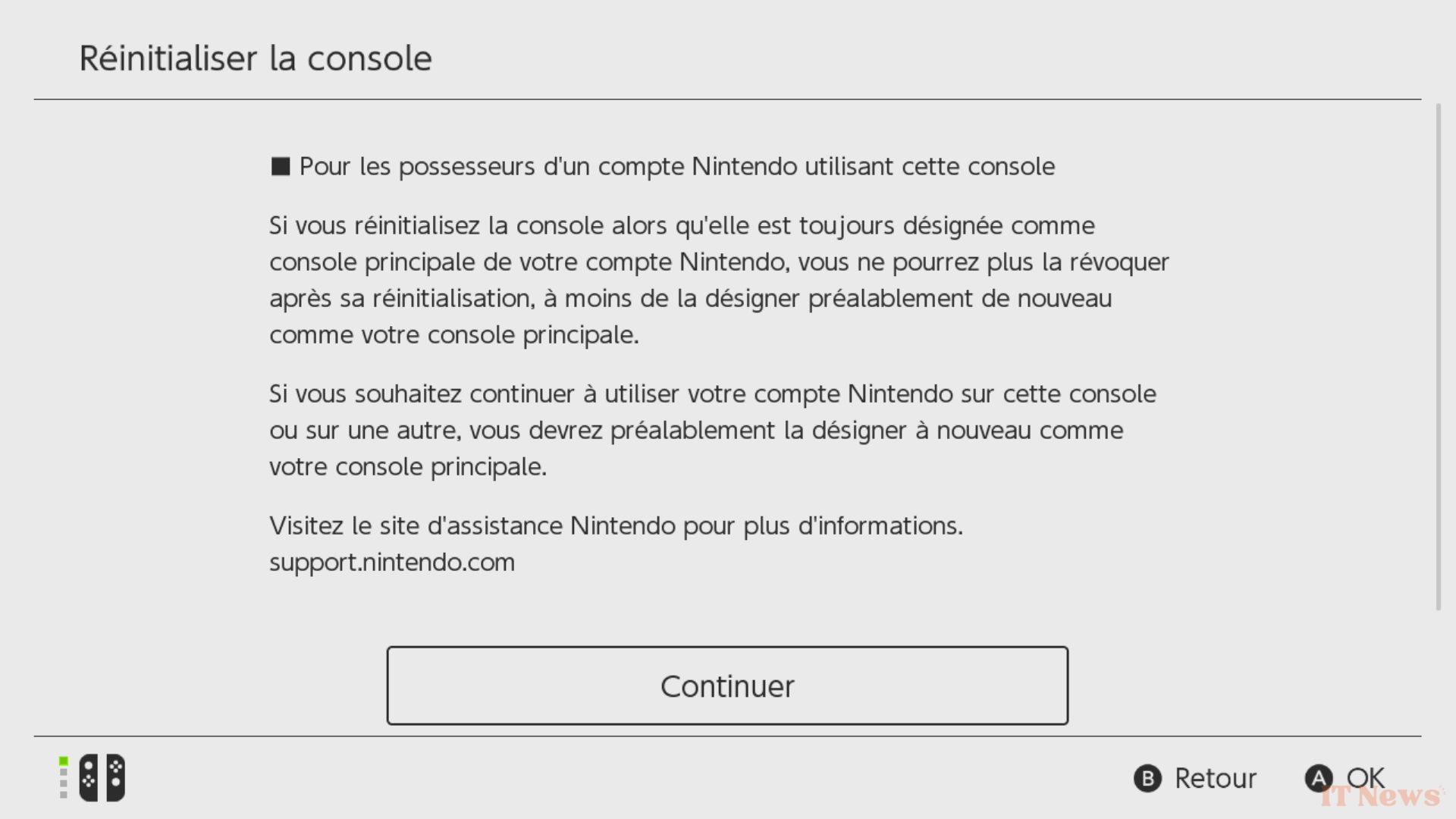
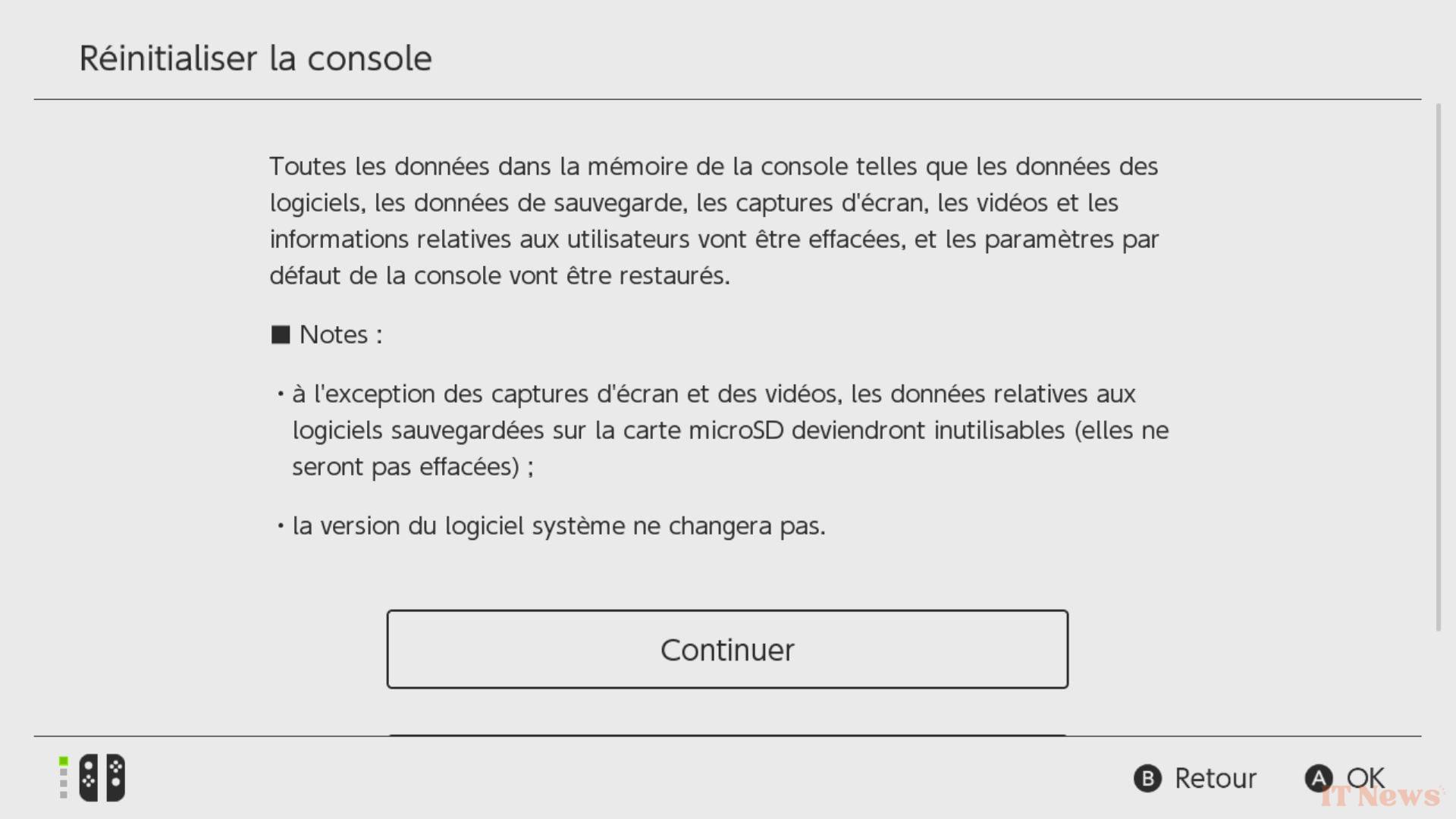
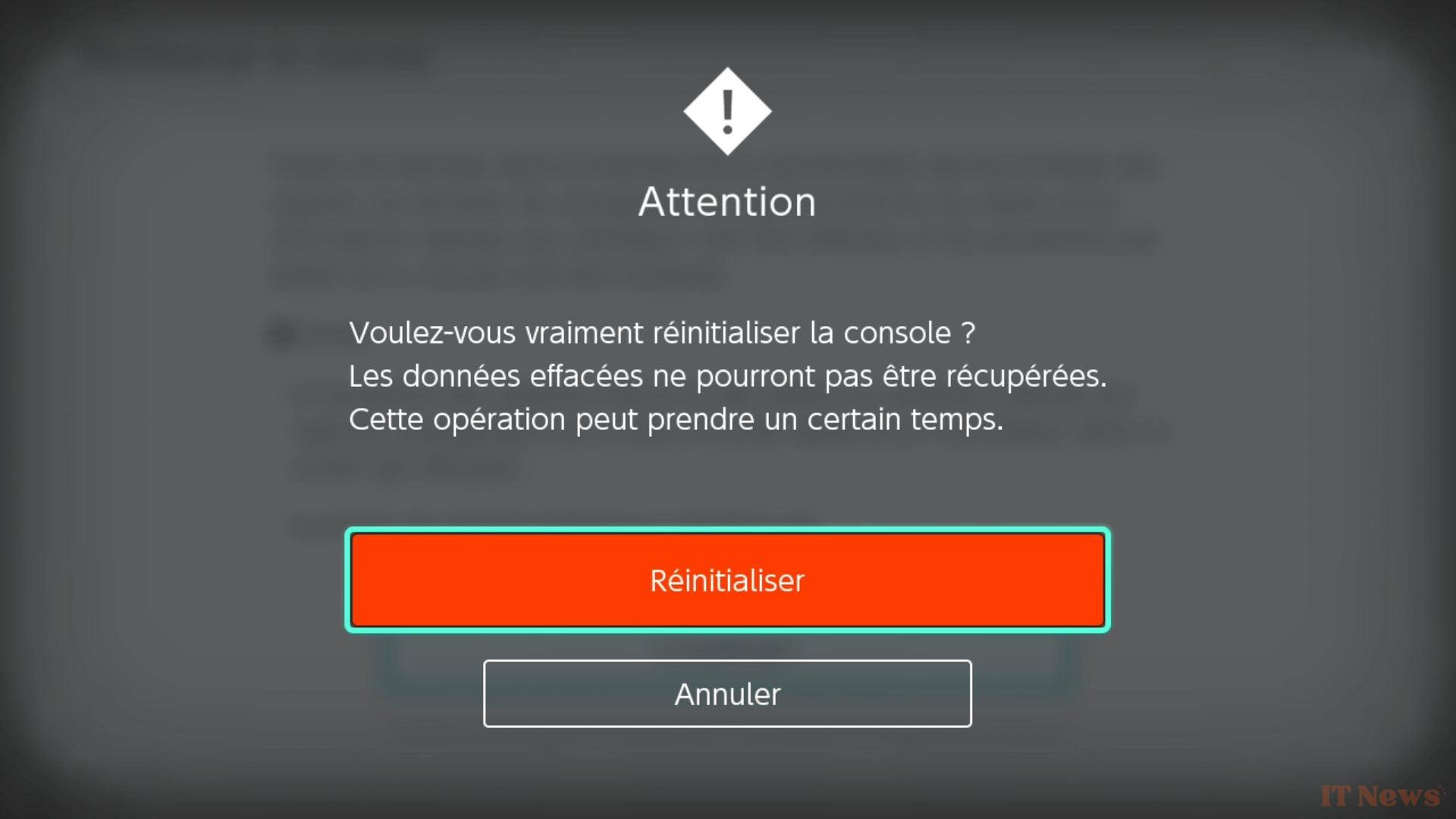
- Completely reset the console
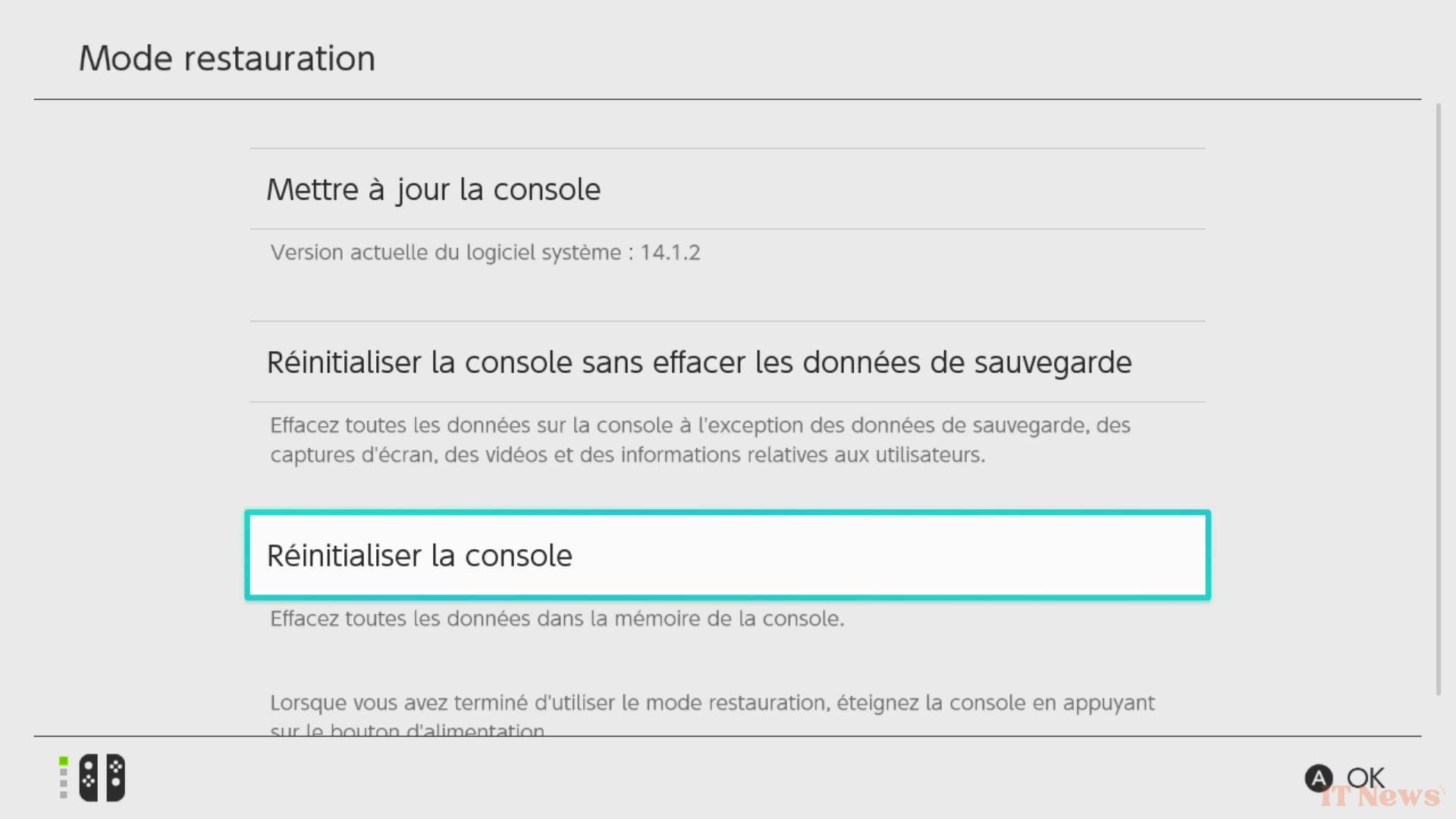
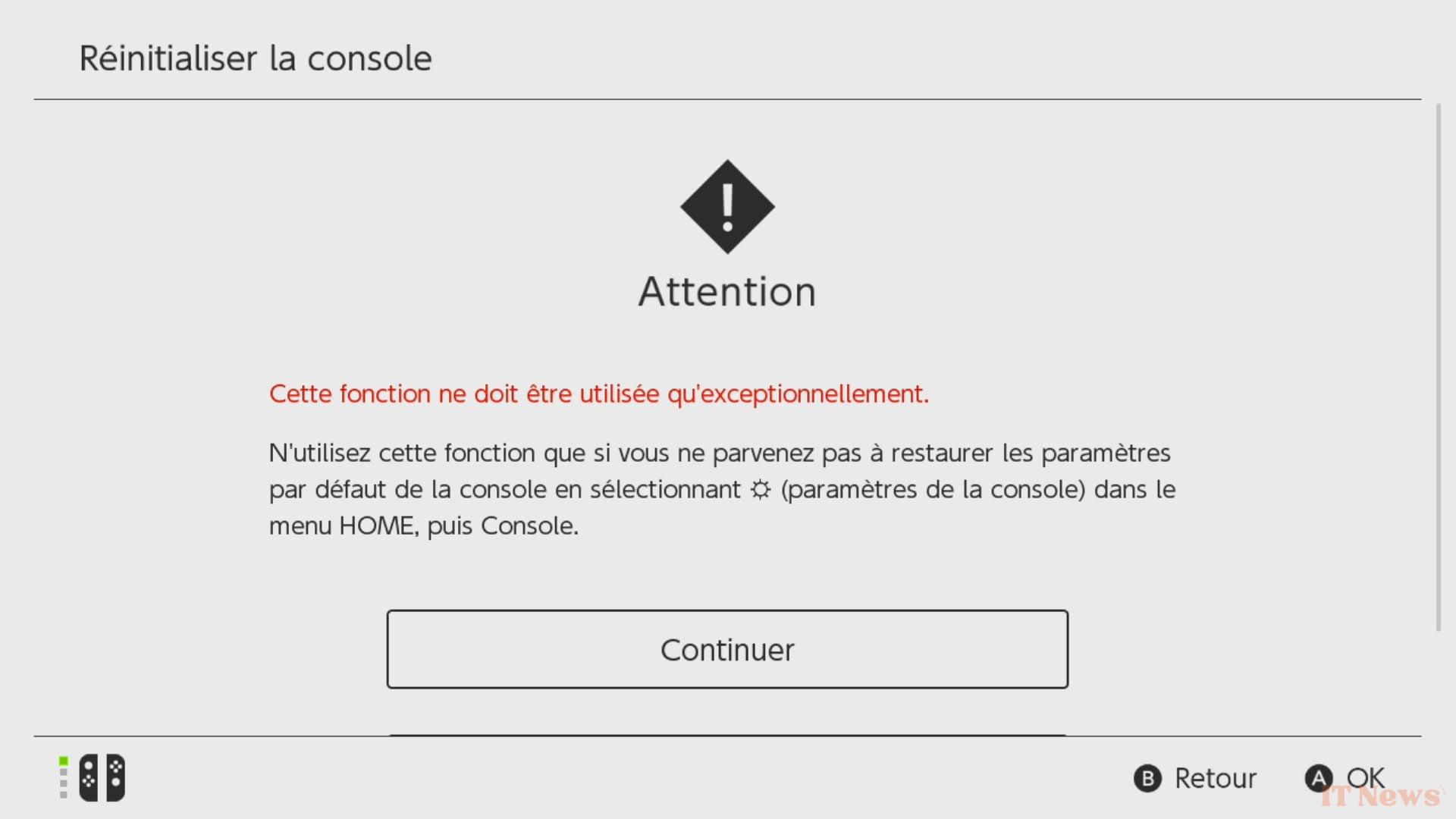
If you have access to maintenance mode, but the reset operation without deleting the backup data, you will have to try to go a little further. Repeat the same operation, but this time by launching a complete reset:
- Make sure the console is completely turned off;
- Press the “Volume +” and “Volume -” buttons;
- Keep them pressed, then press the console’s power button until the “Nintendo Switch” logo (you will first see a “Nintendo” logo by itself), then release;
- Maintenance mode is displayed;
- If the mode launches, select the option to completely reset the console.
- Processor out of order or screen HS
If you were unable to access the console's maintenance mode, there are two explanations... but they are much less reassuring:
- The processor may be unsoldered. This is a rare problem, but it does exist. After a shock or a fall, the processor can become detached from the motherboard and, inevitably, the console will no longer work;
- The screen may be out of order. As with the processor, a shock or fall can break the screen or partially disconnect it from the motherboard. So, even if the console continues to power the screen, it is no longer able to display anything other than a solid blue color. You can nevertheless try to connect the console to the TV via the dock; if the normal image is displayed on the TV, this confirms that the screen is dead. Unfortunately, this will not work with a Switch Lite.
In both cases, a repair is necessary, but no warranty support will be provided by Nintendo;
My Nintendo Switch displays a black screen or does not turn on
The black screen of a Nintendo Switch can have various sources: detached internal component, completely HS screen, burned out motherboard ... in short, like all computer hardware, the options are multiple.
- A battery that is a little too drained
But one of the most common causes of a Nintendo Switch that displays a black screen, or rather that does not turn on at all, is that it is simply that its battery is completely drained. To check if the cause is there, plug your Nintendo Switch into the mains with the official cable that you had in the console box when you purchased it. This step is very important, because you make sure that the cable is compliant and sends the right amount of energy.
Let the console charge for several hours if necessary, then try to turn it back on. Very often, the problem is already solved. If necessary, try with another official cable if you have one on hand; in case the first one is defective and would be the cause of your console not charging.
The Nintendo Switch tends to be very capricious on the battery side and can be easily scary. Remember to charge it at least once a month if you do not use it at all. If you play with it often, never leave it on standby with less than 15% battery. In other words, you can put it on its dock (plugged into the mains) as often as necessary to prevent it from turning off by itself.
- A HS screen
It can happen that the screen of the Nintendo Switch is completely ruined, but that the rest works perfectly. To find out if this is your case, the solution is very simple: connect your Nintendo Switch to your television and see if it displays the image from your console. Obviously, this will not work with a Switch Lite.
In the case of a broken screen, the repair can be carried out by Nintendo but is not covered by the warranty, unless they detect that it is a serial problem for example.
The Nintendo Switch displays a green screen in TV mode
If your Nintendo Switch works perfectly in portable mode, but once on the dock displays a green image on your television, this is generally not very serious. While it can obviously be hardware issues with the console such as a USB Type-C port that can no longer send the image, or a broken dock, the problem generally noted by the community is simpler: your HDMI cable would be the cause.
Simply try changing the HDMI cable, or even the screen if you can (any HDMI compatible PC screen will do). If you find the normal image of your console, then the problem was on that side. Sometimes, the problem can also come from the power cable used on the dock. Always use the official cable that came with the console; if necessary, use a new official one, in case the old one was defective. A bad power supply to the dock can be the cause of the green screen, since the console itself is poorly powered in this case.
None of these solutions seem to work?
If none of these solutions solve your problem, or if you think it is a defective component, then contact Nintendo customer service. If the cause of the problem cannot be handled under warranty, Nintendo will contact you to offer you a paid repair.


0 Comments