

The new Firefox update brings it to version 136. It adds several useful options, including one that was previously exclusive to the Edge browser. Let's see how to use it.

Even if Firefox sometimes finds itself in the spotlight for the wrong reasons, the red panda Internet browser does not forget to evolve through its updates. Most of the time, it's mostly about launching the usual “bug fixes and performance improvements“, but sometimes new features pop up. No need to reinvent the wheel to find ideas, just look at what the competition is doing.
Read also – Firefox finally gets this handy feature that everyone loves on Chrome
And that's exactly what Firefox did in version 136. One of the notable additions in the latest update is an option that only Microsoft's Edge could boast of offering natively, without going through a browser extension. It will prove particularly useful for those who are used to opening (too) many tabs and wasting time looking for the one they are interested in in the long line displayed at the top of the window.
Firefox gains an option that was previously exclusive to Edge, here it is
After updating Firefox to its latest version (click on Help > About Firefox), right-click on the toolbar, to the right or left of the address bar. In the context menu that opens, you will see a new line titled Enable vertical tabs. They are then all displayed in a sidebar on the left of the screen. Placing the mouse cursor over it allows you to see a preview of it or close it completely. using the cross.
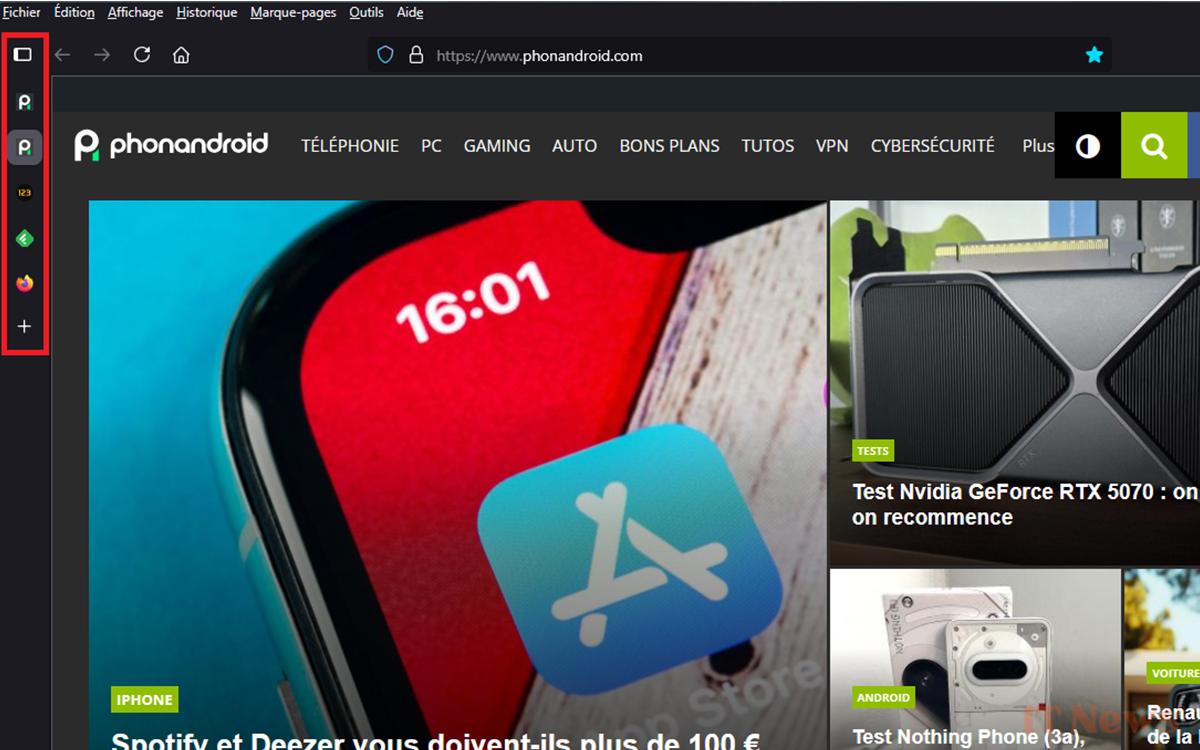
Note the button at the very top of the bar, just below File. It allows you to Expand Sidebar to see the titles of your open tabs, not just their logos. It takes a little getting used to, but according to Mozilla, users find the vertical layout more convenient than the horizontal after a few days.
Finally, the new bar includes shortcuts at the bottom, including one that lets you launch an AI chatbot from the selection offered: Claude, ChatGPT, Gemini, HuggingChat or Mistral. If you don't see them, head to Settings > General and then, under Browser Layout, check Show Sidebar.


0 Comments