
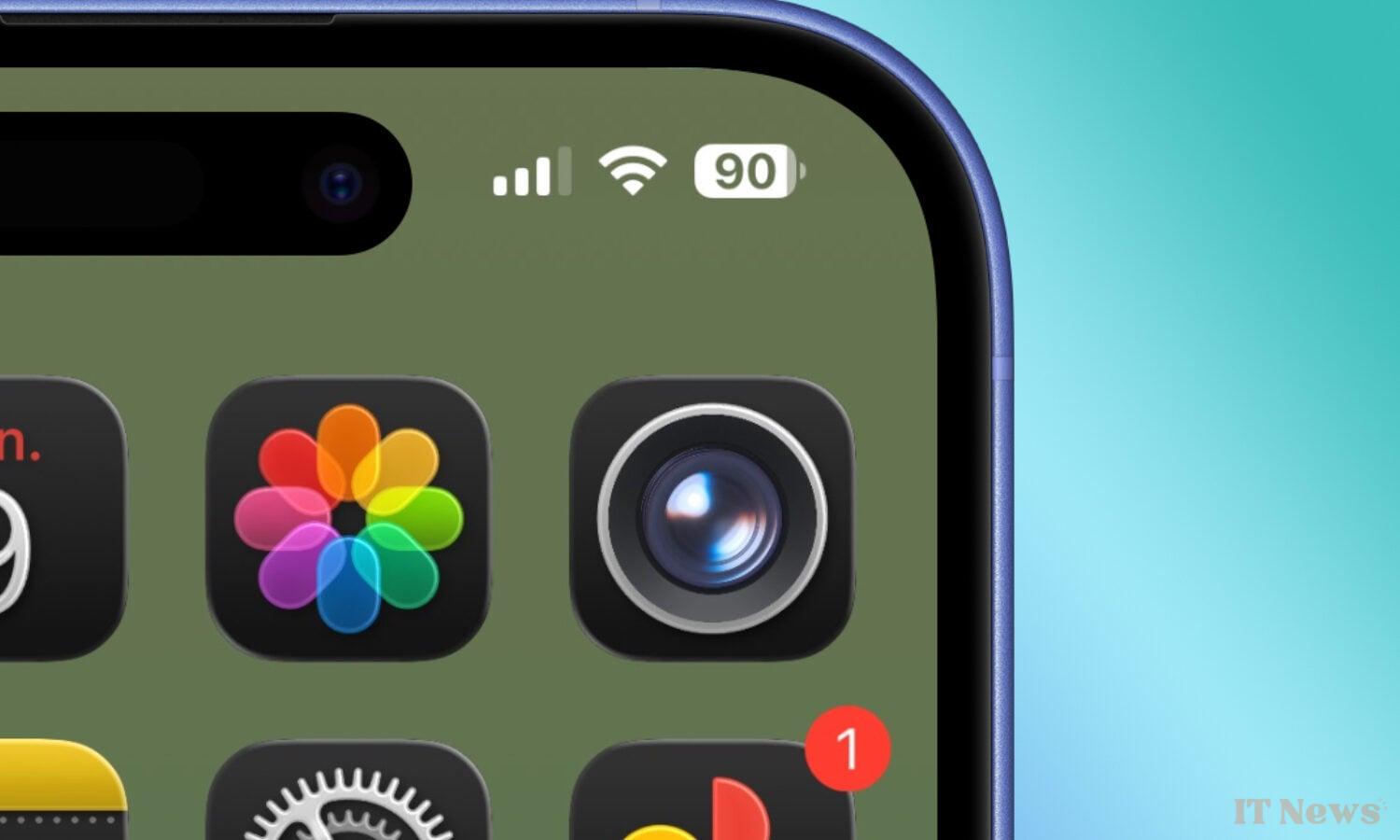
With WWDC 2025 barely over, Apple has opened the floodgates for iOS 26. The very first beta for developers is already available. This is an opportunity for us to discover the work carried out by Apple's development teams. And more specifically, the work related to the new iOS interface, Liquid Glass.
iOS 26 offers a return to basics
With iOS 26, the iPhone's navigation interface has undergone a real facelift. Designers have focused on transparency and taken the opportunity to restore certain fundamentals. iOS 26 reintroduces a bit of skeuomorphism, a design style that uses the appearance of real objects to illustrate a feature.
This is the case, for example, with the Camera app. Its icon has featured a camera icon since iOS 7. With iOS 26, Apple is truly returning to its roots. The new iPhone OS adopts a camera lens icon, as was the case in iOS 6.
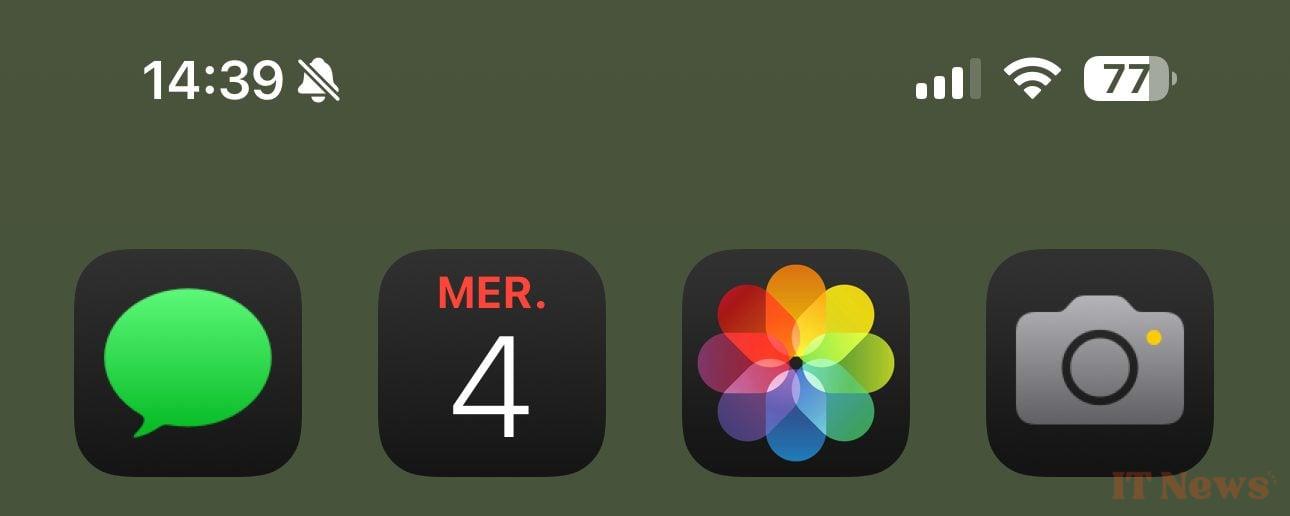
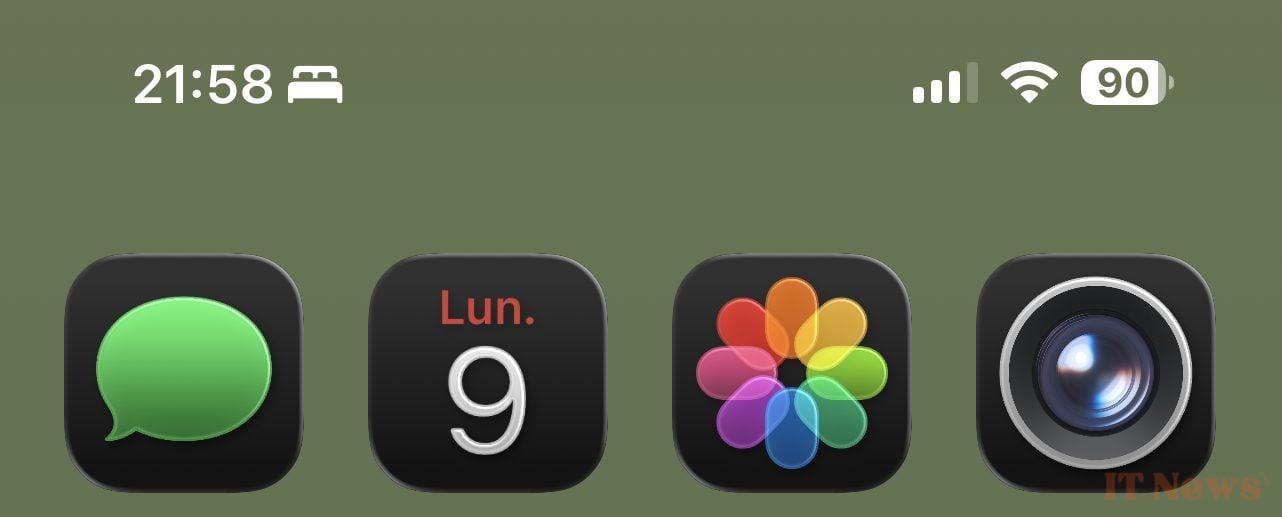
But it's not just the camera icon that's changed. The entire interface of the iPhone camera has been redesigned. A necessary change to simplify its use.
iOS 26 Camera refocused on photo and video modes
From the first time you open the iPhone Camera, the changes brought by iOS 26 are obvious. Apple is refocusing the application's use on these two main modes: shooting videos and taking photos. These two most commonly used modes are now displayed at the bottom center of the screen. The other shooting modes are relegated to the background. They remain available, but only appear if you slide the cursor beyond Photo or Video mode.
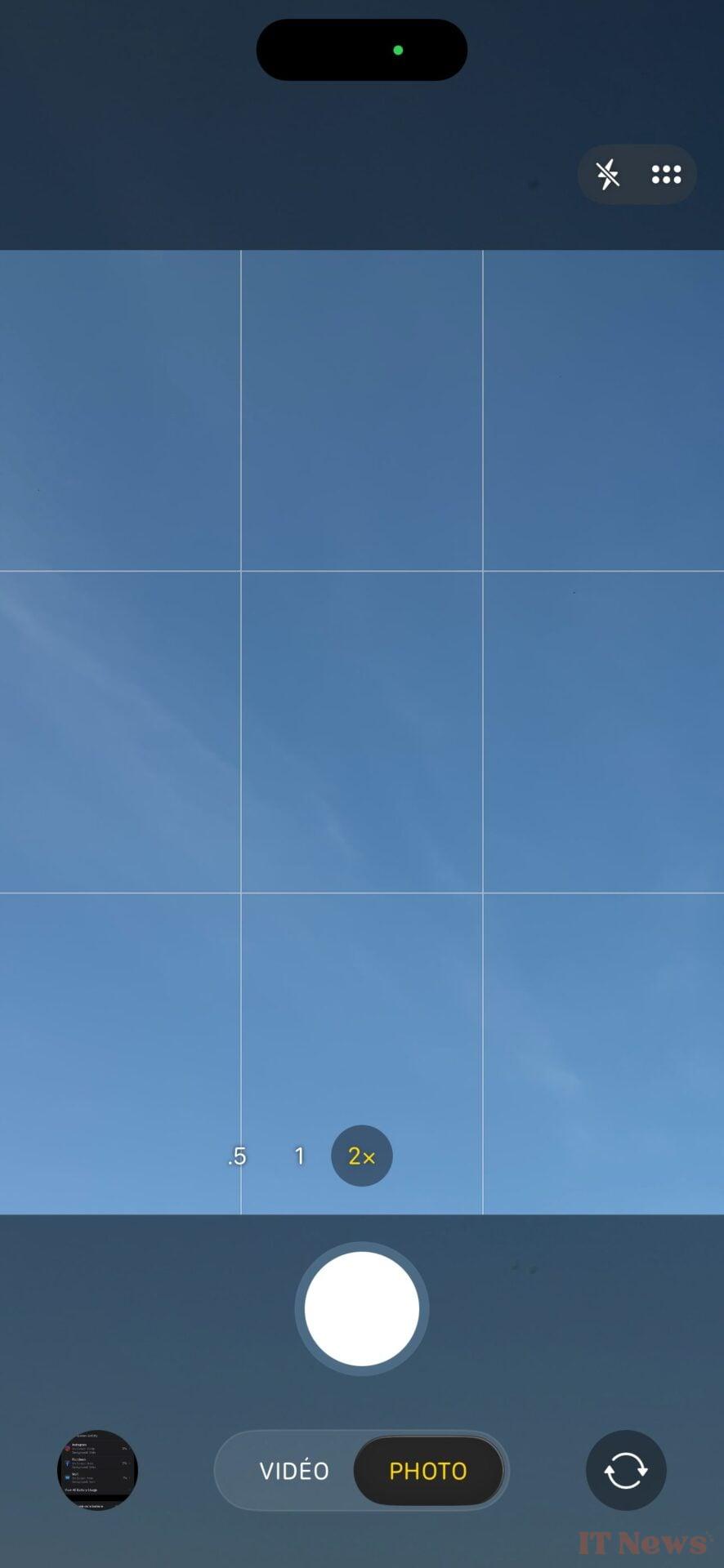
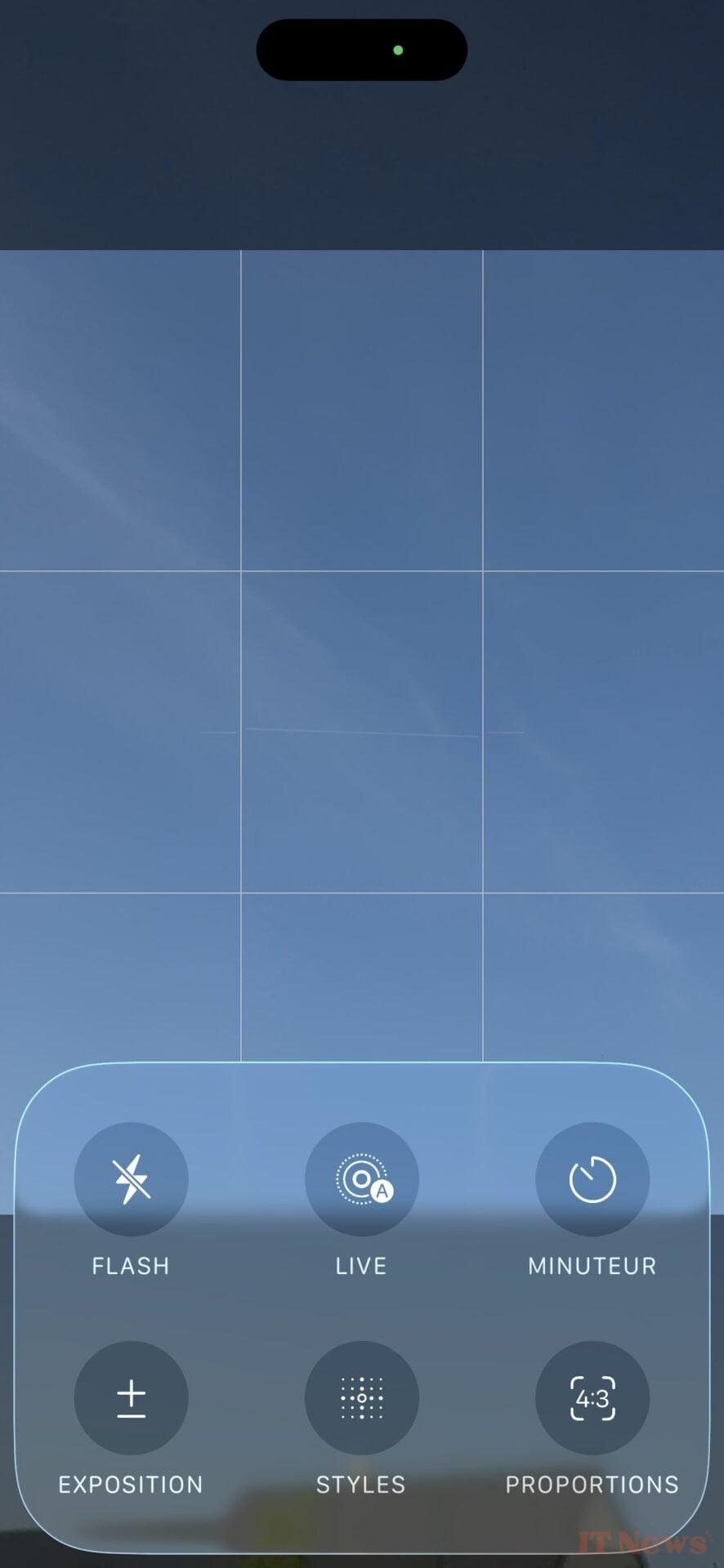
Furthermore, access to the shooting options in Photo mode (flash, live photos, timers, exposure, etc.) is done by sliding a finger upwards. You can also select the button with six small dots, grafted to the top right of the screen, next to the quick settings to manage the flash and night mode. By long-pressing this quick settings area, you can display the full menu of these settings.


The same goes for Video mode. Flash management and access to shooting options are done from the icons located at the top right of the screen. As for managing the resolution and frame rate, this is done from the quick menu located at the top left of the screen. Again, a long press on this area will open the settings menu in its entirety.


0 Comments