

Finally. After several months of availability everywhere else, Apple Intelligence is coming to European users' iPhones. The rollout of iOS 18.4, initiated by Apple this Monday, March 31, now allows all users with a compatible device to benefit from Apple's artificial intelligence. To be able to try it, however, you must have an iPhone 15 Pro, an iPhone 15 Pro Max, or one of the new iPhone 16s.
Apple's AI is normally enabled by default as soon as iOS 18.4 is installed, but it's likely that you won't be able to access it immediately. Because to work, Apple Intelligence must first download a certain number of files locally on your iPhone. The AI requires a little more than 6 GB of data.

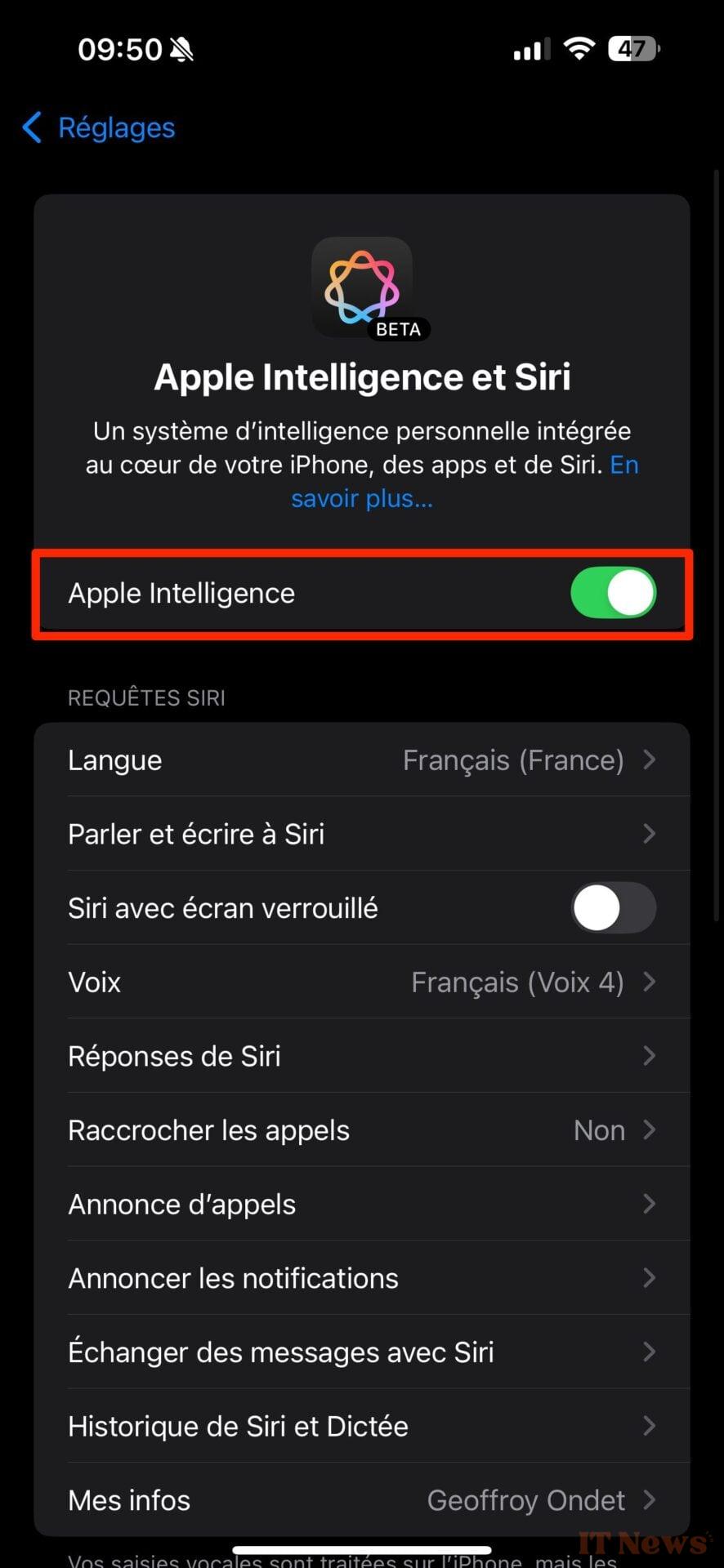

Once these are transferred to your iPhone, you should be able to experience the joys of Apple-style AI. Here are, in our opinion, the five most interesting Apple Intelligence features to try right away.
1. Writing Tools
Apple Intelligence's Writing Tools are undoubtedly the most useful feature of Apple's AI. Accessible almost everywhere you can write text, they will allow you, as their name suggests, to improve your prose. To activate them, you will need to tap the dedicated icon when it is displayed above the keyboard, or look for it in the options appearing in the bubble that appears after selecting text.
Thanks to Apple Intelligence's Writing Tools, you can ask Apple's AI to write for you by describing what you want. You can also use AI to have it proofread and correct your text, or simply rewrite it. You can even ask it to modify your text to make it more informal, professional, or concise.
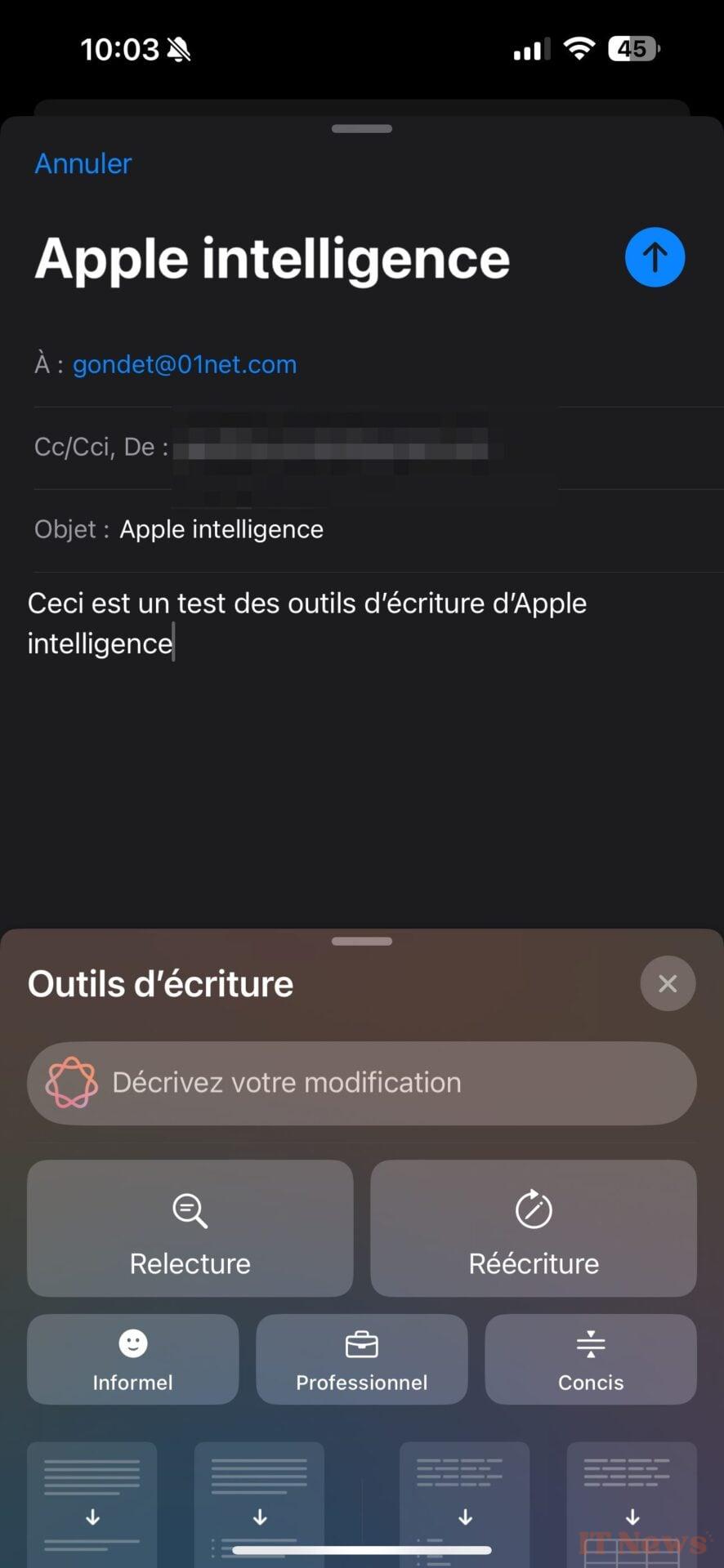
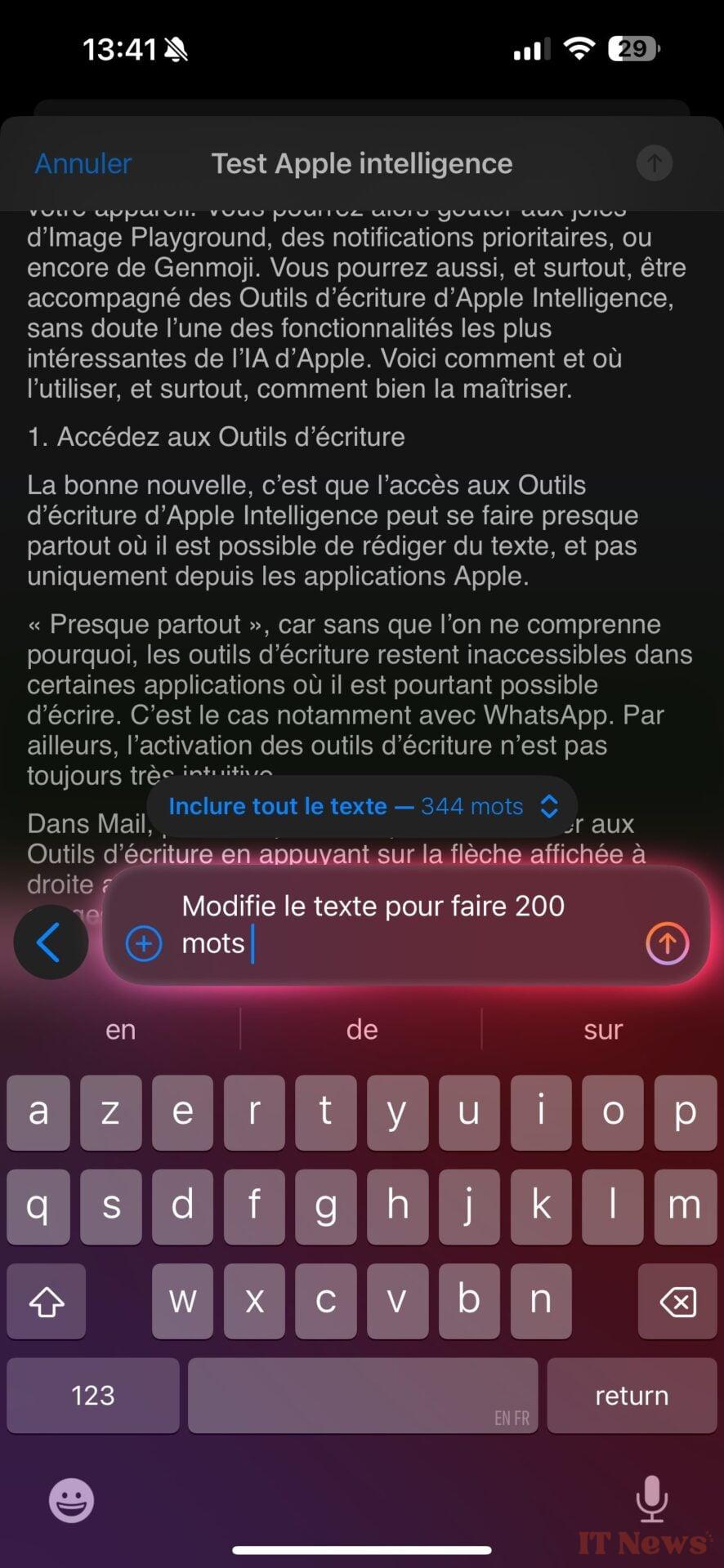
Writing tools will also be extremely useful for retaining only the essential points of a very long text. It is indeed possible to ask the AI to summarize a text that is a little too long, to extract the key points, to list the main ideas, or to generate a table summarizing the themes covered. Finally, thanks to the integration of ChatGPT in iOS, you can even take advantage of the capabilities of OpenAI's chatbot to write content for you.
2. ChatGPT in Siri
If you find Siri a bit lacking in communication, you can now count on ChatGPT to give it a boost. OpenAI's chatbot benefits from an integration in iOS 18 that allows it to intervene, in particular, in requests made to Siri for which the latter is unable to provide a satisfactory answer.

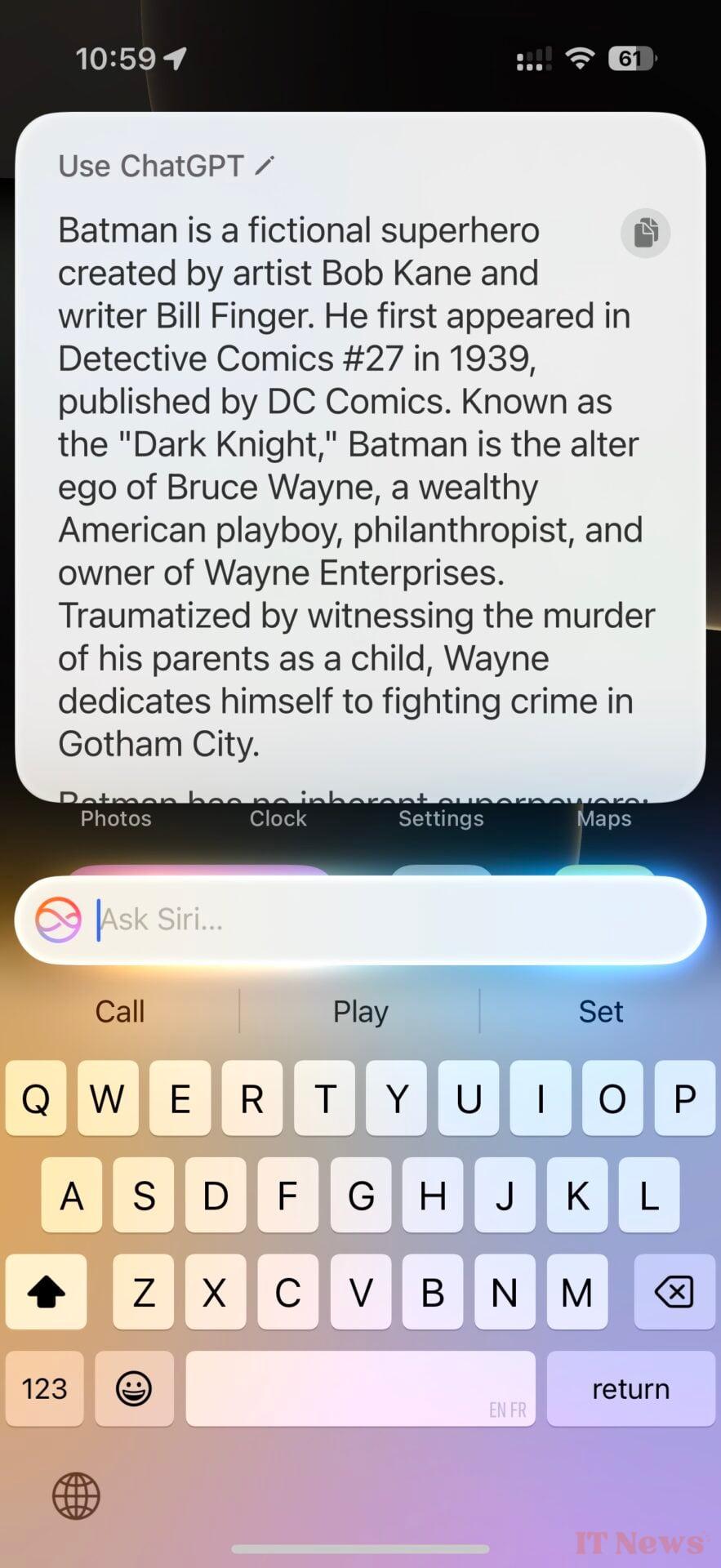
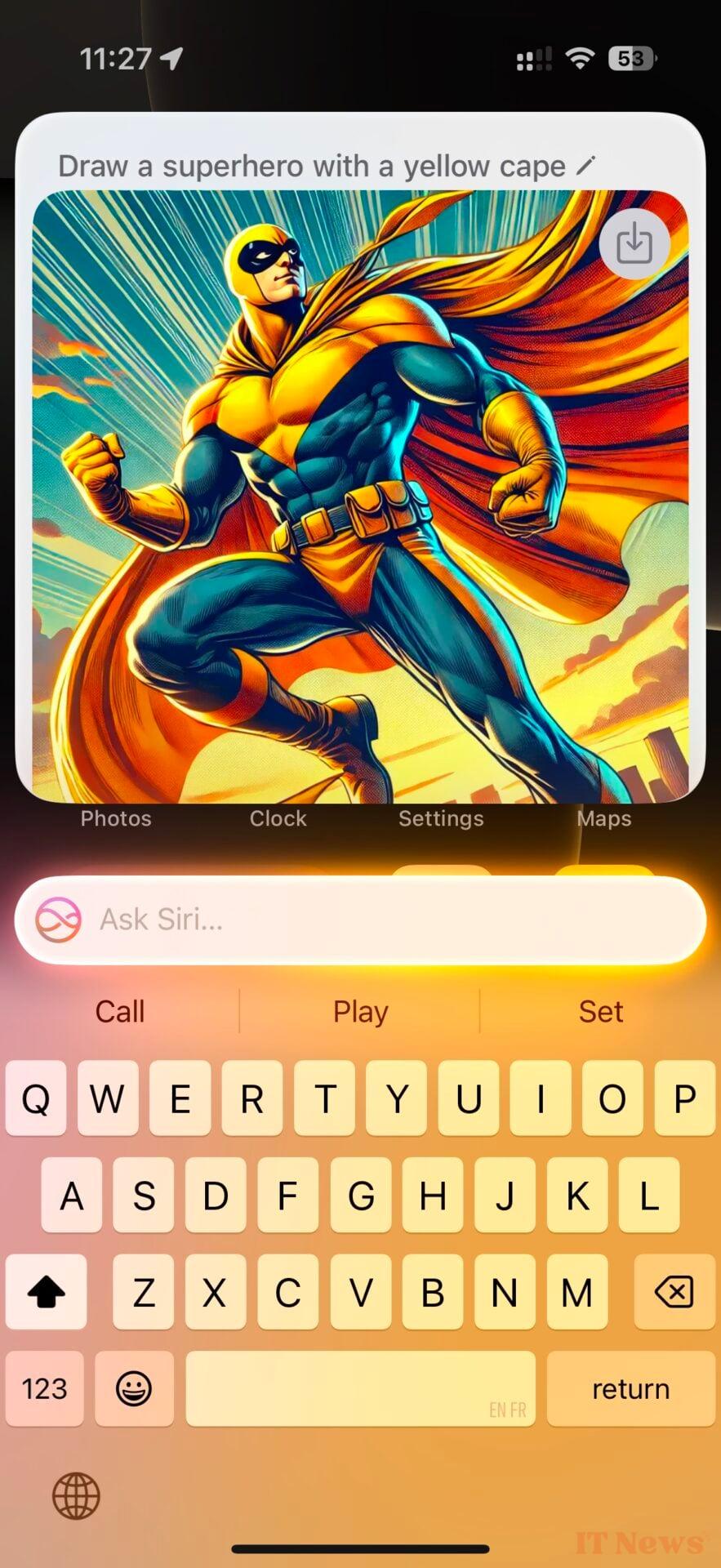

With ChatGPT, your questions will no longer go unanswered. In addition to providing text answers, ChatGPT can exercise its artistic talents. You can ask it to generate images and even analyze those displayed on the screen.
3. Summarize long emails
Apple Intelligence is also very useful in the Mail email client. AI has a prominent place there and offers a number of features to simplify your life.



Among these, there are some One that you should adopt very quickly: the ability to display a summary for emails that are a bit too long. When opening a message, a tap on the Summarize button displayed at the top right of the screen will be enough for a clear and concise summary of the message content to be displayed at the top of the screen.
4. Visual Intelligence, Apple's Google Lens
You may not know it, but Apple Intelligence includes a feature quite similar to that offered by Google Lens: Visual Intelligence. To activate it, a long press on the physical Camera button on the iPhone is enough. You then just have to point the camera at the object to be analyzed and then capture the image of it. You can then perform an image search in Google, or even ask ChatGPT to try to get explanations about it.



5. Image Playground
While it's not the most useful feature, Image Playground is still a useful Apple Intelligence feature. It lets you generate images based on a description or an existing photo. You can submit a photo from your photo library and mix several inspirations so that Apple's AI generates a matching image.

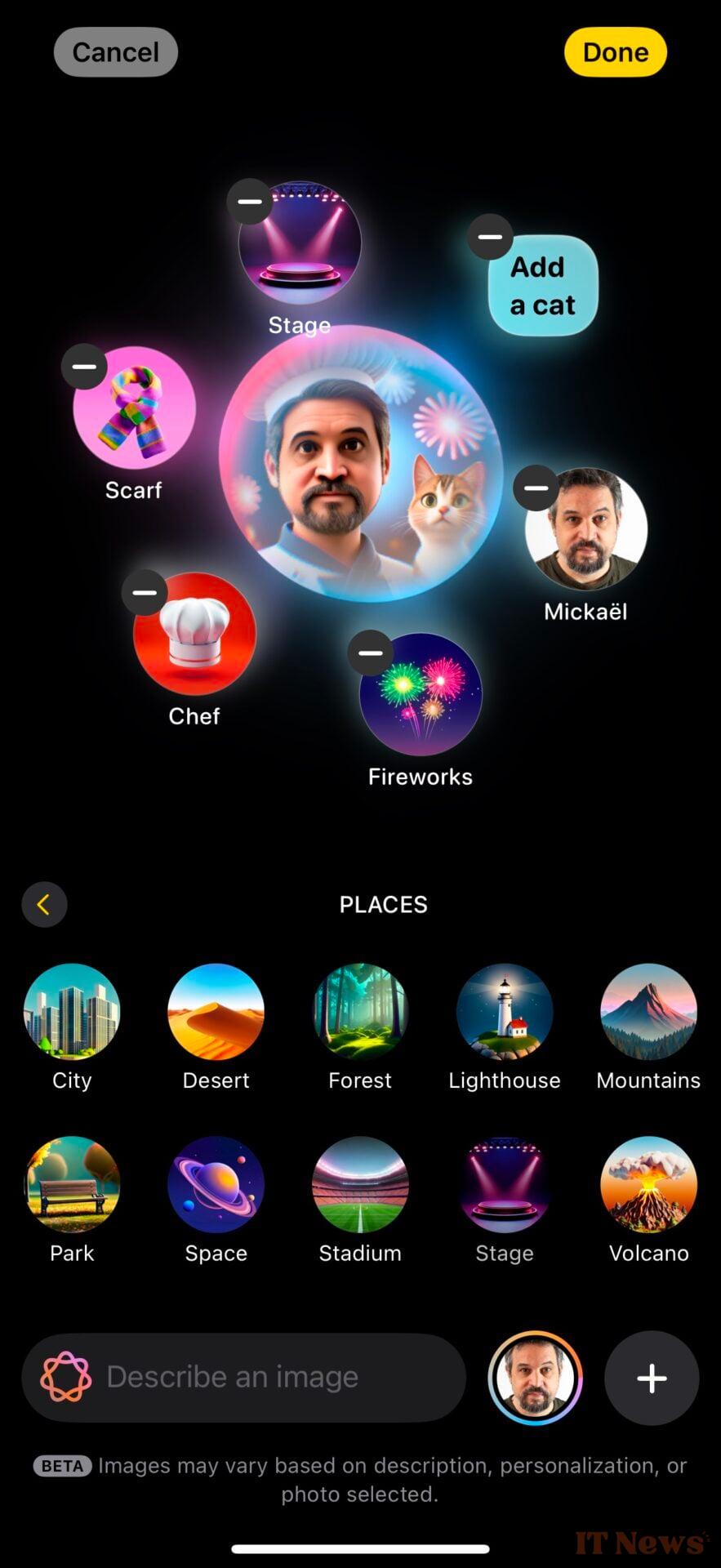


Image Playground also offers a number of suggestions that you can use to change the style of the generated visual. Apple's AI will offer you several results for each of your queries that you can choose from in order to save your image.


0 Comments