
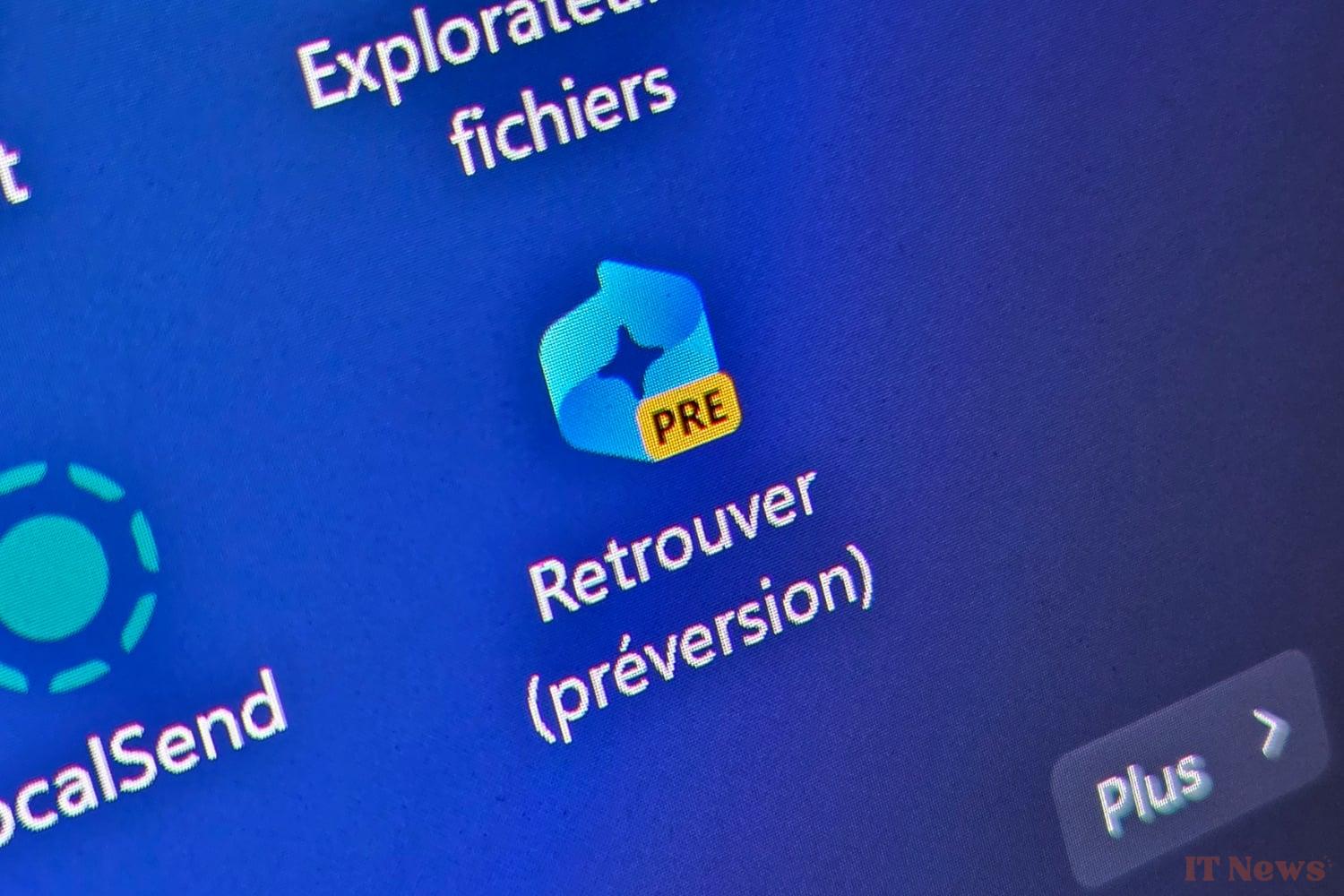
After more than a year of work, Microsoft has finally managed to offer an "acceptable" version of its highly controversial "Recall" backup feature for PCs branded as Copilot+. Retrouver, in French, aims to use AI to help you easily find what you're looking for on your PC. Whether it's a document, a website, a directory, or even an image, the Retrouver feature can find anything on Windows 11.
To achieve this, Retrouver relies on a system that seems frightening. It's the very heart of how it works that has caused Microsoft problems for many months, with security specialists seeing it as nothing less than a privacy nightmare. And for good reason: every time you do something on your PC, Recall takes a screenshot—called a snapshot—of what you're doing. In other words, Recall "photographs" all your actions, and keeps track of everything you consult (on the Web), write, view, or use on your PC. A very intrusive backup solution that therefore raises questions in terms of data confidentiality.
To reassure you, Microsoft has implemented a certain number of safeguards: screenshots are encrypted, sensitive data is not saved, the ability to filter apps and websites, etc. Furthermore, the Recall function is not functional by default. It requires manual activation on your part to work. That being said, despite the existence of these options, there is a good chance that you do not want a spy, even a dormant one, on your PC.
Rest assured, there are several ways to get rid of it, provided you get your hands dirty.
1. Open Settings
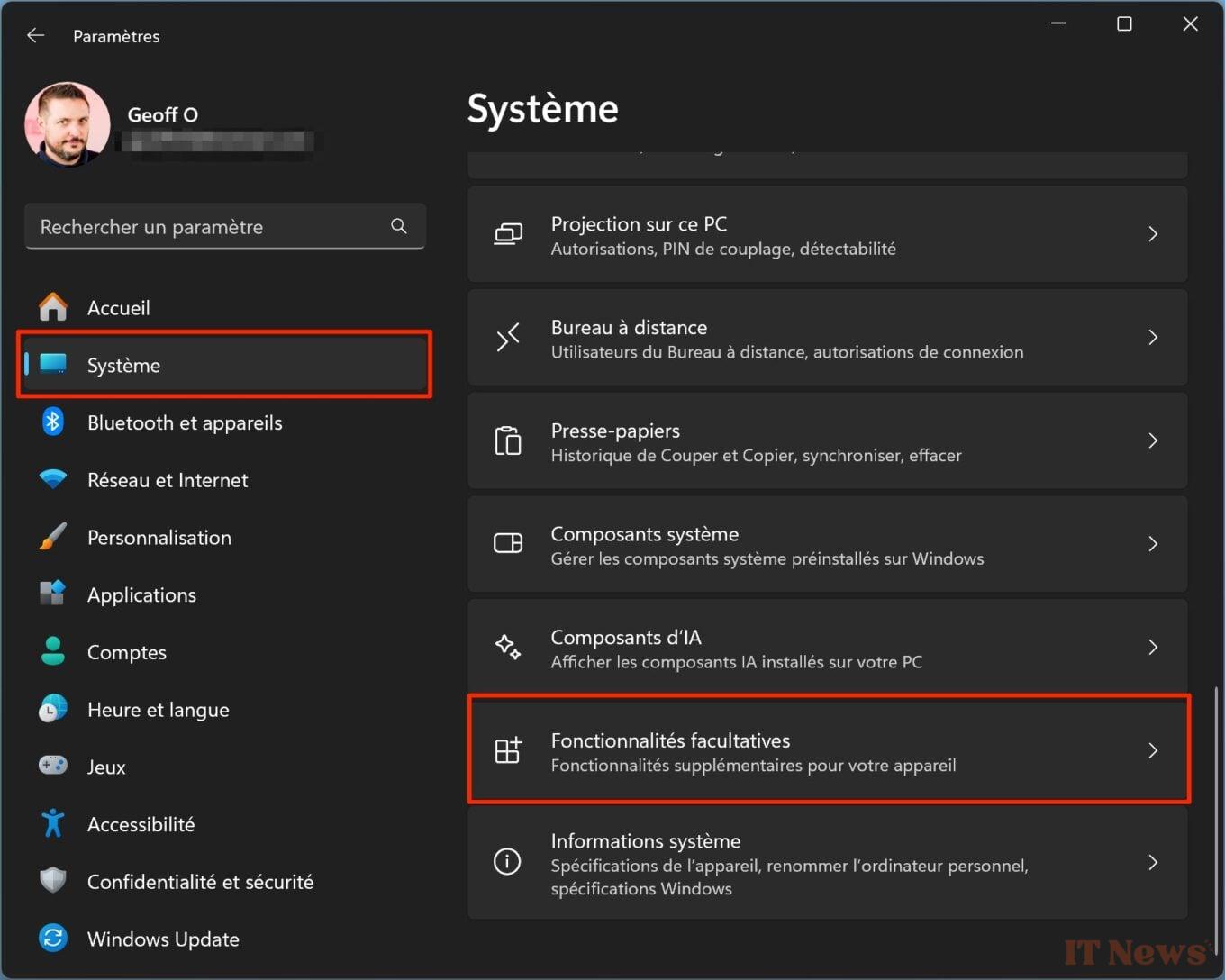
Start by opening Windows 11's Settings. To do this, you can use the keyboard shortcut Windows + i. Then select System in the left column, scroll through all the options, and enter the Optional Features menu.
2. Access other optional features
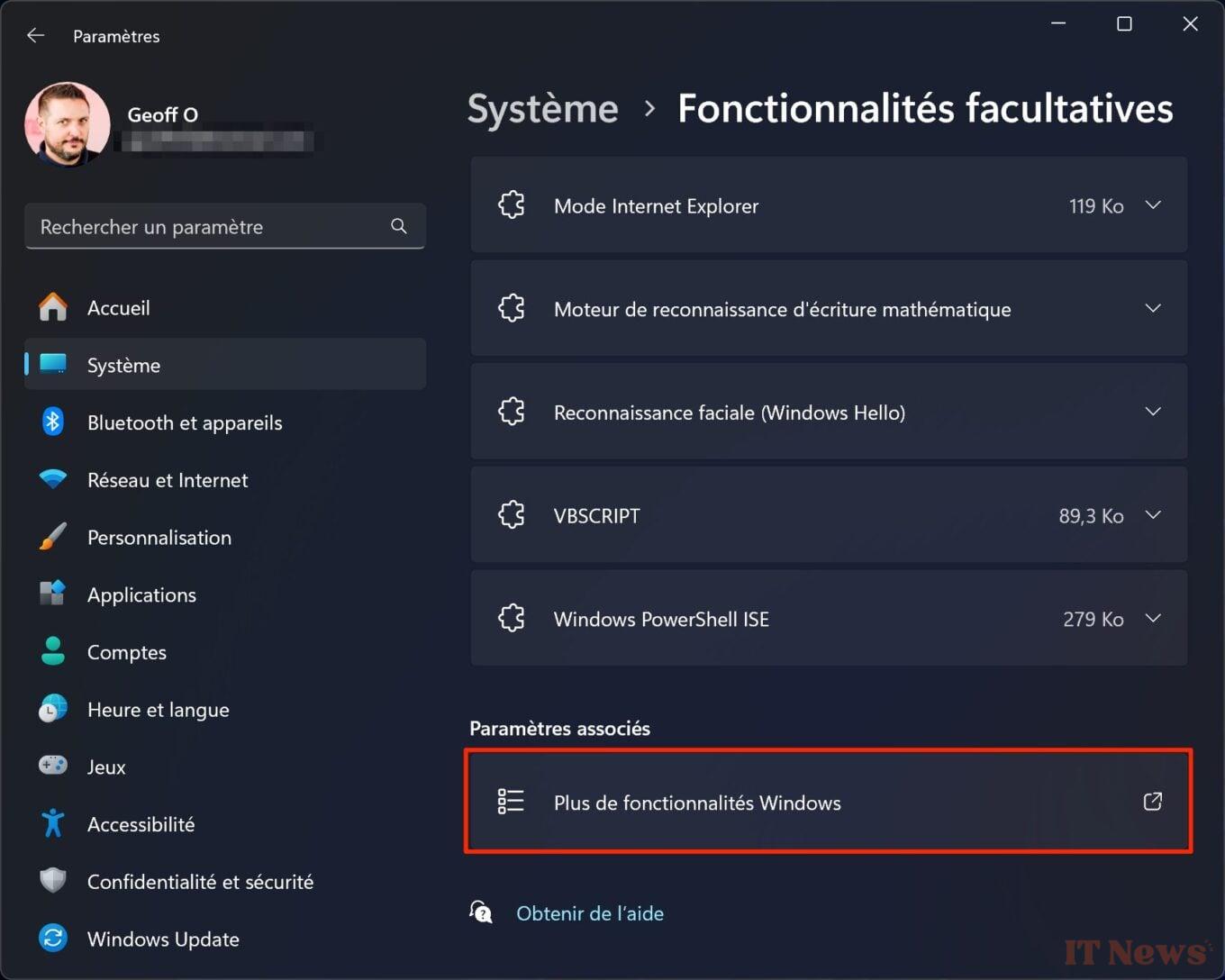
On the Optional Features page, scroll through all the options and click More Windows Features.
3. Disable Recall
A new Turn Windows features on or off window should now open. Scroll through the options, find the Recall line, and uncheck it. Then click OK to save your changes.
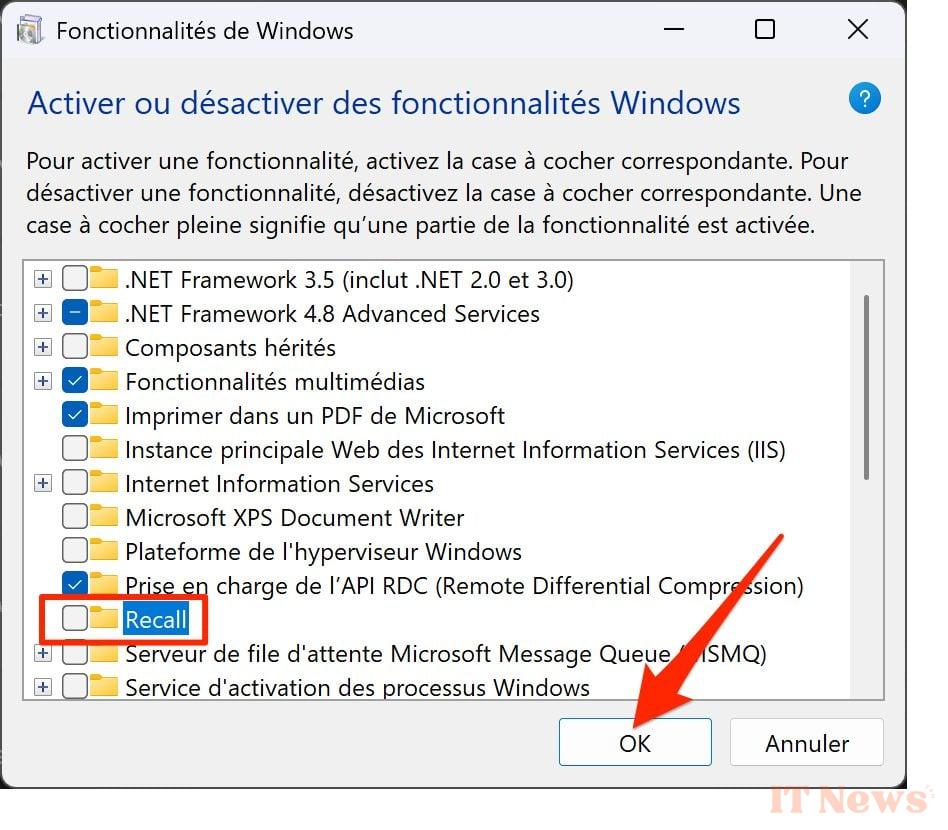
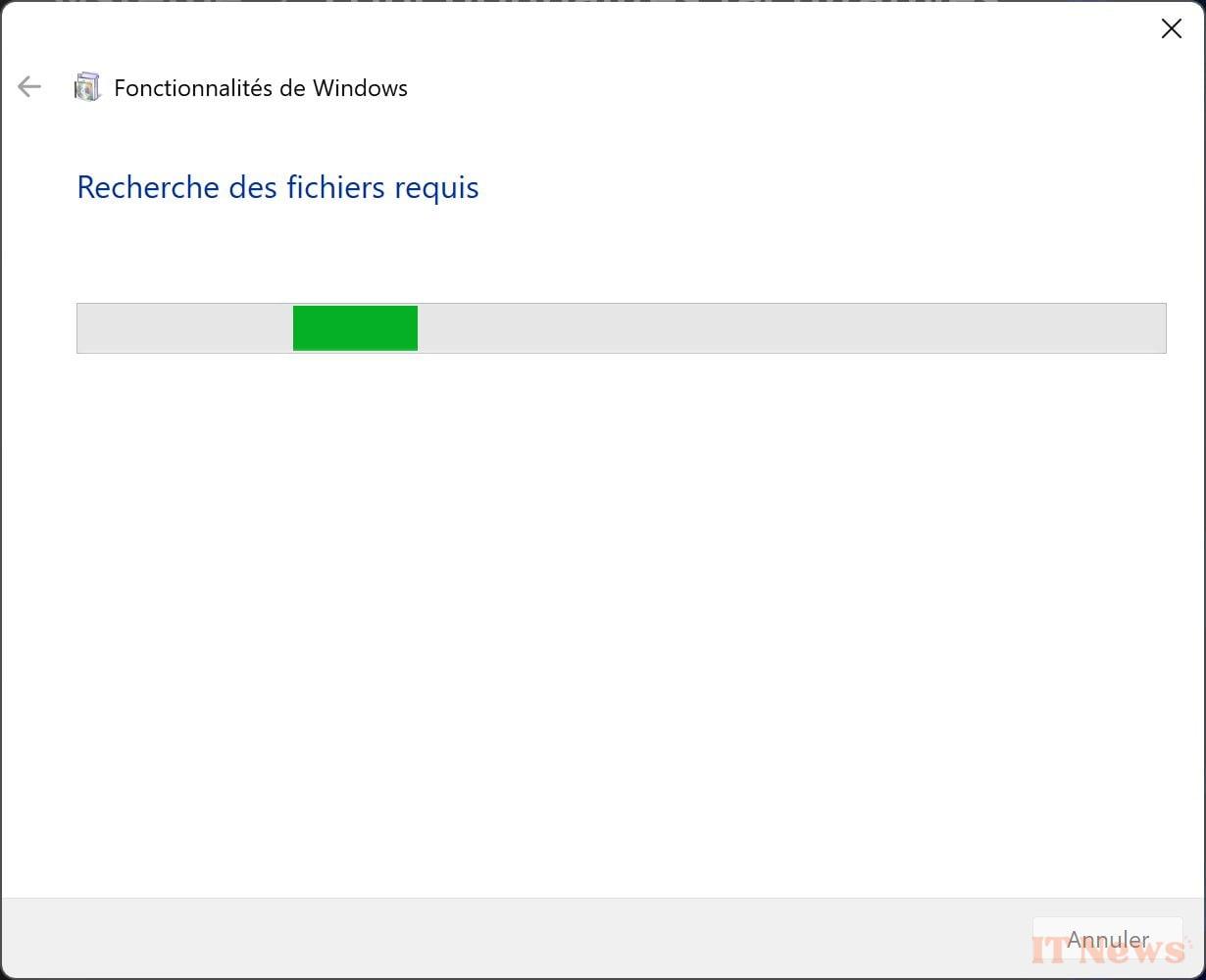
A new window should then appear saying Searching for required files. Wait a few minutes while Windows 11 deactivates Recall.
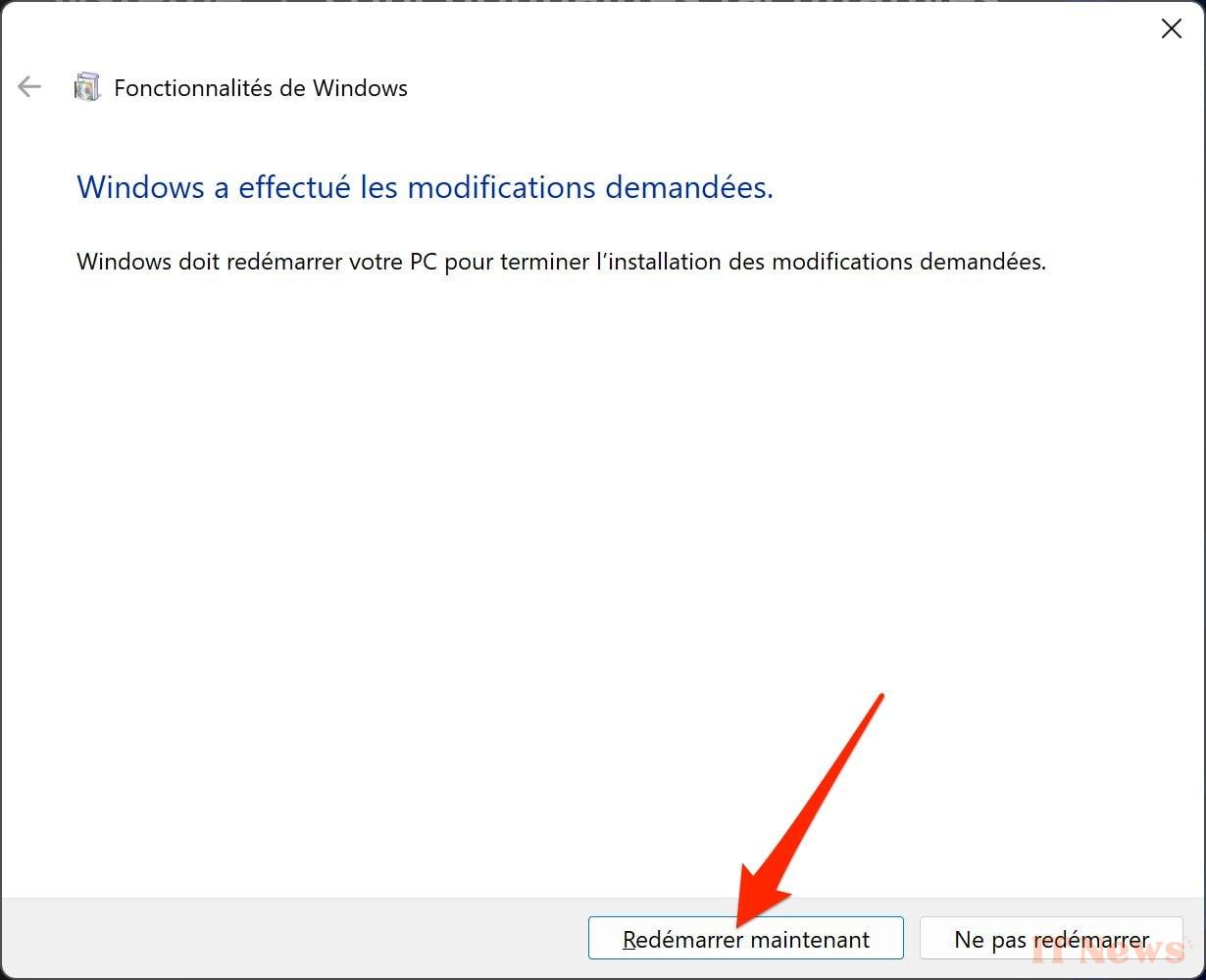
Finally, click the Restart Now button to restart your machine so that the changes are taken into account by Windows. After restarting your PC, there should be no mention of Recall in your computer's menus.


0 Comments